How to split a PDF and extract pages without uploading it
2026-05-01 · 6 min read · PDFTasker Team
Splitting a PDF is just page selection with a download button.
You have one long file. You only need pages 2, 5, and 9. Or you need pages 1-4 for one recipient and pages 12-18 for another. The job is small, but many online tools still start with the same demand: upload the whole document first.
Why should extracting three pages require sending every page to someone else's server?
This guide covers the plain workflow: choose the pages, export only what you need, check the result, and keep the original PDF on your side whenever browser-local processing is enough.
What does splitting a PDF actually mean?
PDF splitting is the process of taking one PDF and exporting part of it as a new file. That part can be a single page, a page range, or several separated ranges.
In practice, people use splitting for ordinary document cleanup:
- sending only the signature page from a signed packet
- pulling one invoice from a monthly statement bundle
- separating application forms from supporting scans
- removing blank scan pages before submission
- making a smaller file before sharing it by email
The useful idea is not "destroy the original PDF." Keep the original. Export a smaller copy.
That distinction matters. When you split PDF files in a browser-local workflow, the normal path is smaller: the page loads, your browser handles the document, and the extracted PDF downloads back to your device. No account is needed for the basic job. No server-side document queue is the default path.
If the job later changes, use the right next tool. Combine extracted sections with merge. Shrink a large output with compress. Clean metadata with sanitize before sharing outside the original context.
One tool does not need to pretend it solves every document problem. It just needs to do its part clearly.
Why upload-first split tools ask for more trust than the task needs
Upload-first tools can be useful when a team already works inside a cloud document system. That is a real workflow.
But for a one-off split job, uploading the whole PDF is often more than the task requires. You may only need two pages, yet the service receives the entire file. That can include IDs, notes, old pages, hidden attachments, scanned backs, or metadata you were not thinking about.
Now the question is no longer "which pages should I extract?" It becomes:
- where did the file go?
- how long is it kept?
- who can access processing logs?
- are backups involved?
- is deletion immediate, delayed, or just promised?
Maybe every answer is fine. Maybe not. The better default is simpler: do not create that trust problem unless you have to.
There is also a boring speed reason. Large PDFs upload slowly. Public Wi-Fi makes it worse. Some tools ask for signup after you wait. Some reject the file after upload because of size or page count.
Local processing is not magic. It is just a smaller route for a small job.
How to split a PDF in a browser-local workflow
The mechanics are simple. The mistakes usually come from page numbers, not software.
1. Open the original and identify the pages
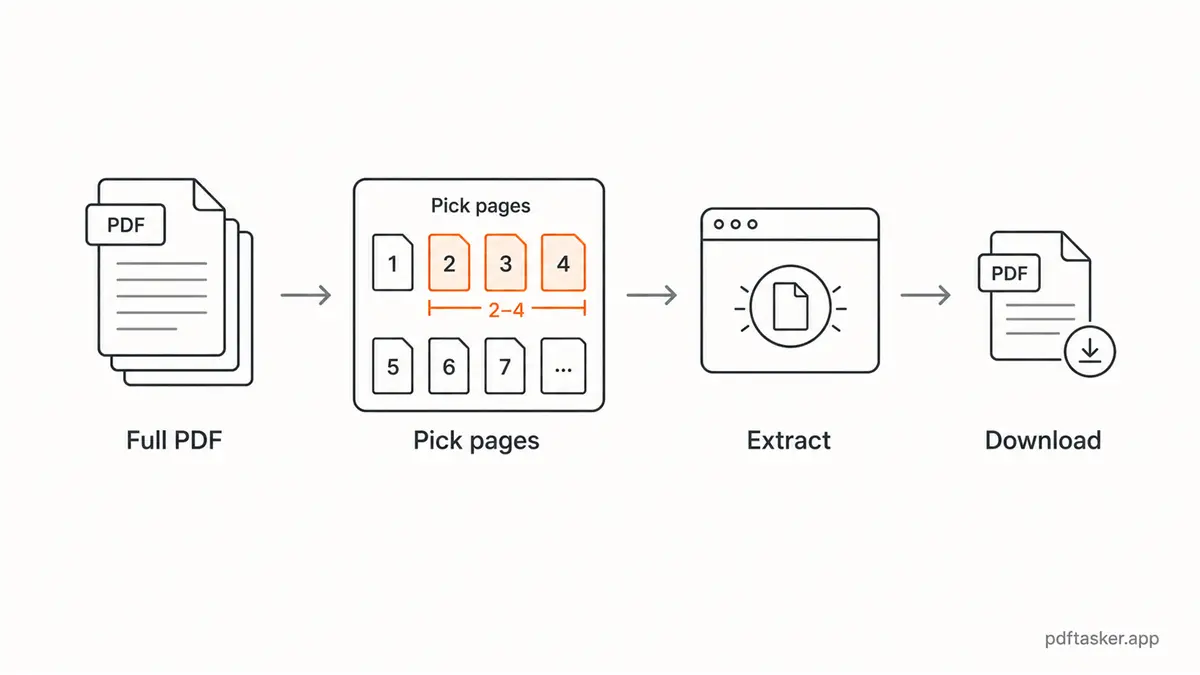
Before touching a split tool, open the PDF and write down the pages you actually need. Do not rely on memory. Long PDFs have cover sheets, blank scan pages, and appendix pages that shift the count.
If a form says "send pages 3-6," confirm whether that means the PDF page number or the printed page number. They are not always the same.
2. Use page ranges deliberately
Most split tools accept ranges such as:
1-3for the first three pages7for one page2,5,9for separate pages4-8,12-14for two blocks in one output
Write the range once, then read it back slowly. This is the document version of measuring twice and cutting once. Not glamorous. Useful.
3. Split the PDF in the browser
Open PDFTasker's split tool, choose the PDF from your device, enter the page range, and export the new file.
The normal workflow is browser-local. Your browser does the processing and gives you a downloaded output. That keeps the original file out of an upload queue for this job.
No tricks. Just a smaller default.
4. Check the output before sending it
Open the extracted PDF. Look for the ordinary errors:
- first page missing
- last page missing
- printed page numbers not matching PDF page numbers
- a blank scan page included by mistake
- one private page still attached
This is the dull step that saves the second email.
5. Decide whether the output needs a follow-up step
Splitting often creates a cleaner file, but not always a finished one.
If you extracted several sections and need one packet, use merge. If the file is still too large for a portal, use compress. If the output will be forwarded widely, consider sanitize so old author or app metadata does not tag along.
Small steps. Clear purpose.
Five checks before you share the extracted PDF
1. Does the new file contain only the requested pages?
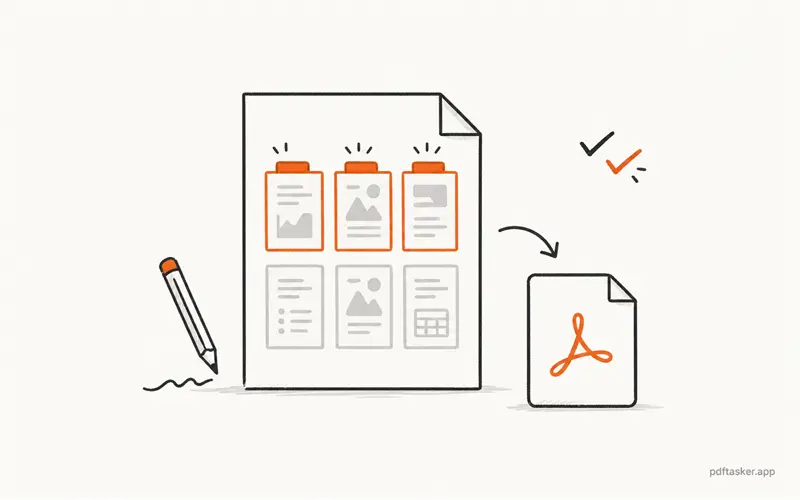
Open the output and count. Do not assume the range worked because the file downloaded.
Extra pages are not harmless. They can include old signatures, internal comments, account numbers, or pages meant for another recipient.
2. Did PDF page numbers and printed page numbers line up?
This is the classic split mistake. A PDF viewer may call the cover page "page 1," while the printed document starts numbering after the cover.
When in doubt, use the visual page preview and count from the start.
3. Is the file name clear?
Rename the extracted PDF before sharing it. document-pages-2-5.pdf is better than output.pdf.
If you will send several extracted files, use boring names:
contract-signature-page.pdfinvoice-march-page-3.pdfapplication-supporting-pages.pdf
Boring names reduce cleanup later.
4. Is the recipient expecting a PDF or a page image?
Some portals ask for a PDF. Some ask for a JPG or PNG scan. Do not convert unless the recipient requires it. Each conversion can change file size, text selection, or readability.
Keep the file in PDF form when PDF is accepted.
5. Does the sharing channel match the document?
Use the official portal when the document belongs there. Use email when email is required. Avoid making extra copies in chat apps because it feels quick.
Page extraction is supposed to reduce exposure, not create new places for the same document to sit.
That is the whole split workflow: identify pages, enter ranges, export, review, share only what is needed.
If you just need a few pages, split the PDF in the browser and keep the rest out of the trip.
PDFTasker
Split