How to add a watermark to a PDF without uploading it
A practical guide to adding text or image watermarks to a PDF in your browser, choosing opacity and page range, and understanding what watermarks can and cannot protect.
6 min read
PDF Watermark
Add text or image watermarks exactly where you need them.
Privacy
Your documents do not leave your device.
PDFTasker runs in your browser. No uploads. No server detour. No tricks.
Watermark guide
Load document
Load a document and adjust the watermark right in the preview.
Drop files here, or tap to choose them.
Document status
Load a document first.
Position
Tap or click the page to position the watermark. What you see is what gets applied.
Preview
The document preview will appear here
Enter text or choose a logo first. Then place it on the page.
Watermark content
Position and range
Watermark right on the document
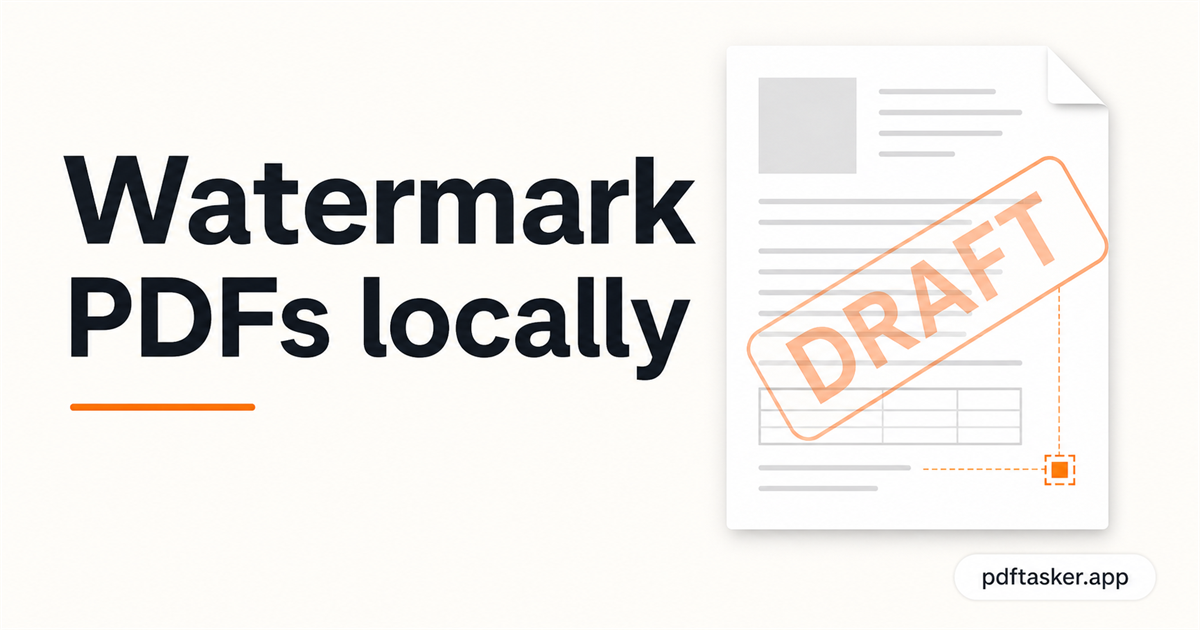
Mark a draft as DRAFT. Stamp ownership across a portfolio. Add CONFIDENTIAL before a document goes out. A watermark is a small touch with real consequences, so it helps to place it while watching the page — not blindly through an upload box. PDFTasker adds text or image watermarks in the browser with a live preview, and exports the marked PDF without the file ever leaving your device.
Privacy and trust
Position, opacity, angle, and page range all change how a watermark reads, so PDFTasker lets you set them against a live view of the actual page. The source PDF stays in the browser the whole time — useful when the document is a confidential draft or a client deliverable you are not ready to hand to a third-party server just to stamp a label on it.
How to use it
FAQ
Yes. You can add a text watermark or use an image watermark, depending on the document. Text is useful for labels such as draft, confidential, or internal review. Image watermarks work better for logos or stamps. Always preview opacity and placement before exporting inside the browser.
Yes. You can apply the watermark to the whole file, the first page, or a custom page range. This is helpful when only cover pages, appendices, or review copies need a mark. Check the exported file so the watermark lands on the intended pages only.
No. Preview and export both happen in the browser. The source PDF is read from your device, the watermark is applied locally, and the new copy downloads back to you. A simple watermarking task should not require placing the whole document in a server queue.
No. A watermark is a visible label, not access control. It can discourage misuse or make a copy easier to identify, but it does not encrypt the PDF or stop someone from sharing it. Use password protection when the file also needs an access barrier.
Open the exported file and check readability, opacity, page range, and placement. A watermark should not cover signatures, totals, QR codes, stamps, or key form fields. If the document will be printed, test a page first because screen opacity and print contrast can feel different.
No — the watermark sits as an overlay on the page, so the original text underneath stays intact, selectable, and searchable. Nothing in the source content is replaced or rasterized. The practical risk is visual rather than structural: an overly dark or dense mark can bury signatures, totals, and fine print when the page is printed or skimmed. Keep the opacity moderate, place the mark away from the densest content, and check one exported page at full zoom before applying it everywhere.
A determined person with a PDF editor can always work around a visible overlay, so be honest about what a watermark is for: a clear, persistent signal of status or ownership — DRAFT, CONFIDENTIAL, a client name — not tamper-proof protection. That signal still has real value, because it prevents honest mistakes like a draft being forwarded as final. For control rather than communication, pair the watermark with protect to add a password, and share the file through a channel you trust.
PDFTasker Blog
This site uses cookies to serve advertising. Your file processing stays fully local in your browser. Cookie Notice