How to sign a PDF without uploading it
2026-05-02 · 8 min read · PDFTasker Team
PDF electronic signing usually means adding a visible signature mark to a document and saving the signed PDF. In everyday work, that might be a drawn signature, a typed name, or an uploaded signature image placed on the right page.
That sounds small. It often is.
Then the document turns out to be a contract, an HR form, a school packet, a client approval, or a government application. Suddenly the simple task has a privacy problem: why should the whole PDF go to a signing website just so your name can appear in a box?
This guide covers the practical version: know what kind of signature the recipient expects, place a visible signature in the browser, review the final PDF, and avoid uploading the file when local processing is enough.
What signing a PDF actually means
The phrase "electronic signature" gets used for several different things. That is where confusion starts.
For many forms, signing a PDF means adding a visible signature mark to the document. The recipient wants to see your name, signature, initials, or date in the right place. A PDF editor places that mark on the page and saves a new copy.
That is different from a certificate-backed digital signature. A certificate signature can involve identity verification, cryptographic signing, validation data, and platform-specific audit records. If the recipient asks for that kind of signature, follow their required process.
For everyday paperwork, the visible-signature workflow is often enough:
- sign a consent form
- return a client approval
- mark a school or office document
- add initials to a page
- place a date beside a signature box
The important habit is to ask what the recipient expects before you sign. If they only need a visible mark, a browser-based PDF signature workflow can be the cleaner path.
Why upload-first signing tools are not always the right default
Many signing tools are built around accounts, emails, document routing, and server-side workflows. That makes sense for some business processes. It is more than you need for a simple "sign and send back" task.
Signed PDFs are not neutral files. They often contain names, addresses, contract details, ID numbers, salary details, medical information, or client data.
If the PDF goes to a server, you now depend on upload handling, storage policy, logs, backups, account controls, and deletion behavior. Maybe the service handles all of that well. Maybe you do not have time to check.
The smaller question is enough: if you only need to place a visible signature on a PDF, does the file need to leave your device?
PDFTasker is designed around browser-local processing. The site loads, your browser handles the PDF, and the signed file downloads back to your device. No account for the basic job. No normal server-side document queue.
Three signature inputs you may use
Different documents call for different signature marks. The method matters less than the final page being readable and placed correctly.
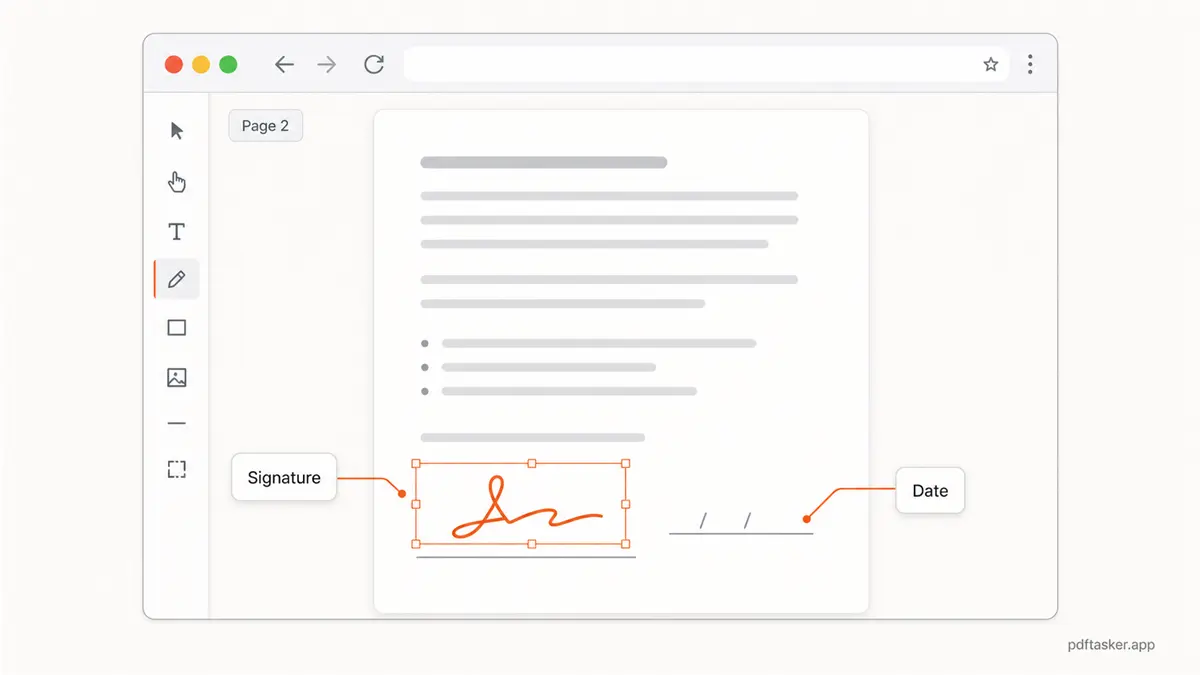
1. Drawn signature
A drawn signature works well when you want something close to a handwritten mark. Use a mouse, trackpad, stylus, or touch screen, depending on your device.
Keep the mark simple. If the line looks shaky, redraw it before placing it. A clean small signature is better than a large messy one.
2. Typed signature
A typed name is useful when the form accepts typed signatures or when you need a clear name instead of a handwritten mark. It is also easier to read on small or low-resolution documents.
Use it only when the recipient allows it. Some forms accept typed names. Others expect a drawn or scanned signature.
3. Uploaded signature image
An uploaded signature image is useful if you already have a clean signature file. Prefer a high-contrast image with a transparent or plain background.
Check the edges after placement. A signature image with a gray rectangle around it can make a formal document look careless.
How to sign a PDF in the browser
The basic workflow is straightforward. The part worth slowing down for is placement.
1. Keep an original copy
Before signing, keep the unsigned PDF somewhere safe. If you place the signature on the wrong page or need a different version later, you will want the original.
This is especially useful for contracts, forms, and documents that may go through more than one revision.
2. Open the signature tool
Open PDFTasker's signature tool and choose the PDF from your device.
The file is handled in the browser. That matters when the document contains personal or business information.
3. Choose the signature type
Pick the input that matches the document:
- drawn signature for a handwritten-style mark
- typed signature for clear name placement
- uploaded image when you already have a signature file
Do not overthink the method. Match the recipient's expectation first.
4. Place it on the correct page
Find the signature field, initials box, or date line. Place the signature where it belongs, then adjust the size.
Check the page number. This sounds obvious. It is also the easiest mistake to make in a long PDF.
5. Download and review the signed PDF
After saving, open the signed PDF in a normal PDF viewer. Do not trust only the tool preview.
Look at the final file the way the recipient will see it:
- signature is on the right page
- signature is not covering text
- name and date are readable
- all required fields are filled
- file opens normally
If the signed file becomes too large for email or a portal, use compress after signing and inspect the output. If the signed page needs to travel with other documents, use merge after the signed copy is ready.
Checks before sending a signed PDF
1. Is the signature in the right place?
Open the final PDF and check the exact page. If there are multiple signature lines, make sure the signature is in the field meant for you.
Initials and full signatures are not interchangeable on every form.
2. Is the mark readable?
A signature can be too small, too pale, or too large. It can also cover the text around it.
Make it readable without making it loud.
3. Did you add the date if required?
Many forms need a date beside the signature. Some also need printed name, title, company, or initials on separate pages.
The signature alone may not finish the document.
4. Should the signed PDF be protected?
If the PDF contains sensitive information and the recipient accepts protected files, consider protect after signing. Use the recipient's instructions first; some portals reject password-protected PDFs.
If the file has gone through several edits before sharing, sanitize can be a reasonable final cleanup step.
5. Does the document need a different mark?
Some documents need a visible signature. Some need a certificate-backed digital signature. Some need a platform-specific process. Some need a wet signature scanned back in.
Do not guess on high-stakes paperwork. If the recipient gave a required process, follow it.
Common mistakes to avoid
1. Signing the wrong version
Contracts and forms often arrive as final, final-v2, and final-revised. Keep the unsigned source and signed output clearly named.
Try names like:
agreement-unsigned.pdfagreement-signed.pdfapplication-signed-2026-05-01.pdf
Boring file names prevent avoidable confusion.
2. Placing a signature image with a box around it
If your signature image has a white or gray background, it may look like a pasted sticker. Use a cleaner image when possible, or draw/type the signature instead.
The goal is not decorative. The goal is legible and in the right place.
3. Adding unrelated marks
Do not add a watermark, date stamp, or extra note unless the document asks for it. If you do need a document mark, use watermark intentionally and keep the signed copy separate.
Signed documents should be boring in the best way.
That is the complete workflow: understand the required signature type, keep the original, place the visible mark in the browser, review the saved PDF, and send the version that matches the recipient's instructions.
If the job is just a visible PDF signature and the document does not need a special signing platform, keep it local and check the final file before sharing.
PDFTasker
Sign