How to merge PDFs without uploading them
2026-04-29 · 6 min read · PDFTasker Team
Merging PDFs sounds like a small job: take two or three files, put them in order, download one clean PDF.
Then many online tools ask you to upload every document first.
Why should a simple page-order task start by sending your files to someone else's server?
This guide walks through a quieter default: merge PDF files in the browser, review the result, and only share the final file when you actually need to.
What does PDF merging actually do?
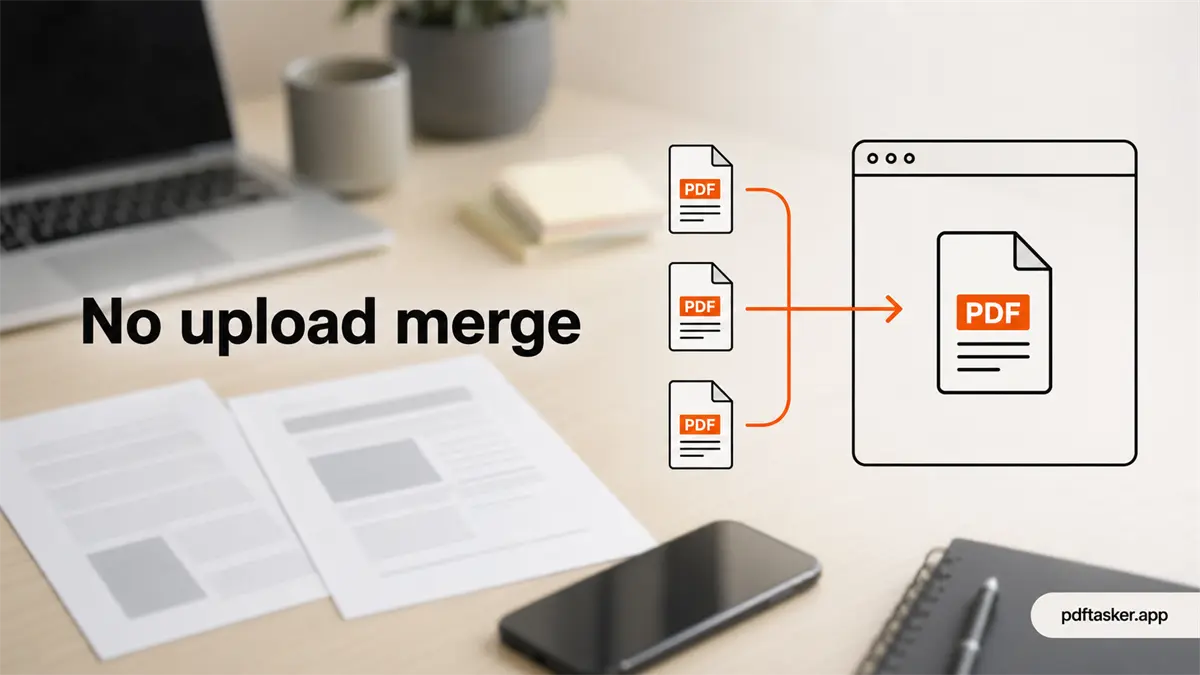
PDF merging is the process of combining multiple PDF files into one document. That is the whole idea. A cover letter plus a resume. A signed form plus an ID scan. Three invoices that need to travel as one attachment.
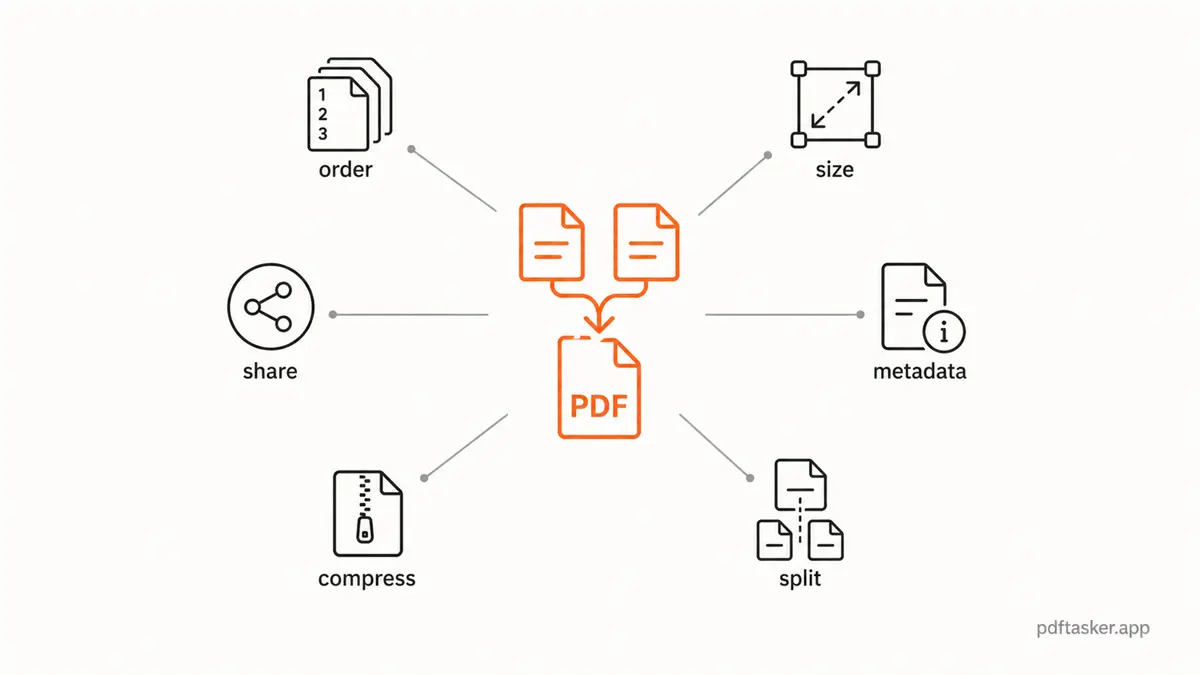
The important detail is order. A merge tool should let you place the files in the right sequence, review the pages, and download the combined result. If you need more control, the workflow usually branches into related tasks:
- use
/en-US/splitwhen you only need a few pages from a long file - use
/en-US/compresswhen the final PDF is too large for a form - use
/en-US/sanitizewhen metadata should be cleaned before sharing
That is why "merge PDF without uploading" is not just a privacy phrase. It is a workflow question. Where does the file go while the tool is doing the simple work?
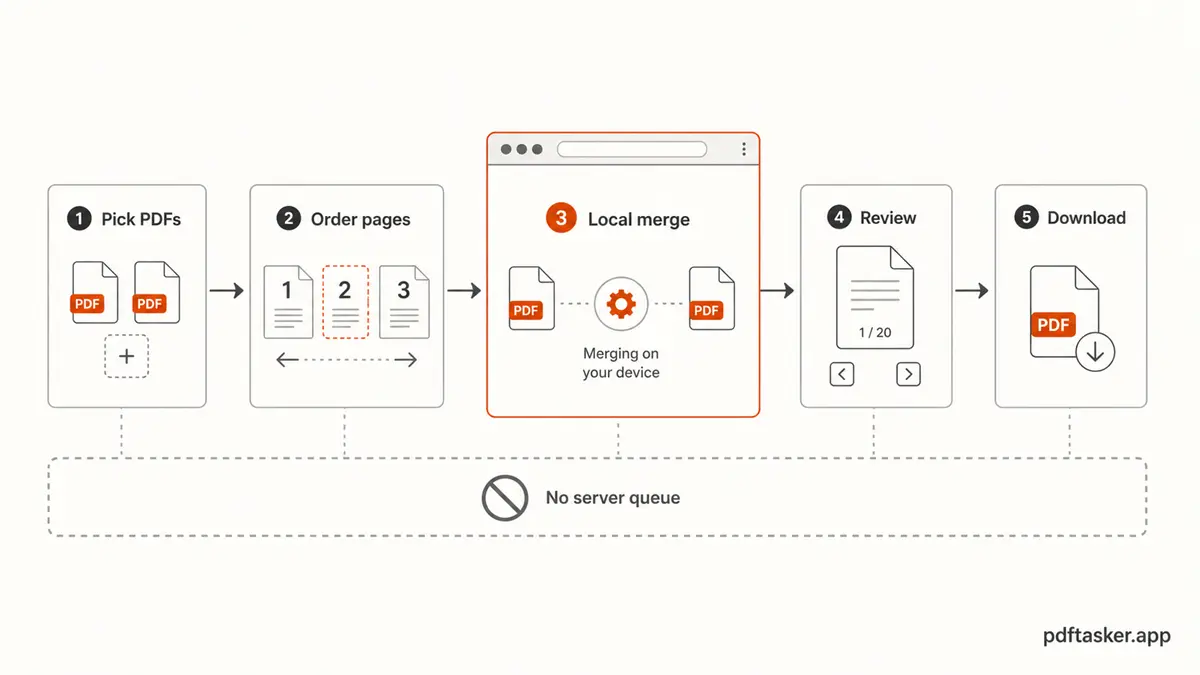
With PDFTasker, the normal path is browser-local processing. The page loads, your browser handles the files, and the output is downloaded back to you. No account. No server-side document queue as the default path.
No drama. Just fewer places for the file to be.
Why upload-first merge tools are often more than you need
Upload-first tools can be useful for some cloud workflows. But for a basic PDF merge, they ask for a lot of trust.
The moment you upload a PDF, the job is no longer just "combine these pages." Now you are also trusting the service's upload handling, retention policy, processing logs, backups, infrastructure, and deletion promise. Maybe all of that is fine. Maybe it is not. The point is simpler: you should not need that chain of trust for an ordinary merge job.
There is also a practical side. Uploading large PDFs can be slow. Some forms reject files after you have already waited. Some tools place limits behind signups. Some convert the task into a funnel before you even see the result.
For local files, local processing is a smaller default.
How to merge PDFs in a browser-local workflow
The mechanics are simple, but doing them in the right order saves cleanup later.
1. Put the source files in one folder
Before opening any tool, collect the PDFs you plan to combine. Rename them if needed:
01-cover-letter.pdf02-resume.pdf03-portfolio-samples.pdf
Good file names make page order boring. Boring is good here.
2. Open the merge tool
Go to /en-US/merge and select the PDFs from your device. If the files are sensitive, pause for one second before picking a random website from search results. You are not being paranoid. You are just checking where the file goes.
3. Arrange the order
Most merge mistakes are not technical. They are order mistakes.
Put the files in the sequence the recipient expects. If a form asks for proof first and explanation second, follow that. If you are combining scanned pages, check front and back pages before download.
4. Review the merged result
Open the downloaded PDF before sending it. Look for:
- missing pages
- duplicate pages
- blank scan pages
- upside-down pages
- the wrong version of a file
This is dull work. It is also where most avoidable submission problems get caught.
5. Decide whether the file needs a follow-up step
Merging is sometimes the end. Sometimes it is just step one.
If the final file is too large, run it through /en-US/compress. If you included pages you did not need, go back and use /en-US/split first. If the PDF will be published or reused outside the original recipient, consider /en-US/sanitize to remove metadata.
One tool does not need to pretend to solve every document problem. The right workflow is usually a few small steps.
Five checks before you send the merged PDF
1. Does the file contain only what was requested?
Do not add extra IDs, old contracts, or unrelated pages because they were nearby in the folder. More pages do not make a file look more complete. They make it easier to leak something.
2. Is the order obvious?
The recipient should not need to guess. Put the cover page first if there is one. Put supporting documents after the main document. Keep scan fronts and backs together.
3. Is the file size acceptable?
Portals often reject large files without explaining much. If the merged PDF is too big, compress it before submission. Do not wait until the last upload screen to find out.
4. Does metadata matter here?
For ordinary one-to-one submissions, metadata may not be a major concern. For files that will be forwarded, published, or reused, it is worth cleaning. Author names, app names, and edit history can sit in a PDF longer than you expect.
5. Are you using the right channel?
Email, application portal, client system, official form. Pick the required channel and stop there. Creating extra chat copies because it feels quick is how simple admin work gets messy.
That is the whole merge workflow: collect, order, review, download, send only what is needed.
If the job is just combining PDFs, use the browser-local merge tool and keep the file on your side of the line.
PDFTasker
Merge