How to compress a PDF without losing quality
2026-04-30 · 6 min read · PDFTasker Team
The file is ready. Then the portal says it is too large.
Not a grand technical crisis. Just a PDF that needs to fit under a limit without turning the text into mush.
Compressing a PDF is not magic. It is a set of small tradeoffs: images, scans, fonts, unused data, and the amount of detail the final file still needs to keep. The useful goal is not "make it tiny at any cost." The useful goal is smaller and still readable.
This guide walks through that calmer version: reduce the PDF size in your browser, check the output, and avoid uploading the whole document when local processing is enough.
First, figure out what is making the PDF large
Before you compress anything, spend one minute asking what kind of PDF you have. That sounds fussy. It saves time.
Most large PDFs fall into a few plain groups:
- text-first documents with embedded fonts
- scanned documents where every page is a large image
- slide decks exported as PDFs
- image-heavy portfolios or catalogs
- forms that carry extra attachments or metadata
Each one compresses differently. A text-first PDF may shrink a little without much visible change. A scanned PDF can shrink a lot, but readability depends on how far you reduce image detail. A portfolio can get smaller quickly, but product photos may suffer if you push too hard.
So the first move is simple: open the PDF and look at three pages. One text page. One image-heavy page. One page with small details, tables, or signatures.
That is your quality baseline.
If the file has pages you do not need, start with split. Removing unnecessary pages is cleaner than crushing every page harder. If you have several smaller files that need to travel as one packet, use merge after you trim them.
Small steps beat blind compression.
Why upload-first compression is often more than you need
Online compression tools often start with an upload box. That can be fine for throwaway files. It is less comfortable for contracts, ID scans, statements, application packets, and client documents.
Compression is not just a size problem. It is also a trust problem. If the whole file goes to a server, you now depend on upload handling, temporary storage, logs, backups, and deletion policy.
Maybe that service handles everything well. Maybe it does not. The point is smaller: reducing a file from 12 MB to 4 MB should not automatically require sending the file away.
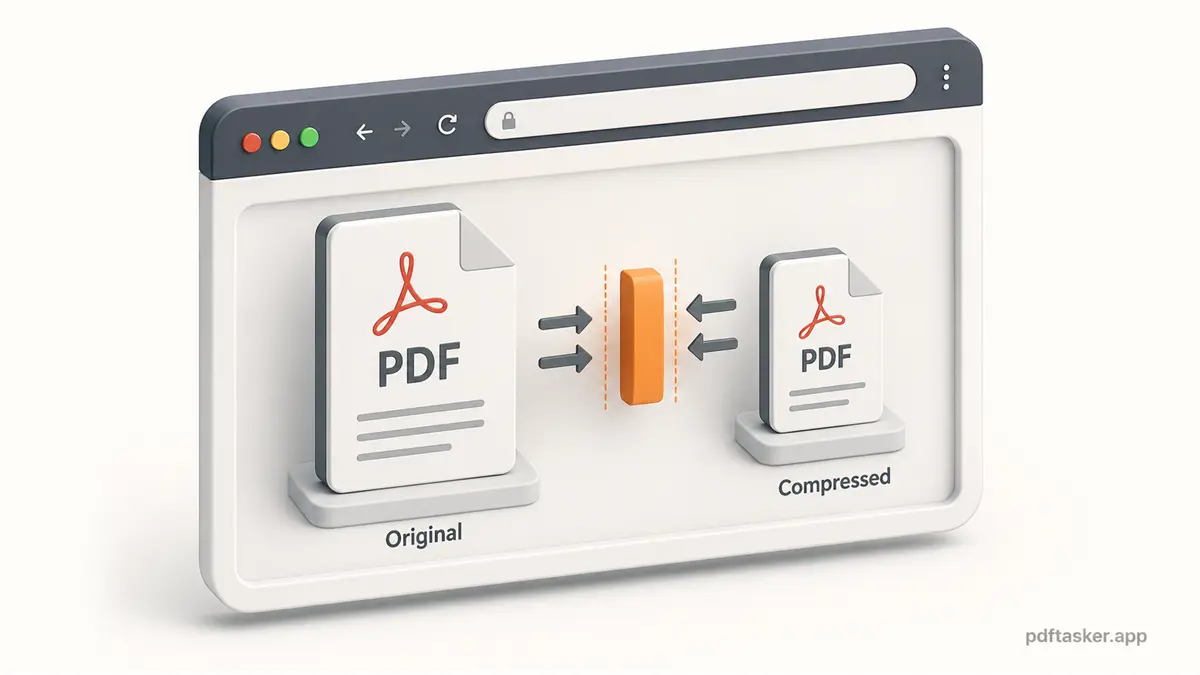
With a browser-local workflow, the website loads, your browser handles the file, and the compressed output downloads back to your device. PDFTasker is designed around that route. No account for the basic job. No server-side document queue as the normal path.
A small workflow for compressing a PDF
You do not need a perfect compression theory. You need a repeatable way to try, check, and stop before the document gets ugly.
1. Check the actual limit
Write down the upload limit before you start. Some portals ask for 10 MB. Some ask for 5 MB. Some email systems complain around attachment limits.
Do not aim for the smallest file in the room. Aim for the file that fits the limit with a little margin.
2. Try a moderate compression first
Open PDFTasker's compress tool, choose the PDF from your device, and start with a moderate setting when one is available.
That first pass should answer a simple question: can the file fit without obvious damage?
If yes, stop. Really. More compression is not a badge.
3. Inspect the pages that can break
Open the compressed file and check:
- small text
- signatures
- barcodes or QR codes
- stamps
- tables
- scanned pages with faint ink
- photos where detail matters
Zoom to 100 percent first. Then zoom in a little. If the recipient will print it, check print-like readability, not just screen readability.
4. If it is still too large, reduce the problem
If the file still misses the limit, do not immediately push compression to the harshest setting. Ask what can be removed.
- Extra pages? Use split.
- Several files mixed together? Compress them separately, then merge if needed.
- Old metadata? Use sanitize before sharing.
- Sensitive document? Consider whether protect belongs in the workflow after compression.
Compression is one tool. It is not a punishment for a messy document.
5. Rename the final file clearly
Use a name that tells you what happened:
application-compressed.pdfcontract-signed-compressed.pdfinvoice-march-under-5mb.pdf
Boring names help later. That is usually the point.
Five checks before you send the compressed PDF
1. Is the text still readable?
Look at the smallest text in the file. Footnotes, table labels, form instructions, and scanned stamps are the first places compression damage shows up.
If a reader has to guess, you went too far.
2. Are signatures and stamps still clear?
Many official PDFs depend on a signature, stamp, barcode, or QR code. Check those before sending. A smaller file is not helpful if the proof becomes hard to read.
3. Did the file actually get under the limit?
Check the file size after compression. Do not assume. Some PDFs are already optimized and will not shrink much.
If the result is only slightly smaller, the file may need page cleanup instead of more compression.
4. Is this the right version?
Compression often creates multiple downloads. Delete or archive the wrong attempts so you do not send final-final-compressed-2.pdf by accident.
No one needs that little drama.
5. Does the document still belong in this channel?
If the PDF contains private information, send it through the required channel and stop there. Do not create extra copies in chat apps just because the file is now small enough.
Compression solves size. It does not solve sharing judgment.
That is the whole workflow: know the limit, compress once, inspect the hard pages, clean up only what needs cleaning, and send the smallest file that still does the job.
If your PDF only needs to fit without leaving your device, compress it in the browser and check the result before sharing.
PDFTasker
Compress