How to add a watermark to a PDF without uploading it
2026-05-19 · 5 min read · PDFTasker Team
"Can you send a draft, but mark it clearly?"
"Please add our logo before this goes to the client."
"Make sure nobody confuses this with the final version."
Those requests sound small. Then the PDF is a proposal, contract, invoice packet, training handout, design proof, or internal report.
The question is not whether a watermark looks official.
The question is simpler: what job is the watermark supposed to do?
What a watermark can actually do
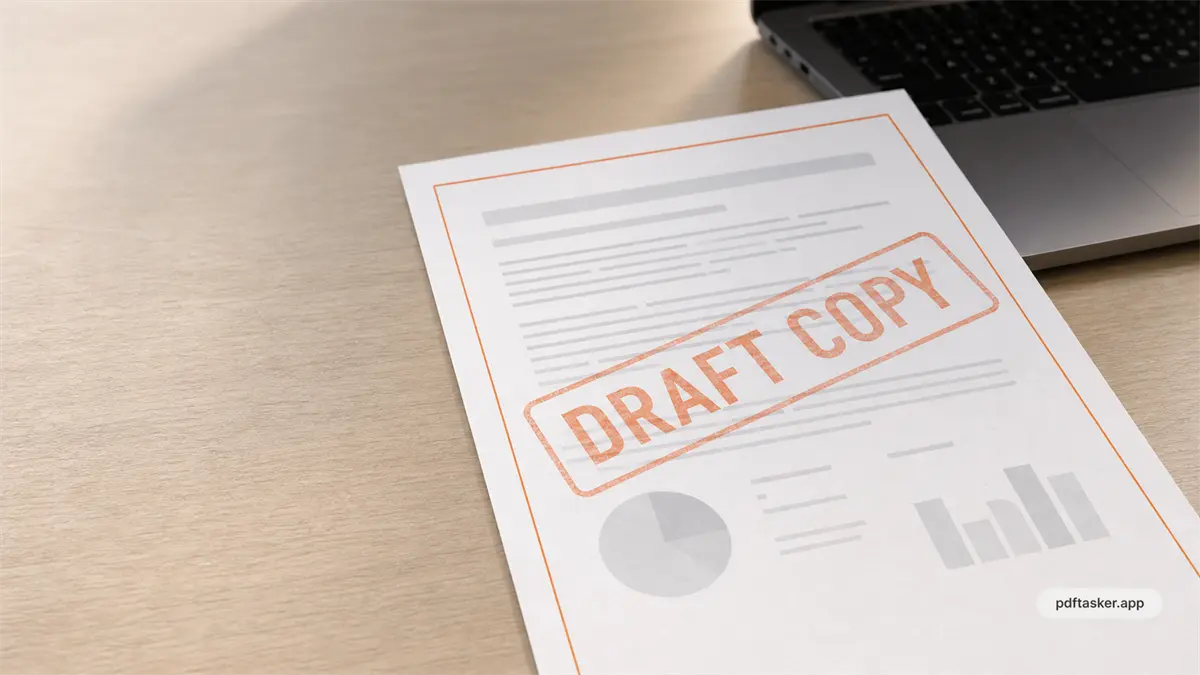
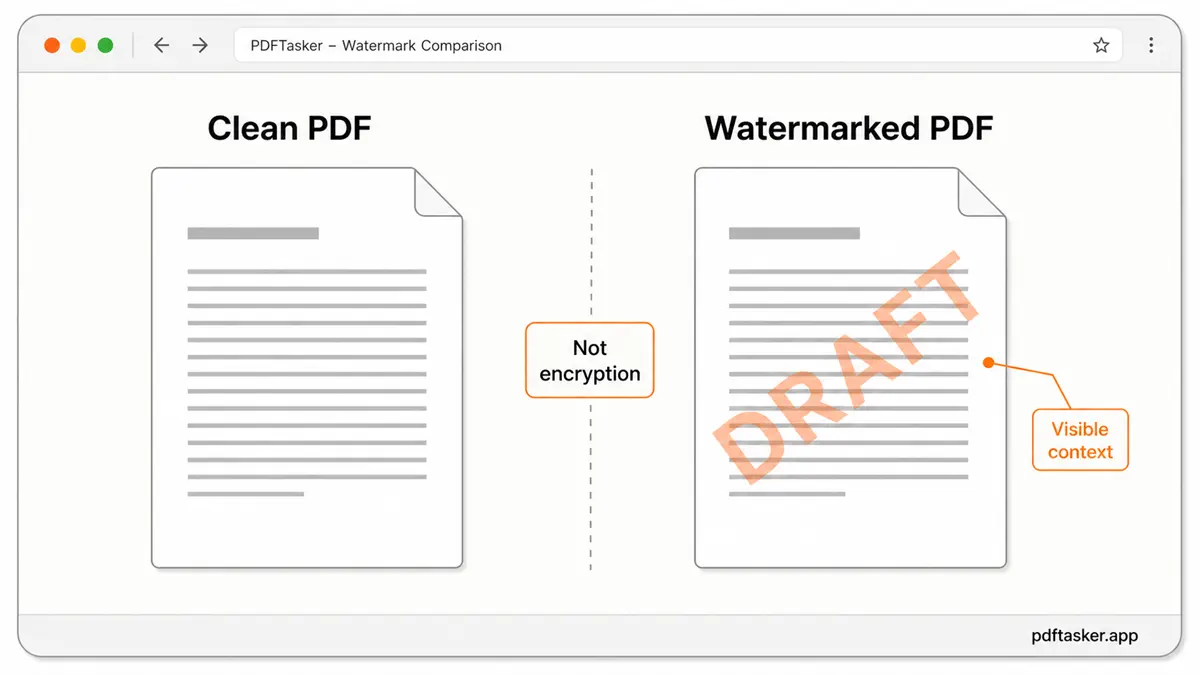
A PDF watermark is a visible mark placed over or behind the page content. It can be text, like DRAFT, CONFIDENTIAL, or REVIEW COPY. It can also be an image, like a logo or stamp.
That is useful.
It is not magic.
A watermark can tell a reader how to treat a document. It can make draft status obvious. It can show ownership context. It can reduce accidental reuse when someone forwards the wrong file.
But it does not stop copying. It does not stop screenshots. It does not replace encryption, access control, document rights management, or legal advice.
This distinction matters because many teams use watermarks for the wrong job. They want protection, but they add a label. The label may still help. It just should not be asked to do work it cannot do.
Three watermark mistakes that create rework
Most watermark problems are not design problems. They are workflow problems.
Pattern 1. "The watermark will protect the file"
It will not.
A visible watermark can discourage casual misuse and make status clear. It cannot prevent someone from saving, copying, printing, screenshotting, or editing a PDF with other tools.
If the file is sensitive, the watermark is one layer of communication. It is not the lock.
Pattern 2. "Any opacity is fine"
Opacity decides whether the watermark helps or gets in the way.
Too dark, and the page becomes hard to read. Too faint, and nobody notices it. A draft stamp across a contract can be useful. A logo covering table numbers is not.
The practical baseline is boring: readable page first, visible mark second.
Pattern 3. "Every page needs the same mark"
Sometimes yes. Often no.
A full-document DRAFT mark may make sense for review copies. A logo may belong on every page of a handout. But a "sample" mark might only need the first page, and a client note may belong near a specific section.
Watermarking every page by default is easy. Reviewing the page range is better.
A practical browser watermark workflow
The workflow is short. The review matters more than the clicks.
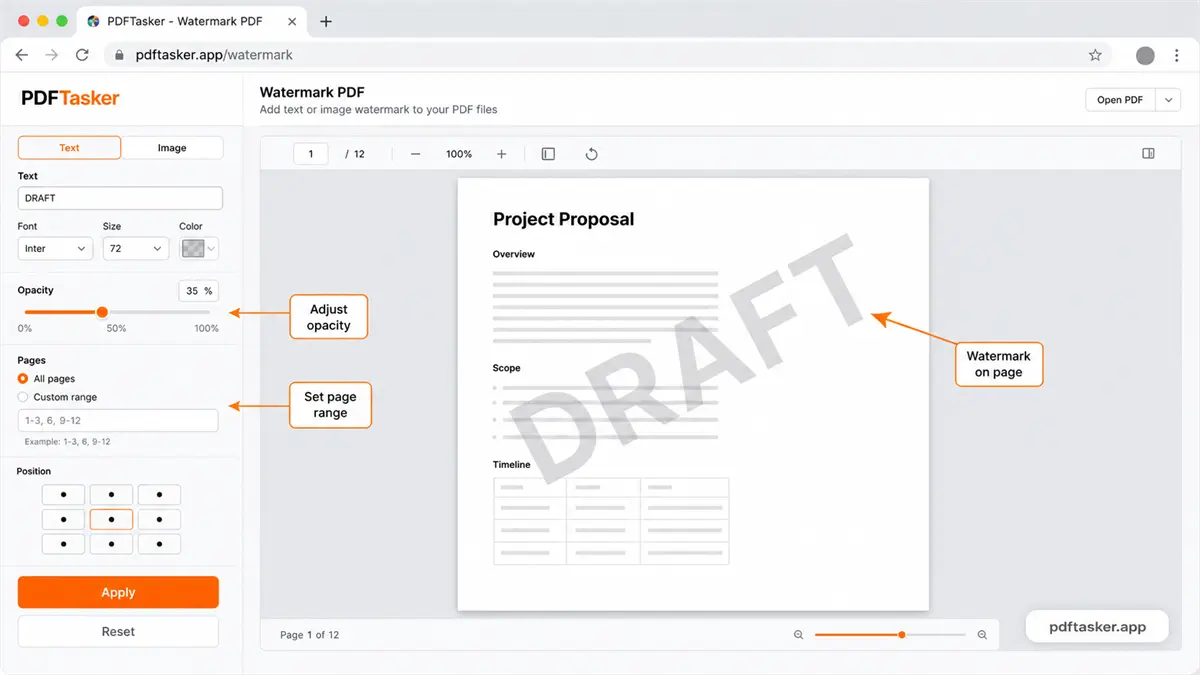
1. Choose text or image
Use text when the message is the point: DRAFT, CONFIDENTIAL, SAMPLE, INTERNAL USE.
Use an image when the mark is brand or source context: a logo, approval stamp, or prepared-for mark.
Do not use a logo when plain text would be clearer. It is a document, not a poster.
2. Set placement and opacity
Center placement is common for draft status. Corners can work for ownership or source marks. Diagonal placement can be useful when the mark must stay visible across different page layouts.
Opacity is the main control. Start lighter than you think, then open the output PDF and check a real page.
3. Choose the page range
Apply the watermark to all pages only when every page needs it.
For cover notes, samples, or section-specific context, target the relevant pages. A mark that appears in the wrong section creates questions later.
4. Download and open the result
PDFTasker is designed around local browser processing. The site loads, your browser handles the file, and the result downloads back to your device. No normal server-side document queue for this watermark task.
After export, open the new PDF in a regular viewer. Do not trust the editor preview alone.
If the watermarked file is too large for a portal, run compress once and inspect the output. If the file needs a visible approval mark as well, signature is a separate task. If you need to combine supporting PDFs, use merge before the final watermark pass.
Checks before you send the watermarked PDF
Use this final pass. Not because watermarking is complicated. Because small document mistakes travel quickly.
1. Readability
Open a dense page, not only the cover. Tables, footnotes, stamps, and small print are where bad opacity shows up.
If the page is harder to read, lower the opacity or move the mark.
2. Page range
Check the first page, a middle page, and the last page. If the PDF has sections, check one page from each section.
Wrong-page watermarks are easy to miss in a long document.
3. Message
Make sure the wording matches the file state. DRAFT means draft. CONFIDENTIAL means you are prepared to treat the file that way. SAMPLE should not appear on a final invoice.
The mark is small, but it sets expectations.
4. File name
Use plain names:
proposal-draft-watermarked.pdftraining-handout-internal.pdfsample-report-client-review.pdf
Boring file names prevent the most boring support messages.
That is the operating rule: use watermarks for visible context, not imaginary security.
If all you need is a text or image watermark on a PDF, keep the file in the browser, check the output, and send the right version.
PDFTasker
Watermark