How to Convert a Scanned Document to PDF Using Your Phone
2026-05-24 · 3 min read · PDFTasker Team
I got rid of my dedicated scanner two years ago. I did not miss it. My phone camera takes better photos of documents than any flatbed scanner I owned — sharper, faster, and I always have it with me.
The only friction left was format. A photo is a JPEG. Most official submissions, email attachments, and form uploads want a PDF. Bridging that gap takes about ten seconds.
Your phone camera is already good enough
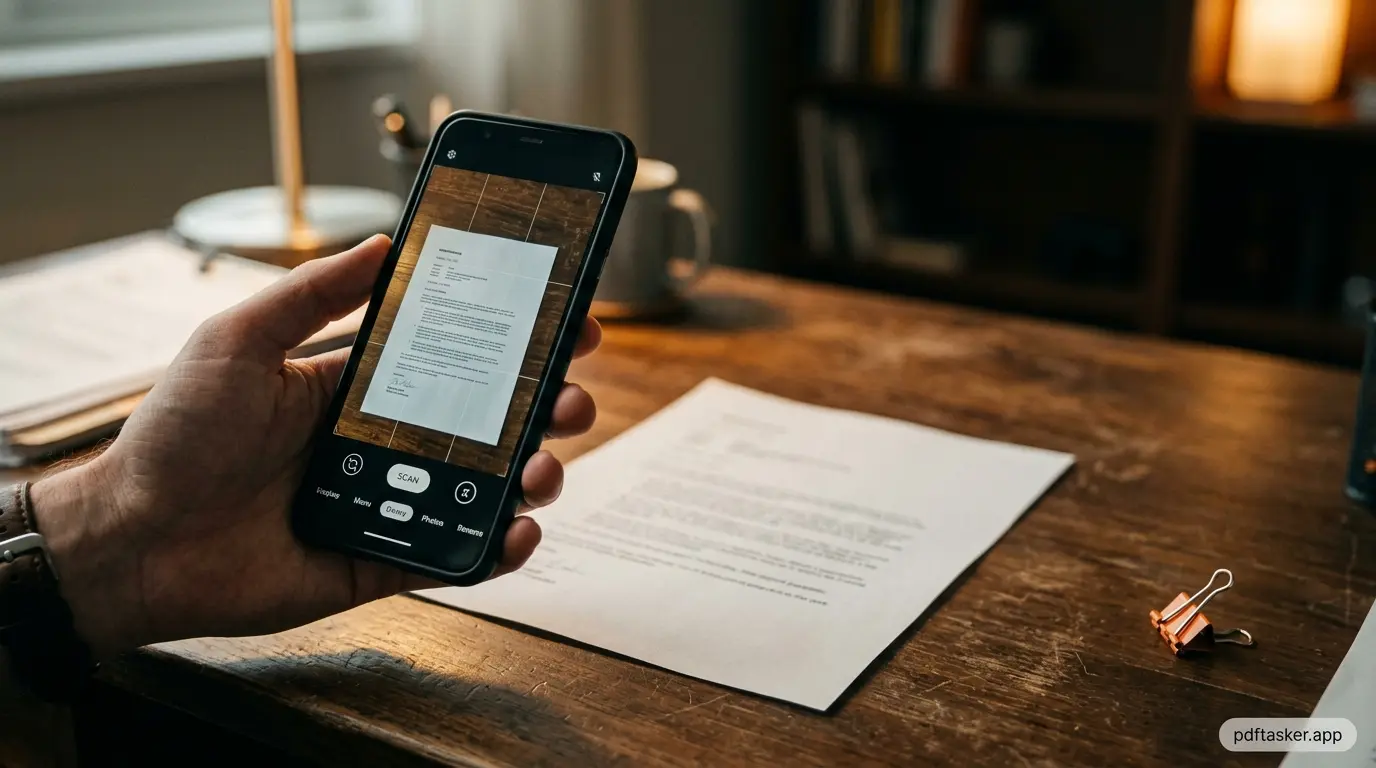
Modern phone cameras shoot at 12 to 50 megapixels. A standard document scanner runs at 300 DPI for print-quality output. At typical reading distance on a screen, 96 DPI is sufficient. Your phone at arm's length over an A4 sheet produces well above 300 DPI equivalent.
The practical test: photograph a typed document, zoom in to 200%, and read the text. If it is sharp, the resolution is fine for any PDF use case — forms, invoices, contracts, certificates.
The one thing that matters is lighting. Even exposure, no hard shadows across the text, and the phone held level above the page. Everything else takes care of itself.
The gap between a photo and a PDF
A phone gives you a JPG or PNG file. Most submission systems, email clients, and document platforms expect a PDF. The file types are not interchangeable — a JPG is a single compressed image, a PDF is a container that can hold pages, layers, metadata, and compression settings independently.
Converting a JPG to PDF is not the same as renaming the file. The conversion wraps the image in a proper PDF structure, sets the page dimensions to match the image, and produces a file that opens correctly in any PDF viewer.
How to convert your photo to PDF
Three steps.
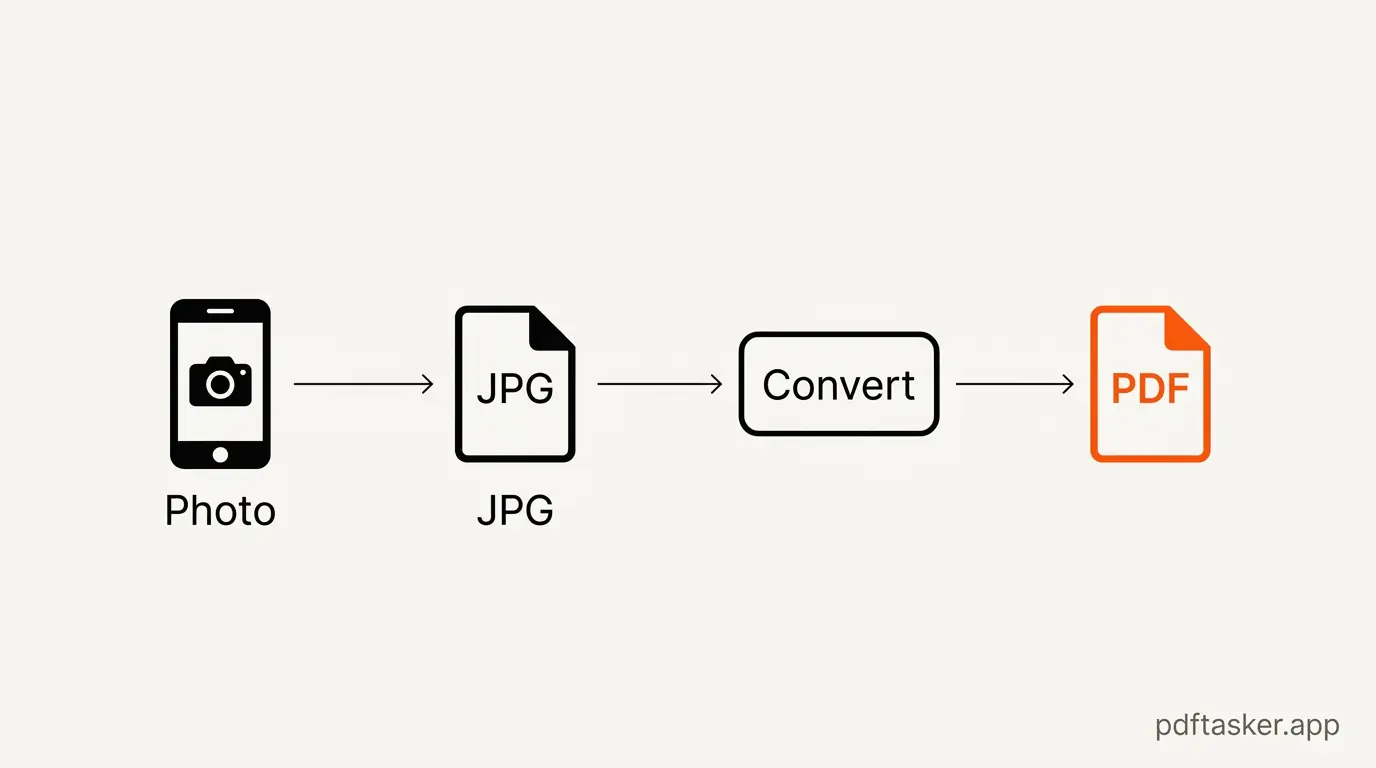
1. Open the converter. Go to PDFTasker /jpg-to-pdf. No account needed.
2. Upload your photo. Drag the JPG or PNG file, or tap to browse your camera roll. The file processes entirely in your browser. Nothing is sent to any server. Your document stays on your device.
3. Download the PDF. The output appears in seconds. Click download. That is it.
The result is a properly formatted single-page PDF at the same resolution as your original photo. Ready to attach, submit, or print.
Combining multiple pages into one PDF
One scanned page converts in one step. For a multi-page document — a three-page contract, a five-page report — you need all photos merged into a single PDF.
The process is the same, but you upload multiple files at once. PDFTasker /jpg-to-pdf accepts multiple JPG or PNG files in a single drop. The order in the file picker becomes the page order in the output PDF.
A few things that help when scanning multiple pages:
- Number the pages in your mind before you start — it is easier to re-shoot one page than to reorder after.
- Keep the phone at the same height and angle for every shot. Consistent framing makes the final document look intentional, not improvised.
- A white or light-colored desk surface behind the document gives the best contrast.
The output is one PDF, all pages in order, ready to send.
PDFTasker
/jpg-to-pdf
If the resulting file is too large for an email attachment, the same browser-based approach works for compression — and nothing leaves your device there either.