How to Convert a Scanned Document to PDF Using Your Phone
Your phone camera already takes better photos than most flatbed scanners. Here is how to turn that photo into a PDF in about ten seconds, without installing anything.
6 min read
Image to PDF
Turn a pile of images into one PDF. No extra nonsense.
Privacy
Your documents do not leave your device.
PDFTasker runs in your browser. No uploads. No server detour. No tricks.
Image to PDF guide
Load document
Add images. The PDF will follow the order you see here.
Drop image files here, or tap to choose them.
Image queue
Total size: 0 B
No images yet. Add at least one to continue.
Run locally
The browser handles the conversion. No server involved.
Turn images into a PDF
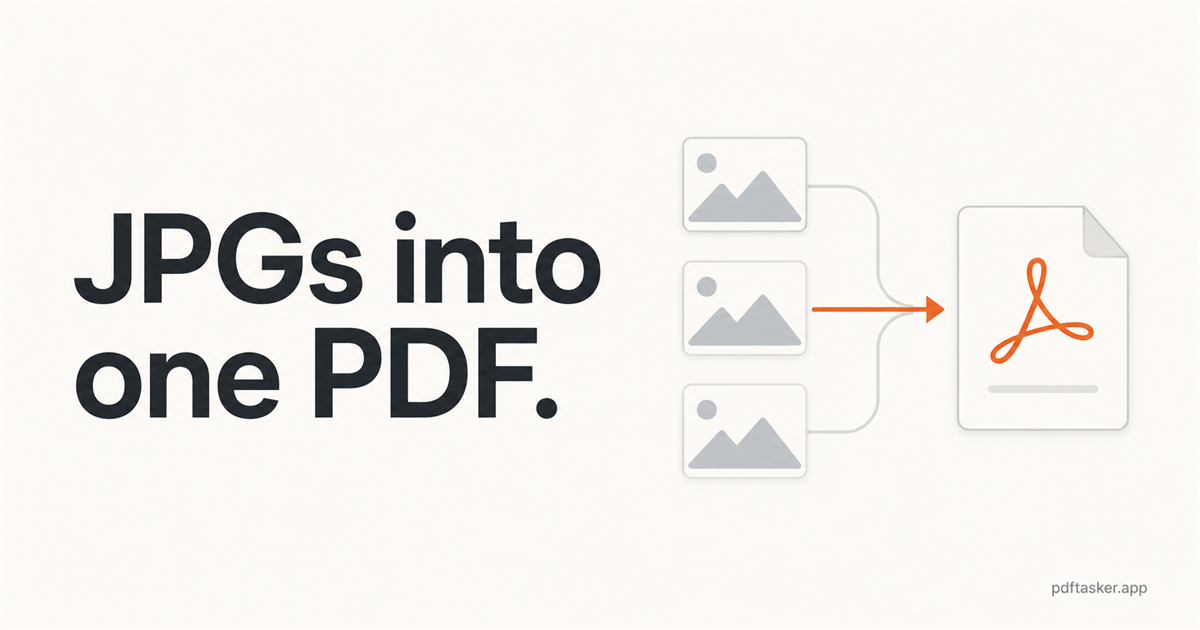
Phone photos of receipts. Scanned pages saved as images. A set of design exports that need to travel as one document. Turning JPGs and PNGs into a single PDF is a common last step, and it does not need a server. PDFTasker lets you arrange the images, set the order, and build one PDF in the browser — the photos never leave your device.
Privacy and trust
Images headed into a PDF are often personal — receipts, ID photos, signed pages, private documents. PDFTasker assembles them locally: drag the files into order, build the PDF on your device, and download it, with no upload step in between. No server round-trip also means it is fast, because the only machine doing the work is the one in front of you.
How to use it
FAQ
Yes. Arrange the JPG and PNG files before conversion so the final PDF reads in the right order. This matters for receipts, ID scans, forms, classroom work, or photo packets where the browser can build the document locally but cannot guess the sequence you intended.
It can handle batches, but the practical limit depends on your device memory, browser, and image size. Large phone photos can consume a lot of RAM when converted. If the browser slows down, reduce image count, resize the images first, or split the job into smaller PDFs.
No. The images are read by the browser and written into a PDF on your device. That is useful for IDs, receipts, medical scans, and other photos you do not want to upload just to combine into a document. The output downloads locally when conversion finishes.
PDFTasker aims to keep the source images clear, but quality still depends on the original files and browser handling. If a source photo is blurry, dark, or cropped badly, converting it to PDF will not fix that. Review the result before sending it to a portal or recipient.
Use a scanner app first when you need perspective correction, automatic edge detection, OCR, or cleanup before the PDF is built. PDFTasker is best after you already have usable JPG or PNG files and want to package them without sending the images to a server.
JPG and PNG — the formats phones and screenshots actually produce — work directly. Each image becomes one PDF page at its original resolution, and you set the order before building, so a camera roll of scans turns into one tidy, ordered document. If you have something more exotic, like HEIC from an iPhone's default camera setting, convert it to JPG first using your phone's share or export options; from there the flow is exactly the same.
PDFTasker Blog

Your phone camera already takes better photos than most flatbed scanners. Here is how to turn that photo into a PDF in about ten seconds, without installing anything.
6 min read

A practical guide to turning multiple JPG images into one PDF in your browser, checking page order and readability, and avoiding upload-first converters when local processing is enough.
7 min read
This site uses cookies to serve advertising. Your file processing stays fully local in your browser. Cookie Notice