How to convert JPG images to one PDF locally
2026-05-01 · 7 min read · PDFTasker Team
You have five photos on your phone. Maybe they are receipts. Maybe they are pages from a signed form. Maybe one is a scan of an ID, and now a portal wants "one PDF file."
That sounds simple until you actually do it.
Which photo goes first? Is one sideways? Did the dark desk edge get into the frame? Will the final PDF be too large to upload?
Converting JPG images to a PDF is not a big technical ceremony. It is a small document-prep job. Gather the images, put them in order, turn them into one PDF, and check the result before you send it.
The quieter version is doing that in your browser instead of sending the whole stack of images to a converter you will never think about again.
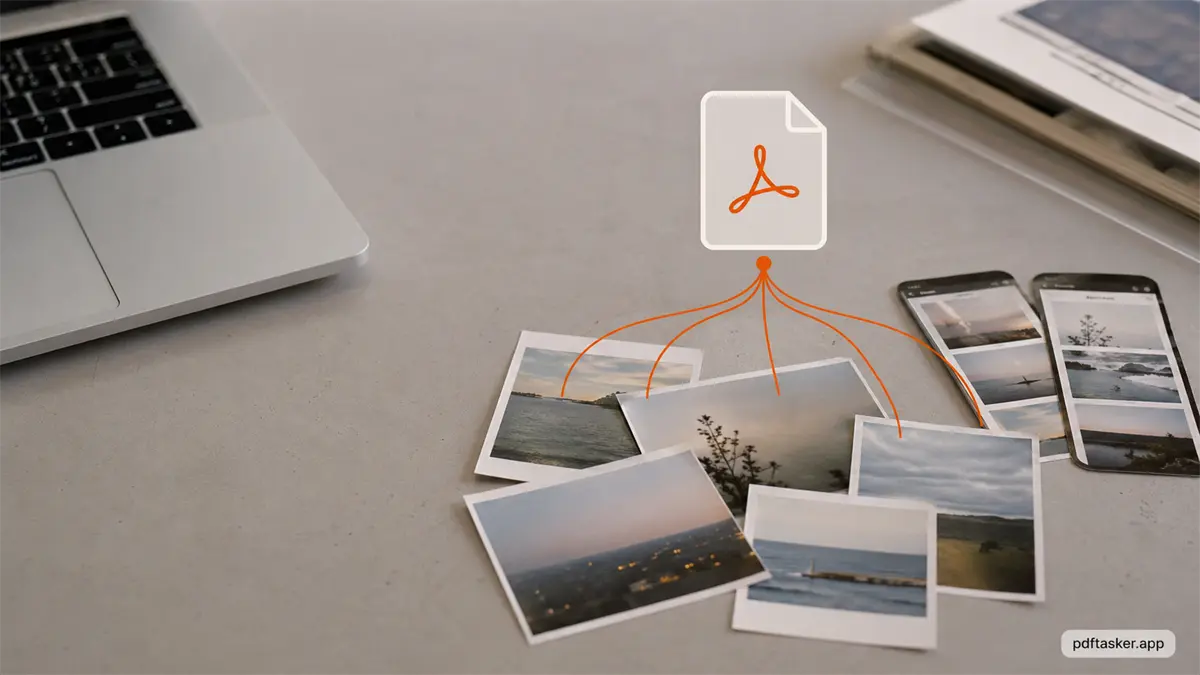
Start with the images before the PDF
The PDF will only be as good as the JPGs you feed into it. That is the boring part. It is also the part that saves you from redoing the file later.
Open the images and check a few things first:
- Is every page included?
- Are the pages in the right order?
- Is any photo sideways or upside down?
- Is the text readable when you zoom in?
- Did a finger, shadow, table edge, or glare cover something important?
If the image is blurry, conversion will not fix it. If a page is cropped badly, the PDF will keep that bad crop. If the photos are out of order, the PDF will politely preserve the mistake.
So the first move is not conversion. The first move is cleanup.
For application packets, put the cover page or form page first. For receipts, sort by date. For class notes, keep the original page order. For ID or certificate scans, make sure the important edges are visible and the text is readable at normal zoom.
If you already have a PDF that belongs in the same packet, keep it aside for now. Create the image-based PDF first, then use merge if you need to combine it with another PDF afterward.
Small preparation beats a messy final file.
Why upload-first converters are more than this job needs
Many JPG to PDF tools start with a familiar box: drop files here, upload, wait, download.
That can be fine for harmless images. It feels different when the JPGs are scans of IDs, medical receipts, bank statements, signed pages, client paperwork, or anything with a home address on it.
The task is simple. The trust requirement can be large.
If the images go to a server, you are depending on how that service handles upload, temporary storage, logs, backups, deletion, and access controls. Maybe it handles all of that well. Maybe it does not.
But for this job, the smaller question is enough: why should several private JPGs leave your device just to become one PDF?
PDFTasker is designed around browser-local processing. The site loads, your browser handles the files, and the PDF downloads back to your device. No account for the basic job. No normal server-side document queue.
A small workflow for multiple images to one PDF
You do not need a complicated system. You need a repeatable order of operations that keeps the file from becoming annoying later.
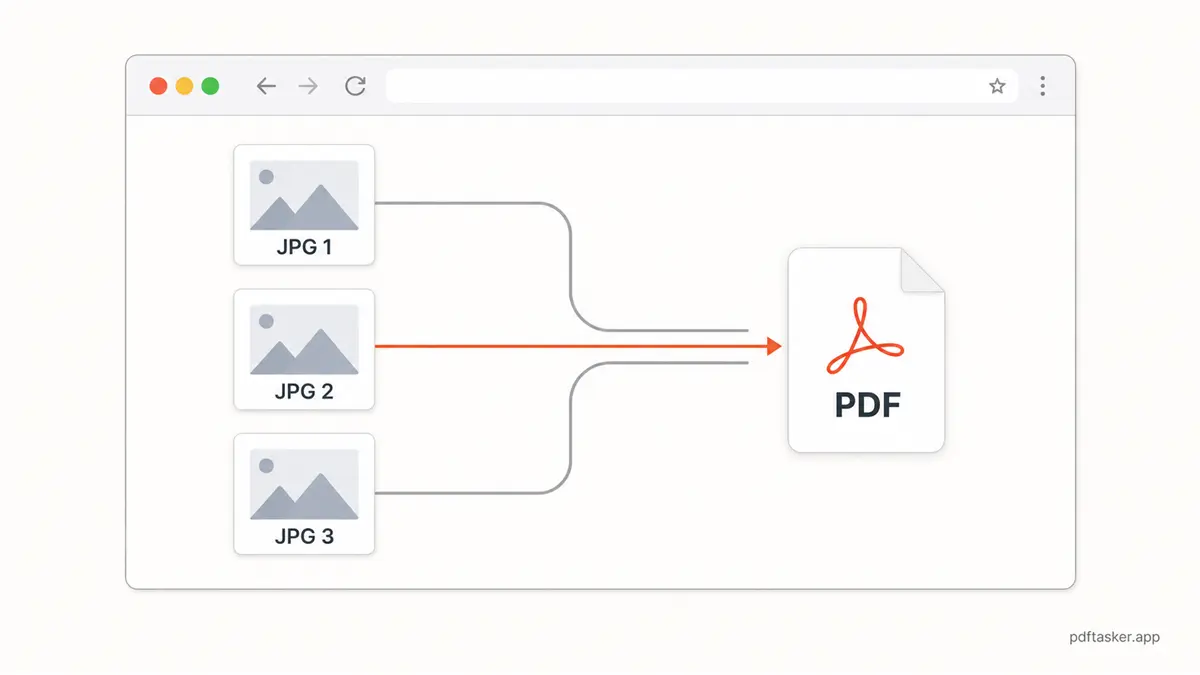
1. Put all JPGs in one place
Before opening the converter, gather the images in one folder or one album. This is especially useful when the images came from a phone camera, a scanner app, and a messaging app.
Use plain filenames if you can:
01-cover.jpg02-form.jpg03-receipt.jpg04-id-front.jpg05-id-back.jpg
The file names do not need to be clever. They just need to help you spot the order.
2. Remove the obvious bad inputs
Look for duplicates, accidental screenshots, and half-cropped photos. If one page needs a better photo, take it before conversion.
It is easier to replace one JPG now than to rebuild the PDF after someone rejects it.
3. Convert in the browser
Open PDFTasker's JPG to PDF tool, choose the JPG images from your device, and create the PDF.
That is the whole job. The useful detail is where the job happens: in the browser, on your device, without turning upload into the default route.
4. Open the PDF before you send it
After conversion, open the PDF and check it like the recipient would:
- page 1 starts the packet correctly
- pages are not rotated the wrong way
- small text can still be read
- signatures, dates, stamps, and IDs are clear
- the file opens normally in a PDF viewer
If the PDF is too large for a portal or email, use compress after conversion. If the PDF includes pages you do not need, use split instead of making every page worse with heavier compression.
5. Rename the final PDF clearly
Use a name that tells you what the file is:
application-documents.pdfreceipts-april-2026.pdfid-scan-front-back.pdfproject-photos-one-pdf.pdf
Boring names are useful. Future you will not have to guess.
Checks before sharing the PDF
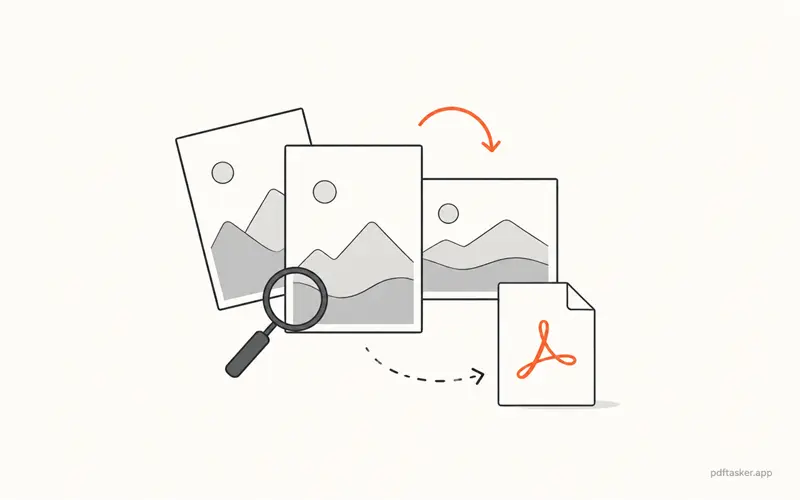
1. Does the page order make sense?
Open the PDF from page 1 to the end. Do not only look at the thumbnails. A wrong order is easy to miss when every page looks like a white rectangle.
For forms, the sequence should match the form. For receipts, dates usually matter. For photo evidence, the story should be clear without you standing there to explain it.
2. Are the images readable at normal zoom?
Zooming in can hide a quality problem. First check the PDF at a normal viewing size. If the small text already feels hard to read, the recipient will notice too.
Conversion should preserve a usable view. It should not ask the reader to solve a puzzle.
3. Is the PDF the right size for the destination?
Some portals accept one PDF but quietly reject large files. Check the size after conversion.
If it is too large, compress it once and inspect the output. Do not keep squeezing it until every receipt looks tired.
4. Does the PDF need cleanup before sending?
Image-based PDFs can still carry extra document details after later edits or merges. If the file has been through a few tools, sanitize before sharing is a reasonable last check.
If you need the reverse job later, PDF to JPG is the other direction: one PDF page set back into images.
5. Is this the right sharing channel?
If the PDF contains private scans, send it through the channel the recipient asked for and stop there. Do not create extra copies in chat apps just because the file is now tidy.
That is the workflow: collect the JPGs, clean the obvious problems, convert them locally, open the PDF, and send the version that actually matches the job.
If all you need is multiple images in one PDF, do it in the browser and check the result before it leaves your device.
PDFTasker
Build PDF