How to Compress a Resume PDF for Job Site Upload
2026-05-28 · 5 min read · PDFTasker Team
You are one click away from submitting the application. Then the upload form rejects your file — not because the format is wrong, not because the file is corrupted, just because it is too big. That is a specific kind of frustrating. The good news is it is also a specific kind of fixable.
Most job sites set a limit somewhere between 2 MB and 5 MB. A resume built from a nicely designed template can easily land at 8 MB or more without you doing anything unusual. Compressing the PDF takes about ten seconds and usually solves the problem completely.
Why your resume PDF is larger than it looks
A resume is mostly text, and text in a PDF takes almost no space. What takes space is everything else that might be in that file.
Embedded images are the main culprit. If your resume includes a profile photo, a scanned certification, or a company logo, those get embedded at whatever resolution they were when you added them. A single 300 DPI headshot can be 3–4 MB on its own.
Design templates export at print resolution. Templates from Canva, Adobe Express, and similar tools default to print-quality settings — typically 300 DPI — because they are also meant for printing. A screen reader or recruiter looking at your resume on a monitor only needs 96 DPI. The extra resolution is pure overhead.
Fonts embedded in full. Some PDF generators embed complete font files rather than just the characters used. This is rare with standard resume fonts but can add half a megabyte for custom typefaces.
The practical upshot: if your resume PDF is over 3 MB, there is almost certainly a high-resolution embedded image inside it. Compressing the file targets exactly that.
What compression actually does to a PDF
PDF compression is not the same as zipping a file. It does not scramble the contents or reduce quality across the board. It works by:
- Downsampling embedded images from print resolution (300 DPI) to screen resolution (72–96 DPI). At the size a recruiter views a resume — laptop screen, standard zoom — there is no visible difference.
- Re-encoding image data using more efficient formats where possible.
- Leaving text and vector graphics untouched. Your fonts, bullet points, and layout stay exactly as they are. Text in a PDF is stored as vector instructions, not as pixels, so it is already as small as it can be.
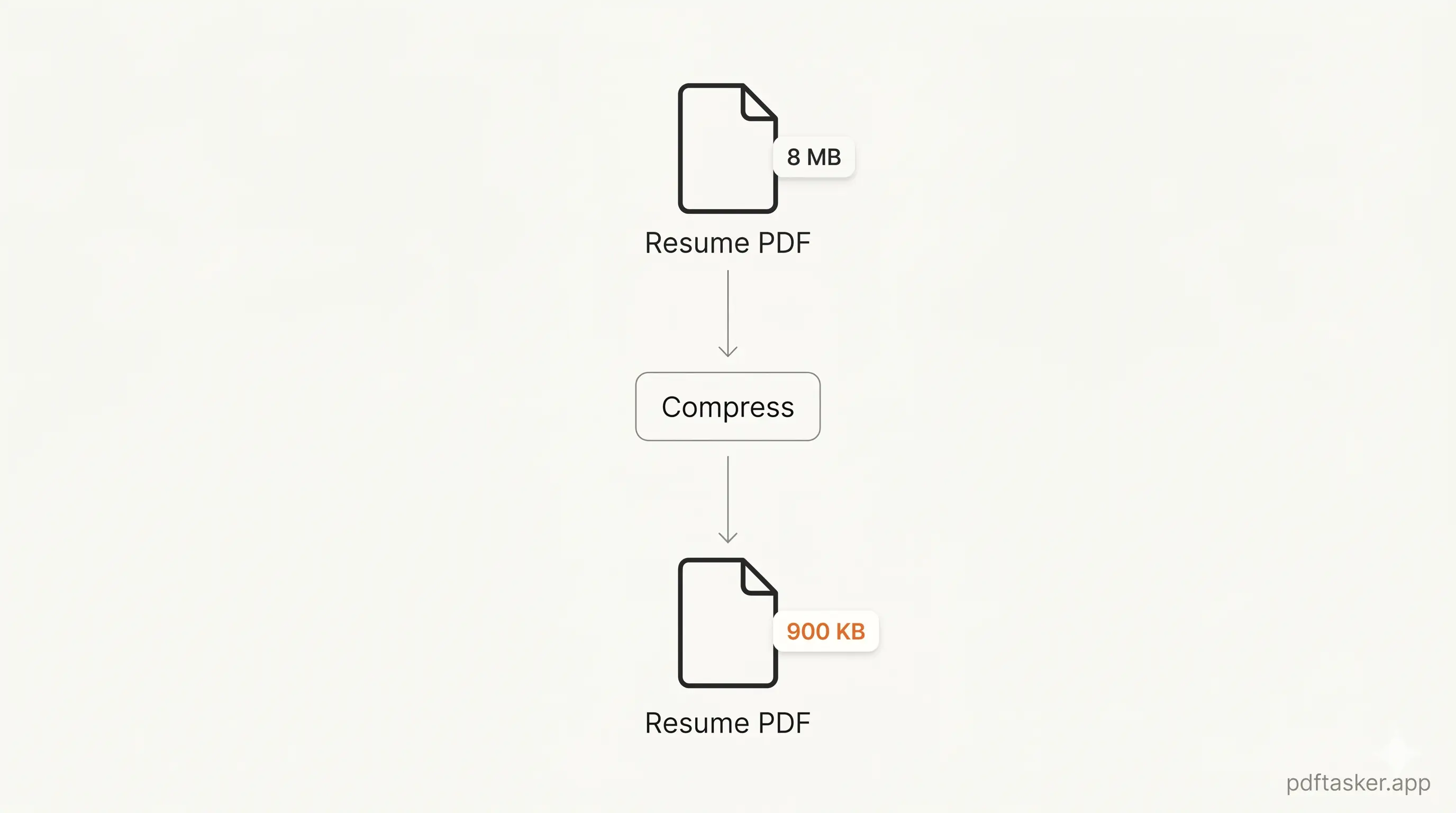
A well-compressed resume typically goes from 6–10 MB down to under 1 MB. The file looks identical on screen.
How to compress your resume PDF in PDFTasker
The process has three steps.
1. Open the compress tool. Go to PDFTasker /compress. You do not need to create an account.
2. Drop your resume file. Drag the PDF onto the upload area or click to browse. The file is processed entirely in your browser — nothing is sent to any server. Your resume does not leave your device.
3. Download the compressed file. PDFTasker shows you the output size before you download. For most resumes, you will see the file shrink to well under 2 MB. Click download and you are done.
The whole thing takes about ten seconds for a standard one- or two-page resume.
When the file is still too big after compression
Compression handles most cases. If your file is still over the site's limit, the embedded images are probably very large to begin with. A few options:
Replace the profile photo with a smaller version. Export your headshot at 96 DPI or save it as a compressed JPEG before adding it to the resume. Then regenerate the PDF. This usually brings a 10 MB resume down to under 1 MB before compression even runs.
Re-export from your design tool at lower quality. In Canva, choose "PDF Standard" instead of "PDF Print" when exporting. In Adobe Illustrator or InDesign, use the "Smallest File Size" preset. These settings already apply compression at the source.
Remove images you do not need. A profile photo is expected in some countries and unusual in others. If you are applying to a company where photos are not standard, removing it entirely solves the file size problem and simplifies the design.
Check the limit carefully. Some government job portals and older applicant tracking systems have unusually low limits — 1 MB or even 512 KB. At those sizes, a bare-bones PDF with no images might still exceed the limit if it has many pages. In that case, splitting the resume into separate documents — one for the CV, one for certificates — may be the only path forward.
Most applicants hit the limit because of a single embedded image they forgot was there. Once that is addressed, compression handles the rest.
PDFTasker
/compress
If you have other PDF tasks after this — reducing a portfolio file, compressing a cover letter with scanned signatures — the same browser-based approach applies.