로그인 없이, 사진 속 글자를 텍스트로 무료 추출하는 방법
이미지나 사진, 스크린샷 속 글자를 복사하고 싶으신가요? 외부 서버 업로드 없이 브라우저 내에서 안전하게 작동하는 이미지 텍스트 추출 방법을 알아봅니다.
10분 분량
이미지 → 텍스트
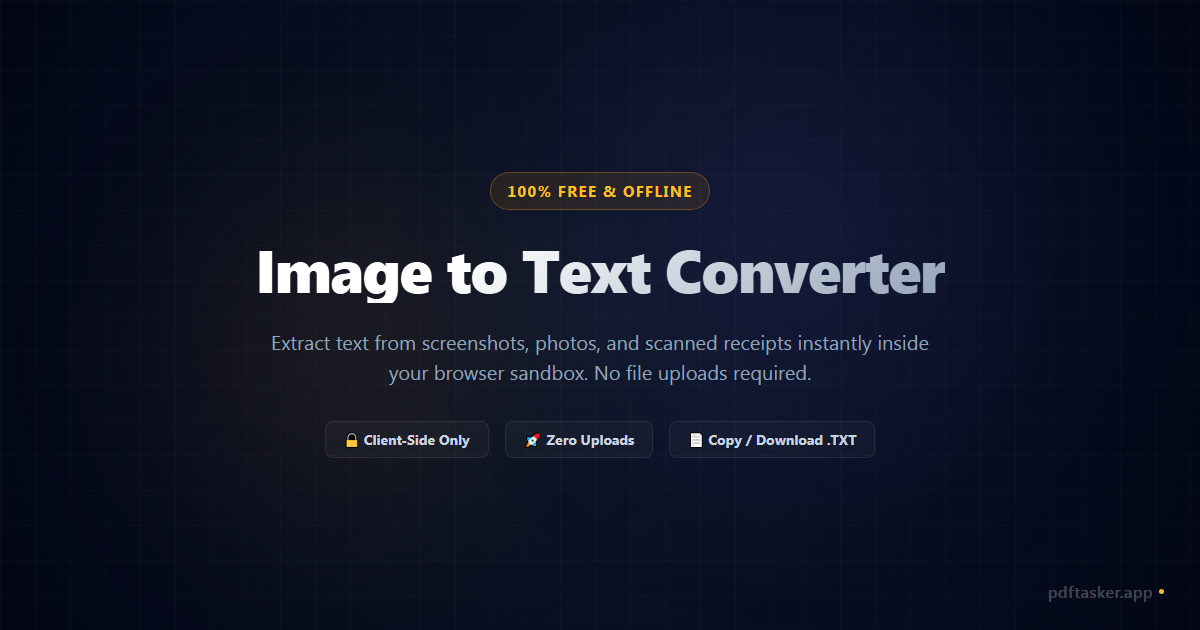
사진·스캔 이미지 속 글자를 읽어 복사하거나 .txt로 저장합니다. 인식은 PC에서 동작하고 업로드는 없습니다.
개인정보 유출 걱정 없는 로컬 처리
파일은 사용자의 기기 외부로 전송되지 않습니다.
서버 업로드나 대기 시간이 전혀 없으며, 모든 작업은 브라우저 내에서 안전하게 직접 완결됩니다. 안심하고 사용하세요.
이렇게 쓰세요
PC 전용
이미지 인식은 사용자 컴퓨터에서 실행되며 데스크톱 브라우저가 필요합니다. 링크를 저장해 두고 PC에서 다시 들어오세요 — 이 페이지의 나머지 내용은 어느 기기에서나 볼 수 있습니다.
이미지에서 글자 뽑기
필요한 글자가 사진이나 스캔 이미지 안에 갇혀 있을 때가 있습니다. 화면 캡처, 촬영한 문서, 스캔한 영수증 같은 것들이죠. PDFTasker는 이미지 속 글자를 브라우저 안에서, 사용자 PC에서 직접 읽어내어 복사하거나 .txt 파일로 저장할 수 있게 돌려줍니다. 어떤 파일도 업로드되지 않습니다. 인식은 사용자 기기에서만 이뤄지므로 신분증·명세서·메모처럼 남에게 넘기기 꺼려지는 사진도 기기 밖으로 나가지 않습니다. 인식 정확도는 스캔 상태에 좌우되며, 선명하고 반듯하고 또렷한 이미지일수록 잘 읽힙니다.
프라이버시와 신뢰
이미지에서 글자를 읽는 일에 서버는 필요 없습니다. PDFTasker는 인식 엔진을 브라우저 안에서 로컬로 돌려, 쓰기 전에 직접 확인하고 고칠 수 있는 일반 텍스트로 돌려줍니다. 모든 작업이 기기 안에서 이뤄지므로 낯선 곳에 보내고 싶지 않은 이미지에 적합하며, 결과가 어색하면 대개 업로드가 아니라 원본 스캔 품질을 다시 손봐야 합니다.
사용 가이드
자주 묻는 질문
브라우저 안에서 인식 엔진이 각 이미지를 보고 어떤 글자인지 판별해 일반 텍스트로 돌려줍니다. 사이트가 한 번 열리면 전부 사용자 컴퓨터에서 처리되어 이미지가 업로드되지 않습니다. 결과 텍스트를 확인하고 잘못 읽힌 부분을 고친 뒤 복사하거나 .txt로 저장할 수 있습니다.
안 올라갑니다. 각 이미지는 브라우저 안에서 읽히고 텍스트도 기기 밖으로 나가지 않습니다. 읽어 둘 만한 사진은 신분증·영수증·명세서·메모처럼 비공개로 둘 게 많아서 이 점이 중요합니다. 인식은 로컬에서 돌고, 탭을 닫으면 서버에 남는 게 없습니다.
인식 품질은 원본 이미지에 거의 전적으로 달려 있습니다. 비스듬히 찍은 사진, 대비가 낮은 스캔, 작거나 장식적인 글꼴, 복잡한 배경은 글자를 읽기 어렵게 만듭니다. 정면에서 밝게 찍거나 더 높은 해상도로 다시 스캔하면 결과가 좋아집니다. 어떤 인식도 완벽하지 않으니 쓰기 전에 꼭 확인하세요.
됩니다. 인식 언어로 한국어를 고를 수 있습니다. 다만 한국어 인식은 영어보다 스캔 품질에 더 민감해서 선명하고 반듯하고 대비가 또렷한 이미지가 더 중요합니다. 깨끗한 디지털 캡처는 대체로 잘 읽지만, 구겨지거나 비스듬한 사진은 수정이 필요할 수 있습니다. 인식 뒤 텍스트를 검토해 잘못 읽힌 부분을 고치세요.
이미지에서 글자를 읽는 작업은 메모리와 연산을 많이 쓰는 인식 엔진을 사용합니다. 데스크톱은 여유 있게 처리하지만 상당수 휴대폰은 그렇지 못합니다. 휴대폰에서 느리거나 실패하는 일을 막기 위해 이 도구는 PC 전용으로 두고 컴퓨터에서 다시 오도록 안내합니다. 페이지 자체는 모바일에서도 열려 읽을 수 있고, 인식 단계만 PC를 기다립니다.
PDFTasker Blog
이 사이트는 광고 서비스 제공을 위해 쿠키를 사용합니다. 파일 처리는 브라우저 내에서만 이루어집니다. 쿠키 정책