How to extract text from images online for free (No Upload)
2026-06-25 · 4 min read · onnova
How many times have you taken a screenshot of an error code, snapped a photo of a receipt, or cropped a snippet of a slide just to copy the words inside?
It is one of the most common micro-tasks of modern work. Yet, the standard advice is to drag the picture into a search engine's scanner or upload it to a free online image-to-text converter.
Before you drag your next client document, credential snapshot, or work ticket into a remote browser window, it helps to understand what happens to those pixels and how you can accomplish the exact same task entirely on your own device.
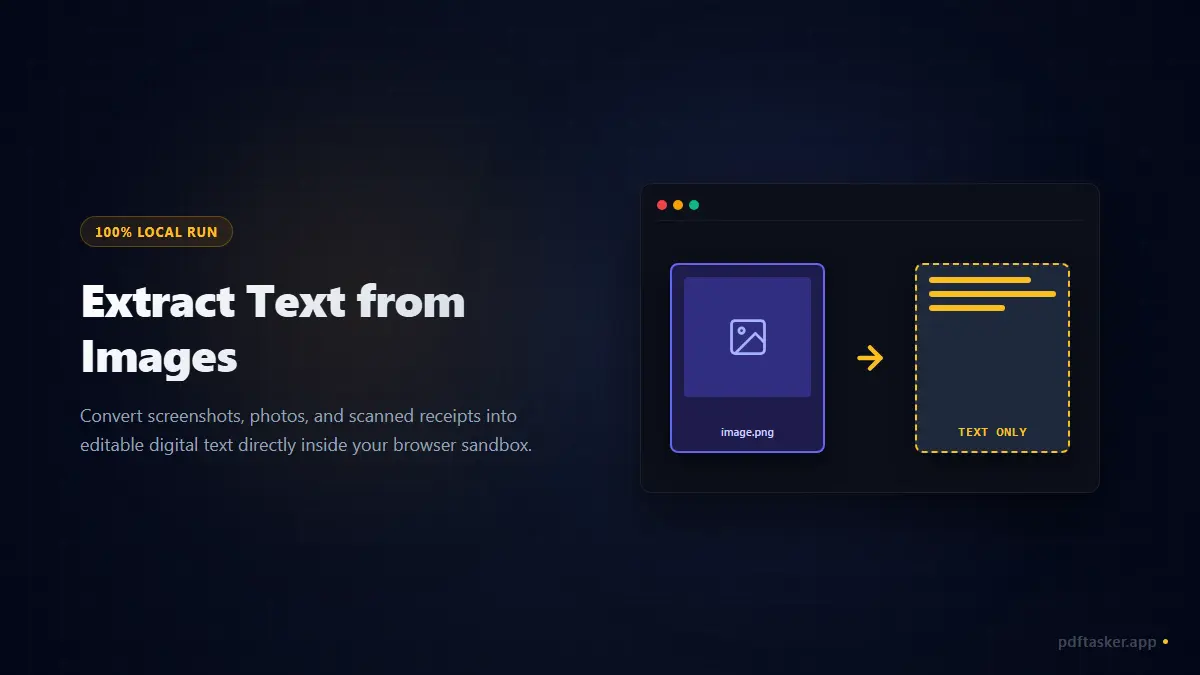
Why online image converters are a hidden risk
The technology that turns pictures of words into editable text is called Optical Character Recognition (OCR). Traditionally, running OCR required heavy desktop software or API servers with extensive processing resources.
Free web converters simplified this by hosting the OCR engine on a server. You upload the JPG or PNG, their backend parses the image, runs the text recognition, and displays the characters for you to copy.
But this convenience introduces structural privacy concerns:
- Exposure of raw assets: A screenshot of a client database error or a photo of a business receipt contains identifiers you likely do not want sitting in a third-party server's temp directory.
- Unclear data storage: Even when policies promise deletion, logs, cache backups, and cloud storage pathways can retain processed assets.
- Corporate compliance hurdles: Dragging work assets to unvetted cloud processors violates basic data policies like GDPR or internal IT rules.
For routine business tasks, sending your documents to an external server represents an unnecessary risk.
Keeping the OCR engine on your own device
You do not need a server to read characters from a picture. Modern web browsers are powerful enough to run complete text recognition models directly within their local memory.
By utilizing Client-Side Web Workers, the OCR engine is loaded into your browser after you open the page.
When you select a picture:
- Local load: The file is loaded into the browser memory sandbox.
- Canvas preparation: The image is rendered on an offline HTML canvas to optimize contrast.
- Local parsing: A compiled local OCR script analyzes the pixel arrays and maps them to text characters on your own processor.
- Immediate copy: The text is returned directly to your screen for copying.
No file bytes are transmitted over the network. If you disconnect your computer from the internet after the page loads, the extraction continues to run normally.
The technology: Self-hosted Tesseract.js
Client-side extraction relies on a web-compiled version of the open-source Tesseract OCR engine. It runs in a separate Web Worker thread to prevent the page from freezing during heavy processing.
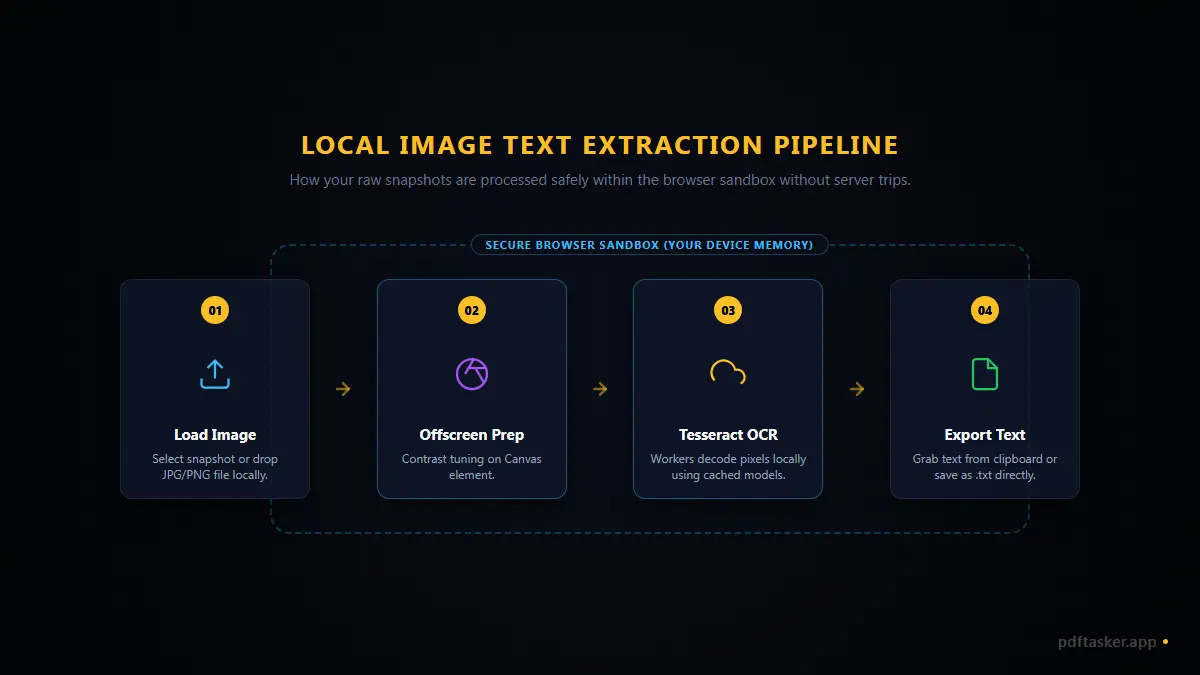
When the worker starts, it loads the required language files (traineddata) into your browser's IndexedDB storage. Subsequent runs skip the download entirely, using the cached local database.
Because we combine English and Korean character sets natively, you can process mixed-language documents without toggling menus or reloading the interface.
How to extract text from images safely
Here is the step-by-step method to grab text from your snapshots using a local-first utility:
- Access the tool: Open the local Image to Text tool.
- Select your image: Drag and drop your JPG, PNG, or WebP file.
- Monitor local progress: Watch the status bar. The worker will prepare the page and read the text directly on your device.
- Copy the output: Review the recognized text in the editing box. Copy it to your clipboard or download it as a clean
.txtfile. - Inspect small details: OCR is a probabilistic process, meaning poor lighting, low contrast, or handwritten text can lower the accuracy. Always review the output before using it in official communications.
If you want to see how this browser-based approach compares to typical cloud platforms in detail, check out our compare page or learn how the same local OCR engine now supports scanned files in our guide on scanned PDF text extraction.
PDFTasker
Image to Text