PDF Tools for Students: How to Merge Assignments and Compress Resumes
2026-05-26 · 6 min read · PDFTasker Team
PDF merge and PDF compression are two of the most common document tasks students encounter throughout the school year.
Merge comes up before every multi-file assignment submission: a report written in one document, a data table exported separately, a cover sheet added at the last moment. Compression comes up when a resume or application portal announces a 5 MB limit and the file you have is twice that size.
Both tasks are straightforward. In this guide, we'll walk through what each one does, when to use it, and how to complete it without sending your documents to an unfamiliar server.
What Student PDF Work Actually Looks Like
Most students interact with PDFs in two situations: submitting assignments and applying for things.
Assignment submissions often require combining files from different applications — a word processor document, a spreadsheet, a scanned handout — into a single PDF before uploading to a learning management system. The portal expects one file, not three.
Job and internship applications hit a different constraint: upload portals often enforce file size limits. A resume made from a design template, or one that includes embedded images, can easily exceed 5 MB. The form rejects it without much explanation.
What both situations have in common is that the documents involved are personal. Assignment files may include a student ID or institutional email. A resume contains a home address, contact details, and work history. Uploading those to a random PDF processing website — one whose privacy policy you haven't read — adds risk that isn't necessary for either task.
Browser-based tools that process files locally avoid this. The merge or compress operation happens inside the browser using client-side code. The file doesn't travel to a server to be processed.
How to Merge PDF Files for an Assignment
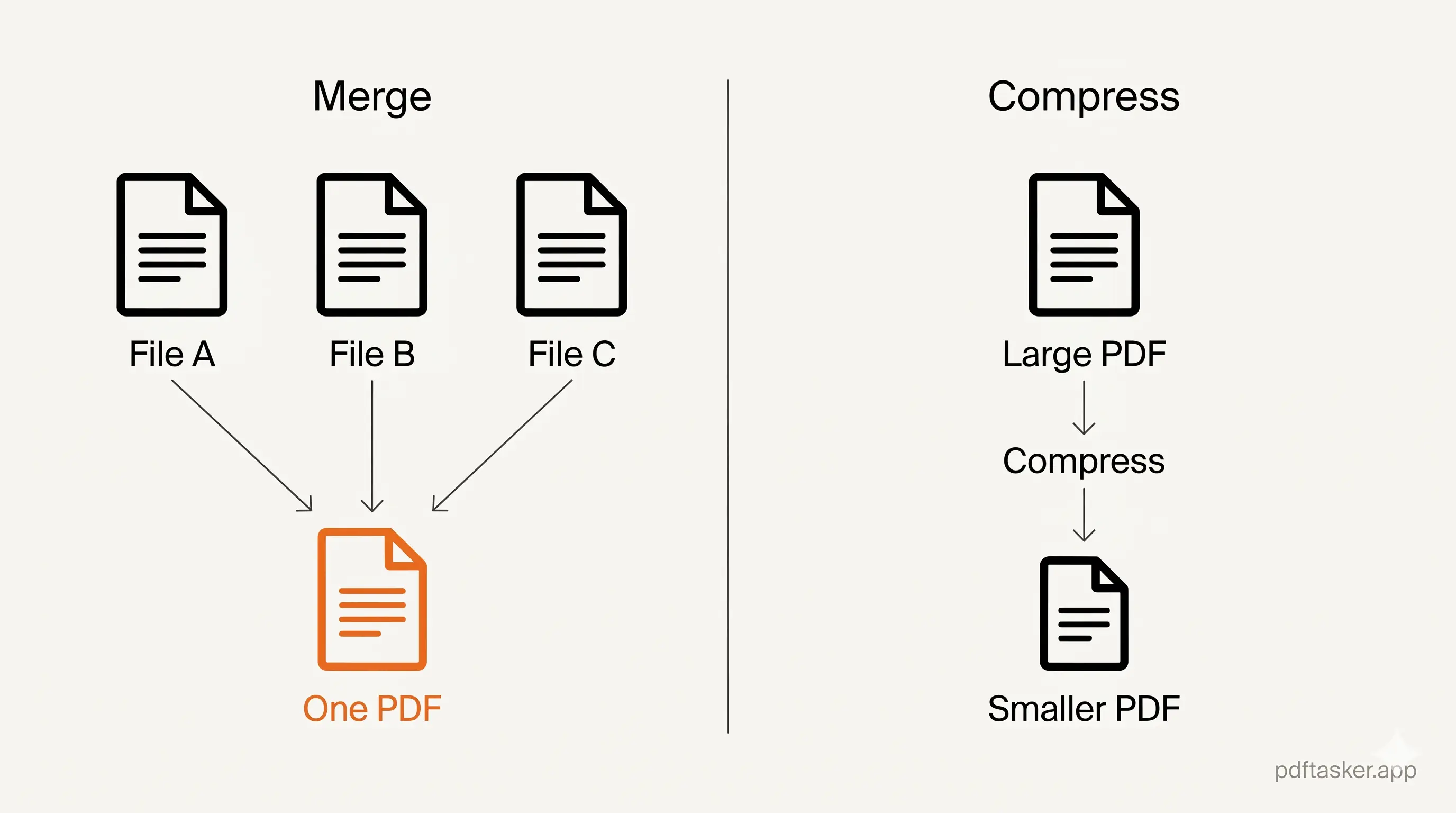
PDF merging is the process of combining two or more PDF files into a single document. The result is one file with all the pages from the source files in the order you set.
Here's the typical workflow:
1. Collect all the files you need to combine
Before opening any tool, make sure every piece of the assignment is already in PDF format. Word processor documents can be exported to PDF from the File menu. If something is a photo or a scanned image, most operating systems can print it to a PDF directly.
Having all files ready before you start saves you from needing to return to the tool halfway through.
2. Open the merge tool and add your files
Open PDFTasker's merge tool in your browser. Drag your PDF files into the upload area, or use the file selector.
Files are loaded directly into the browser. Nothing is sent to a server at this step.
3. Set the page order
Once the files are loaded, you'll see a preview of each document. Drag to reorder them if needed — for example, if you want the cover sheet at the front, move it above the main document.
This step matters. A submission portal reads pages in the order they appear, and instructors read them in the same order.
4. Download the combined PDF
Click merge. The tool combines all the pages into one PDF and prompts you to download it.
Open the downloaded file before submitting. Confirm the page order is correct, all content is present, and there are no blank pages from a previous export.
How to Compress a PDF When a Portal Rejects It
PDF compression reduces the file size of a PDF document. It works by removing redundant data, optimizing embedded fonts, and scaling down image resolution where there is room to do so. The resulting file is smaller; the content remains readable.
1. Note the size limit before you start
Most upload forms display the limit near the upload button: "Maximum file size: 5 MB" or "Files must not exceed 10 MB." Check this before compressing, so you know the target you're working toward.
2. Open the compress tool and add the file
Open PDFTasker's compress tool in your browser and add the PDF that was rejected.
3. Run the compression
Start the compression. The tool processes the file locally and produces a smaller version. How much smaller depends on the content — a resume with embedded images or a design-heavy template will compress more than a plain-text document. Results vary.
4. Check the result and download
Preview the compressed PDF before downloading. Confirm the text is still readable and nothing important has been cut off or distorted. Then download and attempt the upload again.
If the compressed file is still over the limit, the original may have high-resolution images embedded. Consider reducing the image resolution in the source application before exporting to PDF.
4 Habits That Help Students Handle PDFs Well
Beyond the two core tasks, a few habits make PDF work noticeably smoother.
- Export to PDF early. Don't wait until the submission deadline to convert files. Fonts, layouts, and embedded elements sometimes behave differently in PDF export than in the source application. Giving yourself time to check is worth it.
- Keep a copy of the original files. Once you merge and submit, keep the source documents. If a resubmission is required, you can correct one part without recreating everything.
- Open the final PDF before every submission. A PDF that looks correct in your file manager can have incorrect page order, broken fonts, or missing sections. Opening it takes thirty seconds and can prevent a resubmission request later.
- Prefer tools that don't require account creation. For occasional tasks like merging three files before a deadline, creating an account is unnecessary friction. A tool that works without login keeps personal documents out of a service you may use only once.
PDF work in student life is mostly repetitive and practical. Merge assignment files when a portal expects a single submission. Compress a resume when an application form enforces a size limit. Do both in the browser when the documents contain personal information you'd rather not upload to an unfamiliar service.
PDFTasker
Merge