Extract filled PDF form data into CSV without uploading
2026-06-15 · 3 min read · onnova
If you manage administration, human resources, or operational workflows, you have likely faced the tedious task of gathering information from dozens of filled PDF forms.
Copying and pasting values from individual fields into a master Excel sheet is slow, repetitive, and prone to mistakes.
Let's look at how to automate data collection by extracting interactive PDF form fields directly into a single CSV spreadsheet locally, without uploading your documents to third-party servers.
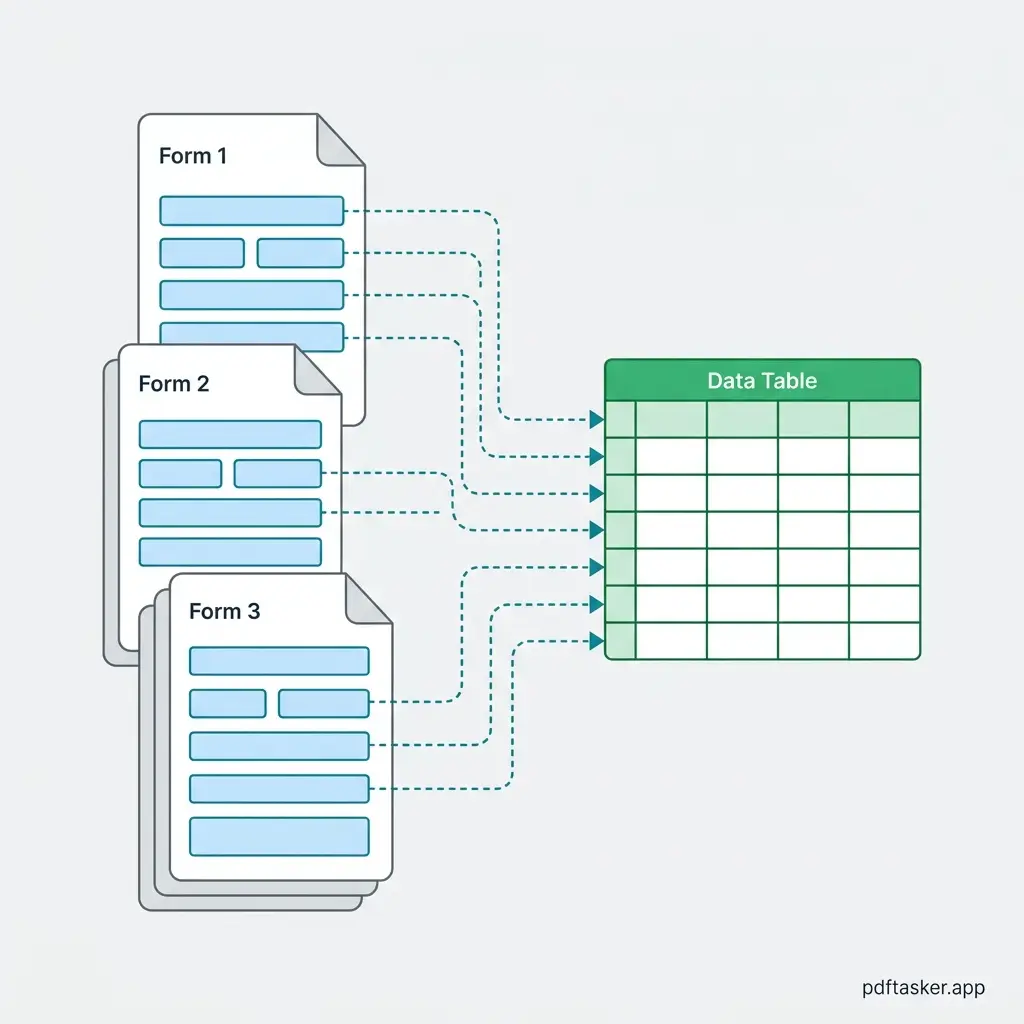
Critical requirement: Is your PDF an AcroForm?
Before using this extraction method, it is essential to understand which document types are supported. This process only works for digital, interactive PDF forms:
- Interactive PDFs (AcroForms): These are digital files with clickable checkboxes, selectable dropdowns, and fillable text input fields where users typed in their information directly.
- Scanned or flat PDFs: Flat printouts, scanned paper forms, or PDFs generated as flat images do not contain structural interactive form fields. This tool does not perform OCR (Optical Character Recognition) on flat tables.
If you can click into the fields and edit the text on your computer, your file is an interactive AcroForm and is fully supported.
How local form extraction works in your browser
Traditional data extraction tools require uploading all filled forms to their database server, where a parser extracts the text.
For payroll files, vendor registrations, or patient intake forms, sending batches of files to an external server violates strict data compliance rules.
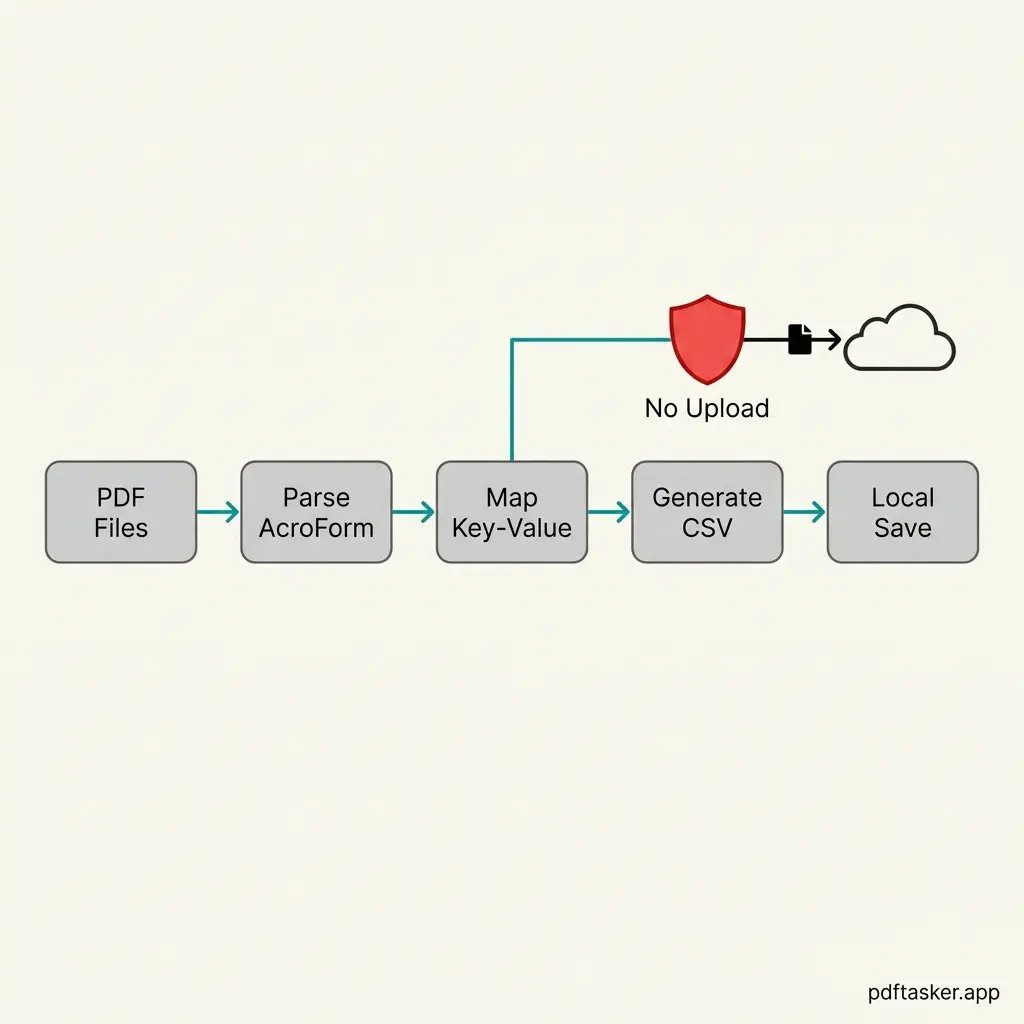
By utilizing browser-based JavaScript libraries and local Web Workers, the data extraction happens entirely on your machine:
- Batch parsing: The tool reads the structure of your uploaded files in the browser.
- Key-value mapping: The parser identifies the internal form field keys (such as
First_NameorPhone_Number) and retrieves the filled values. - CSV compilation: A local script compiles the mapped fields into a structured CSV file format.
- Instant download: The compiled sheet is generated as a local blob for immediate saving.
Your raw documents are never transmitted over the internet.
A step-by-step guide to extracting form data
Here is how to extract filled values from your interactive PDF documents using a secure local utility:
- Access the tool: Open the PDF Form Data Extractor tool in your browser.
- Import your forms: Click the file selector and select all the filled interactive PDF files you wish to compile.
- Map the fields: Review the detected field keys. The utility will automatically match identical field names across all imported documents.
- Export to CSV: Click the export trigger. The tool processes the documents instantly in your browser sandbox.
- Open in Excel: Save the generated CSV file and open it in Microsoft Excel, Google Sheets, or any B2B tool to analyze the collected records.
By keeping the extraction process entirely local, you handle critical organizational data responsibly without introducing network compliance risks.
PDFTasker
Form Data