Skip to content

Form Data Extractor

PDF Form Data Extractor

Extract AcroForm field values from filled PDFs into CSV or JSON without uploading sensitive forms.

Multi-file inputCSV and JSON100% local extraction

Privacy

Your documents do not leave your device.

PDFTasker runs in your browser. No uploads. No server detour. No tricks.

Extraction guide

  1. 1. Add one or more filled PDF forms.
  2. 2. Run the local extraction worker.
  3. 3. Download the merged CSV or JSON result.

Load document

Filled PDF forms

Add PDF forms you would rather not upload to a server.

Drop files here, or tap to choose them.

Local form extraction

The worker reads AcroForm fields on your device and merges the rows.

Add at least one PDF form to continue.

Pull form data locally

Extract PDF Form Data to CSV or JSON

Free

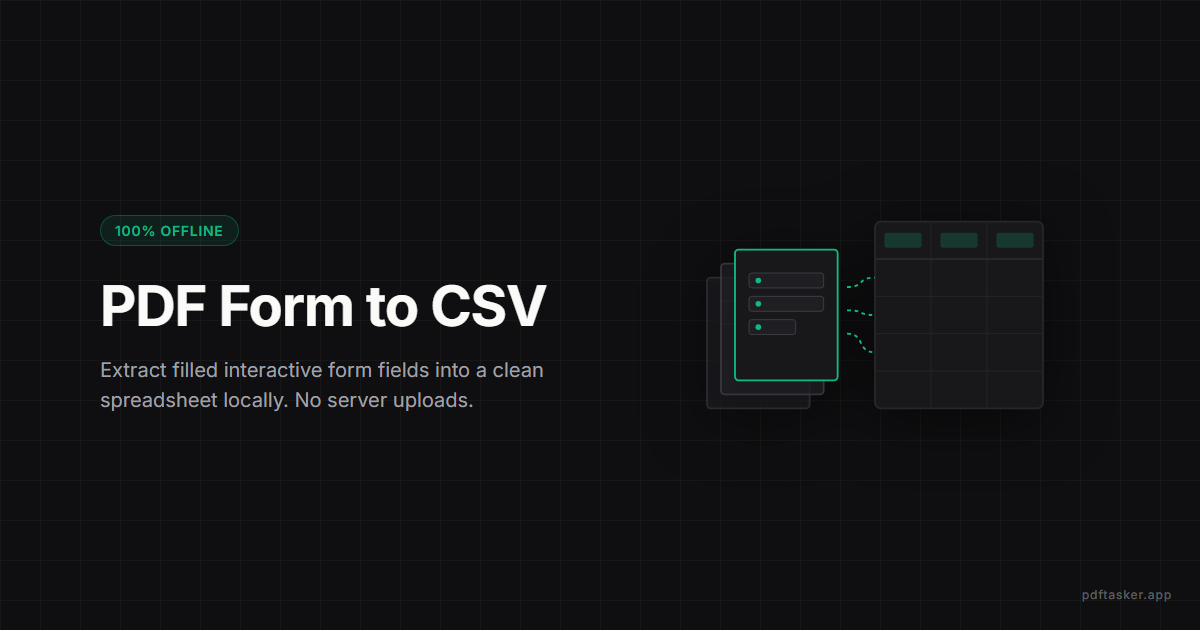
Filled PDF forms are everywhere — applications, intake sheets, surveys, registrations — and pulling their answers into a spreadsheet by hand is slow and error-prone. PDFTasker reads the AcroForm field values from one or many filled PDFs and exports them as CSV or JSON, all in the browser. The forms, which often hold names, addresses, and other personal data, never get uploaded to be read.

Privacy and trust

Forms do not need a server

Form responses are usually personal data, so extracting them by uploading the files would create exactly the exposure you are trying to avoid. PDFTasker reads the field values locally in a worker and builds the CSV or JSON on your device. It is built for documents you do not want to send anywhere — the data is structured for you without the forms ever leaving the browser.

How to use it

How to extract PDF form data

  1. 01Add one or more filled PDF forms.
  2. 02Run the local extraction worker.
  3. 03Review the detected field names and rows.
  4. 04Download the merged CSV or JSON result.

FAQ

PDF Form Data Extractor FAQ

What kind of PDF forms are supported?

The extractor reads AcroForm fields supported by the browser-side PDF library. XFA-only forms, flattened scans, or form-like pages without actual fields may not expose values. If a form was printed to PDF or scanned after filling, the visible text may not be extractable as structured data.

Can I process several files together?

Yes. Add multiple filled PDFs and download one merged CSV or JSON result. This is useful for collecting the same form from several people, but review the detected field names before using the export. Different form versions can label similar fields in slightly different ways.

Are filled forms uploaded?

No. Extraction happens in a browser worker on your device. The filled PDFs are read locally and the CSV or JSON output is generated in the browser. That keeps names, addresses, answers, and other form values away from a server upload path during extraction or review.

Does extraction change the original forms?

No. The extractor reads field values and creates a separate data file. It does not flatten, sign, rewrite, or remove content from the original PDFs. Keep the source forms for your records, then use the CSV or JSON output only after checking that the columns match your expected fields.

When should I not rely on automatic extraction?

Do not rely on it when the form is scanned, handwritten, XFA-only, or legally sensitive enough to require manual review. The tool can surface structured field values, but it does not replace validation. Open sample PDFs and compare the extracted rows against the visible form before using the data.

What about scanned or XFA forms?

Scanned forms are pictures of forms: there are no machine-readable fields inside, so there is nothing the extractor can pull automatically. XFA-only forms — an older Adobe format that some government and enterprise PDFs use — may not expose standard field values either, and the tool flags that case explicitly instead of returning an empty result. For both, the practical path is manual entry or an OCR pass in other software first. Standard AcroForm PDFs, the common case, extract to CSV or JSON directly.

PDFTasker Blog

Related Guides