How to View a PDF Online Without Downloading or Installing Anything
2026-07-24 · 5 min read · onnova
IT locked down the installer permissions on your work laptop, and the PDF someone emailed you needs a look before your meeting starts. Maybe you're on a library or hotel business-center computer and don't want to leave a downloaded file behind in a shared folder. Maybe an unfamiliar sender attached something and you'd rather see it before it lands on your machine. Either way, you want to look inside the PDF before it turns into one more file you have to account for.
Why you'd want to view a PDF without installing anything
Work computers are the most common reason. A lot of IT policies block installing anything, including a PDF reader, but they still let you use the browser that's already on the desktop. If someone sends over a statement or a contract and you need to check it before a call in ten minutes, opening a browser tab is usually the only option that doesn't involve a help desk ticket.
Shared and public computers create a similar problem from a different angle. On a library terminal or a hotel business-center machine, you often don't have admin rights to install anything even if you wanted to, and you don't want to leave a downloaded copy of someone's tax form or lease sitting in a shared Downloads folder for the next person to find.
Then there's the attachment from someone you don't fully recognize. Before you pull a file onto your own machine, it's reasonable to want a look at what it actually is: a boring invoice, a contract, a scanned form, whatever the sender says it is. Seeing the pages first, without downloading anything, is a low-effort way to confirm that before you commit to keeping it.
And sometimes there's no caution involved at all. You just want to check a statement, confirm you grabbed the right file before forwarding it, or skim a contract's second page without downloading a copy you'll delete five minutes later.
How to open and page through a PDF with the Viewer tool
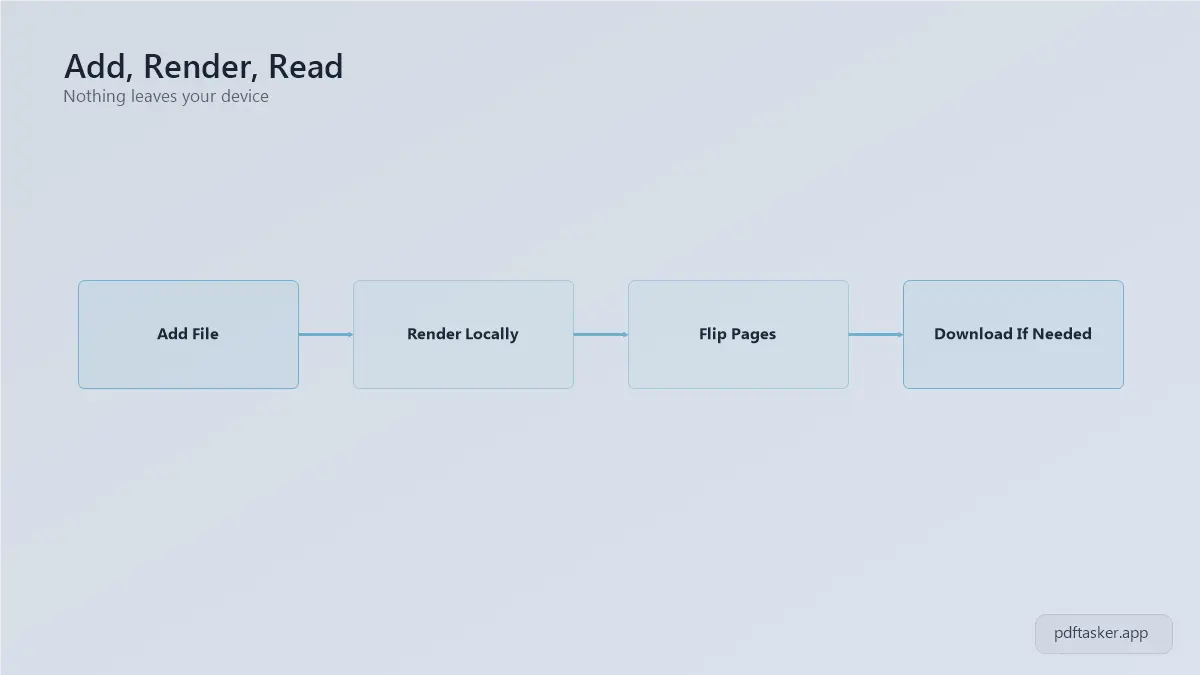
1. Add the PDF you want to open
Go to the PDF Viewer tool. There's no account to create and nothing to install, so you can add your file the moment the page loads.
2. Wait a moment while the first page renders locally
The tool renders pages using pdf.js, running right there in your browser tab. Nothing gets sent to a server first, which means the first page shows up as soon as your browser finishes reading the file rather than after a round trip somewhere else. Larger files take a few extra seconds; that's normal.
3. Move through pages with the next and previous controls
Once the first page is up, use the previous and next controls to step through the document one page at a time. This is enough for checking a signature page, comparing a couple of clauses, or confirming a scanned form has all its pages before you decide what to do with it.
What to do next, and what the viewer won't do
1. Download the original file if you need to keep it
If the PDF turns out to be something you actually need, there's a download control that saves the original file to your computer. Viewing it first doesn't cost you the option to keep it later.
2. What the viewer is for, and what it isn't
This is a page-by-page viewer, not an editor. It won't let you annotate a contract, sign a form, merge it with another file, or delete a page. If you need any of that, you want a different tool on the site; this one only shows you what's on the page.
3. Nothing you open here gets uploaded anywhere
Because the rendering happens locally through pdf.js, the file you add never travels to a server to be processed. That's the part that matters most if you're looking at something from a sender you're still deciding whether to trust.
4. Closing the tab when you're done
When you're finished, just close the tab or navigate away. Since the file was never uploaded and nothing was saved on the site's end, there's nothing left behind to clean up.
Tips
- Rendering happens locally in your browser through pdf.js, so the file never leaves your computer. That's what makes it a reasonable first stop for an attachment you're not sure about yet.
- Give a larger file a few extra seconds to render its first page before assuming something went wrong.
- Use it as a quick check before you decide whether a file is worth downloading, rather than downloading everything just to see what it is.
- On a public or locked-down computer, this works without admin rights or an account, since you're not installing anything.
Most PDF use is this simple: you look, then decide what's next. The Viewer tool sticks to that single job, without asking you to install or upload anything first.
If you're deciding between a browser-based viewer and an upload-based PDF service, our comparison page shows where each one actually processes your file.
PDFTasker
View PDF