How to Rotate a PDF and Actually Save It That Way
2026-06-11 · 6 min read · onnova
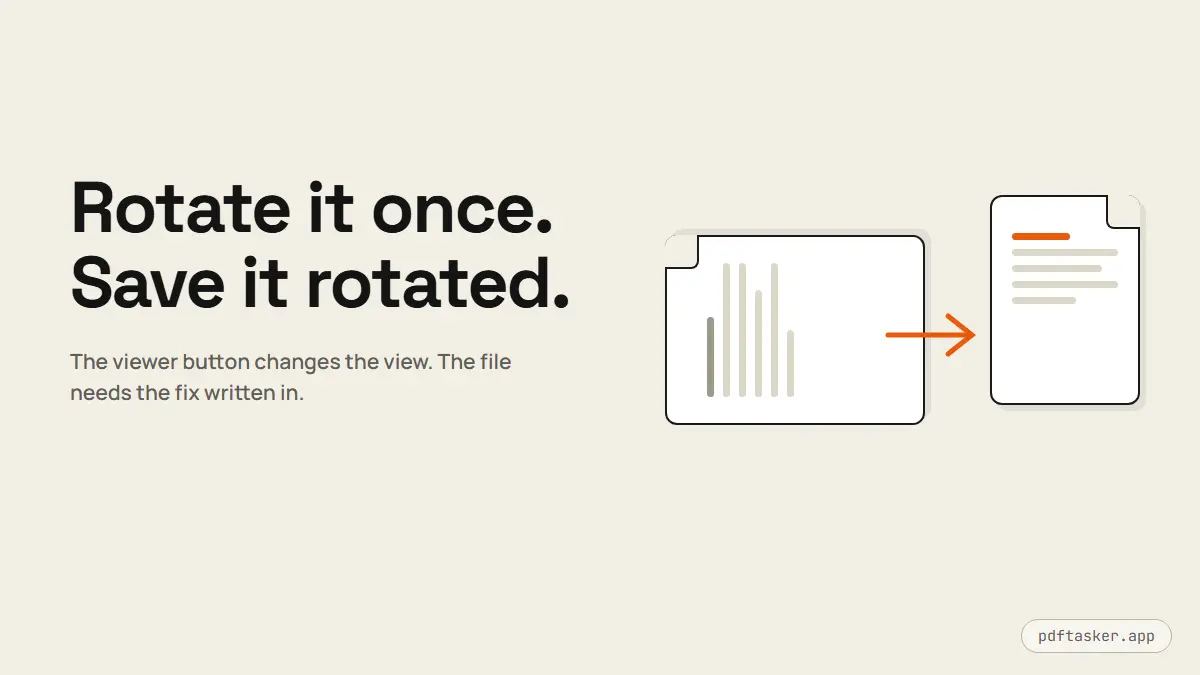
You open the PDF. Page 3 is sideways. You hit the rotate button in your viewer, the page turns upright, you close the file feeling done.
Then the recipient opens it, and page 3 is sideways again.
This is one of the most common small failures in document work, and it is not your fault. It is a quirk of how PDF rotation actually works — and once you see it, the fix takes about thirty seconds.
Why your rotation keeps disappearing
There are two completely different things a "rotate" button can do, and most viewers do the weaker one.
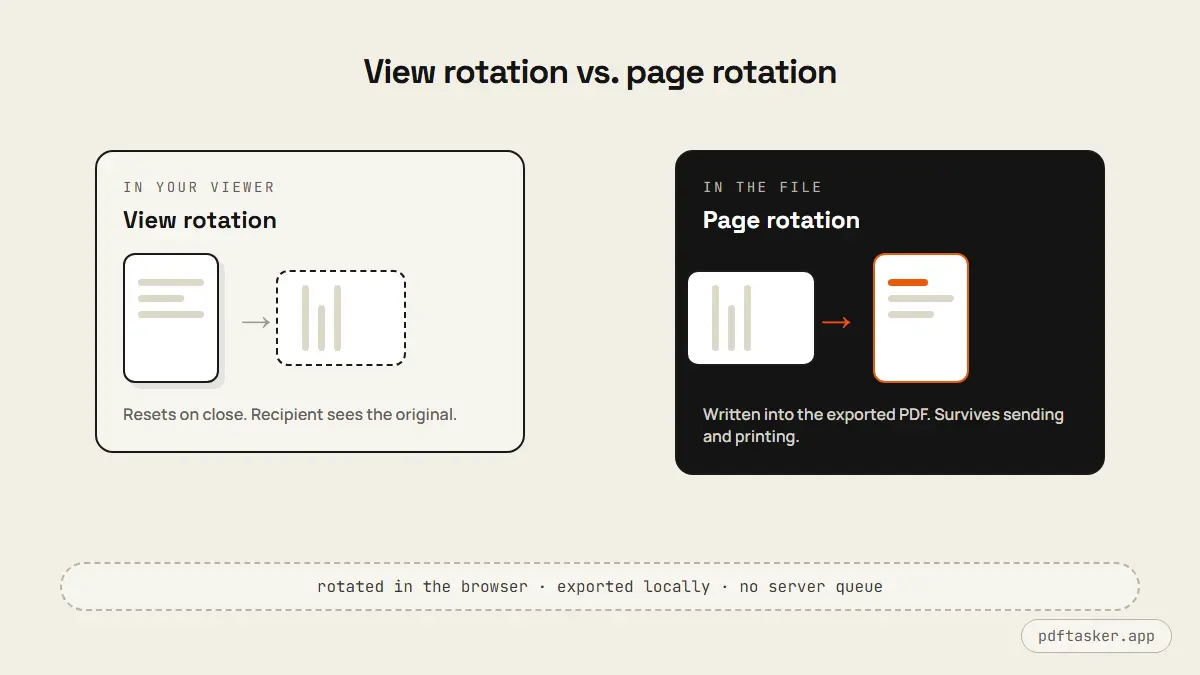
View rotation turns the page on your screen and nowhere else. It is a display setting, like zoom. Close the file, reopen it, and the page is sideways again. Send the file to someone else and they get the original orientation, because the file itself never changed. The free versions of most desktop PDF viewers only offer this.
Page rotation writes the orientation into the document. Every page in a PDF carries a rotation property — 0, 90, 180, or 270 degrees — and a real rotate tool updates that value and saves a new file. This is the rotation that survives closing, sending, and printing.
There is a third wrinkle on top: even saved rotation is stored as a flag that viewers are supposed to honor. Almost all modern viewers do. But some older printers and stripped-down preview windows ignore the flag and render the raw page — which is how a PDF can look upright on your laptop and come out of a printer sideways. A good rotate tool writes the rotation in a way that standard, compliant software renders consistently, and the safest habit is to preview the exported file once in the viewer your recipient is likely to use.
Where sideways pages come from
Knowing the source helps you fix batches instead of single pages.
Scanners with sheet feeders are the biggest producer. Feed a landscape page into a portrait scan job and the output is rotated 90 degrees. A contract with one landscape exhibit page often arrives with exactly one sideways page in the middle.
Phone scans are the second. The phone was held in the orientation that felt natural for the paper, the camera app recorded it differently, and the PDF built from those photos inherits the mismatch.
Mixed sources are the third. Merge a portrait report with a landscape spreadsheet export and both keep their native orientation — correct individually, awkward together. Whether to unify them is a judgment call: a landscape table is often meant to be landscape, and the reader simply turns their head or screen. Rotate it only if the recipient will print the document single-sided and read it like a book.
Rotate and save in the browser
The job does not need software installed, and it does not need the file uploaded to anyone. PDFTasker's rotate tool runs in your browser:
1. Load the PDF. Drag the file in. Page thumbnails render locally — the file is read into your browser's memory, not sent to a server. If you want to verify that claim, open DevTools, watch the Network tab, and drop the file: nothing leaves.
2. Turn the pages that need it. Rotate individual pages 90 degrees at a time, or fix several at once. The thumbnails update as you go, so you are looking at the actual result, not a setting.
3. Export. Download the corrected PDF. The rotation is written into each page of the new file, so it opens upright everywhere — your viewer, their viewer, the print queue. Your original file stays untouched on your device.
The checks that prevent a second round-trip
A sideways page usually surfaces at the worst moment — after submission. Three quick checks prevent the repeat:
- Scroll the whole exported file once. A 40-page scan with three sideways pages is easy to half-fix. Thumbnails make the odd page obvious.
- Check upside-down pages too. A 180-degree page reads as "rotated" at a glance but needs two clicks instead of one. Sheet feeders produce these when a stack goes in backwards.
- If it is going to be printed, do a print preview. That is where rotation-flag edge cases show up. What you see in print preview is what the paper will look like.
Batch reality: the 60-page scan
Single sideways pages are quick. The harder version of this job is the archive box: sixty pages through a sheet feeder, some upside down, a few landscape exhibits mixed in, and a deadline.
A workflow that holds up:
First pass — orientation triage. Load the file and scroll the thumbnails without fixing anything yet. Sideways and upside-down pages jump out visually when you are not stopping at each one. Note the pattern: scans tend to fail in runs, not at random. If pages 20 through 30 are all rotated the same way, that was one mis-fed stack, and you will fix them as a group.
Second pass — fix in runs. Rotate the runs first, then the stragglers. Quarter-turn increments mean an upside-down page takes two clicks; do not let those masquerade as done after one.
Third pass — export and verify the count. Download the corrected file, open it fresh, and scroll once more. Sixty pages take under a minute to skim as thumbnails, and that minute is the difference between done and almost-done.
Because the whole job runs in your browser, there is no per-file pricing pressure and no upload wait on a 60-page scan — the cost of a second pass is zero. That changes how carefully you can afford to work: re-export as many times as it takes.
One scanning habit upstream prevents most of this: when feeding double-sided pages, keep the stack facing one consistent direction and scan a two-page test before committing the box. Thirty seconds of setup beats sixty thumbnails of cleanup.
When rotation is not actually the problem
Two lookalike cases are worth separating, because rotating will not fix them.
Skewed scans — pages photographed or fed at a slight angle — are not 90-degree problems. Rotation works in quarter turns; it cannot straighten a 4-degree tilt. That needs re-scanning, or cropping the worst of it away with the crop tool.
Wrong page order sometimes masquerades as orientation chaos, especially in double-sided scans. If the pages are upright but the document reads wrong, you want organize, which reorders and deletes pages — and can rotate the stray sideways one while you are in there.
For everything else — the contract with one landscape exhibit, the batch scanned sideways, the phone scan that came in rotated — the rotate tool is the direct fix, and the file never leaves your machine. If you are comparing this approach against upload-first PDF sites for documents that matter, the comparison page lays out the practical differences.
Rotate it once, save it properly, and stop re-fixing the same page.
PDFTasker
Rotate