How to Reorder Pages in a PDF Before You Print It
2026-07-22 · 5 min read · onnova
Your scanner finishes a 30-page contract and the last page you fed in comes out first in the PDF, because the tray read the stack from the back. Or you merged three separate files into one packet and the signature page landed ahead of the terms it's supposed to follow. Either way, you catch the mistake right as you're about to print, and now you need to fix the sequence without rescanning the whole thing or rebuilding the merge from scratch.
Why PDF pages end up in the wrong order
Auto-feed scanners are the most common culprit. Depending on which way you loaded the stack and how the tray reads it, a batch can come out in reverse, or with every other page flipped if the duplex setting caught the sheets differently than you expected. You don't usually find out until you open the finished file and scroll past the last page first.
Merging files creates the same kind of mess, for a different reason. If you combined a cover letter, a resume, and a set of references into one PDF, and you added them in the wrong order or a tool defaulted to alphabetical instead of the sequence you meant, the sections land wherever the merge put them rather than where they need to be. A ten-page exhibit inserted before the cover page instead of after it is a common version of this.
Fixing it by hand is where things get tedious. Reprinting and rescanning burns paper and time for what's usually just a sequencing issue, not a quality one. Built-in PDF viewers on Windows and macOS technically let you drag pages around, but the thumbnails are often too small to read clearly, and on anything longer than a handful of pages it's easy to drop a page one slot off from where you meant it to land.
How to reorder pages with the Organize tool
1. Open the Organize tool
Go to the Organize tool. There's no install and no account required, so you can drop your file in right away.
2. Upload your file and view every page as a thumbnail
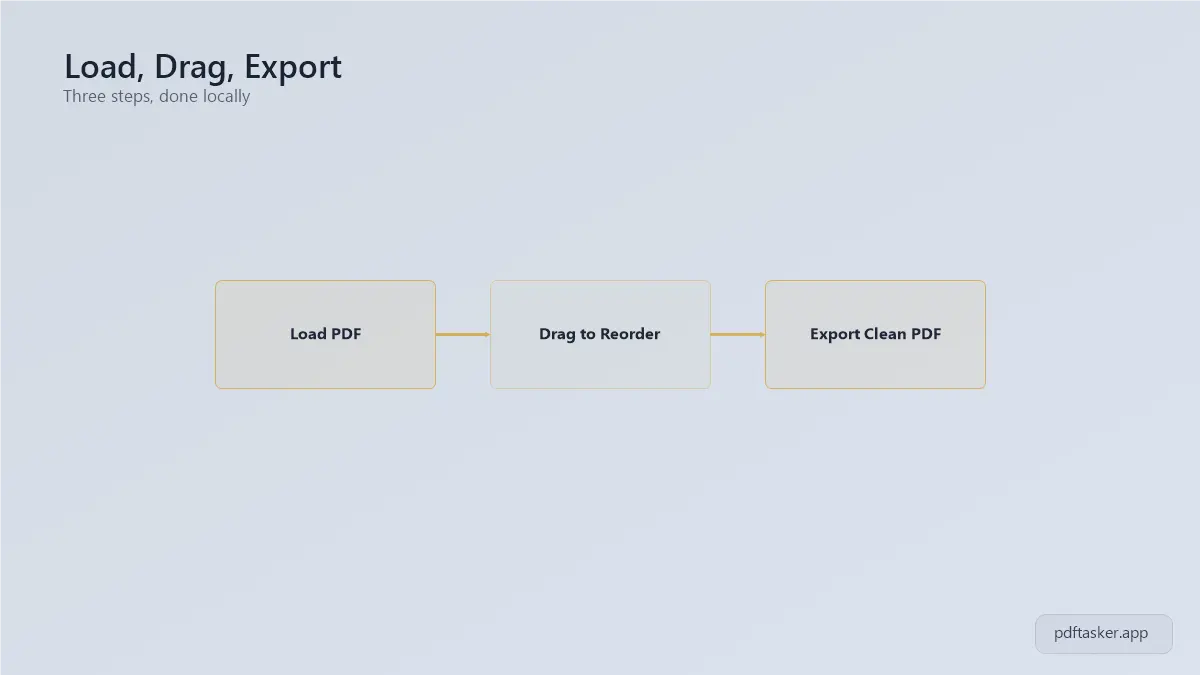
Once the PDF loads, Organize lays out every page as a numbered thumbnail in a grid. You can see the whole document at a glance instead of scrolling through it one page at a time, which makes it much easier to spot where a section is out of place.
3. Drag pages into the order you need
Click and drag a thumbnail to move it. A single page that landed one slot off just needs a short drag; a whole section that came in backward can be pulled up a few pages at a time rather than moved one by one. The grid updates the page numbers as you go, so you always know where things currently sit.
Checking the order before you print or send it
1. Scan the new order before exporting
Before you export anything, scroll through the thumbnail grid top to bottom and confirm the numbers run in sequence. This catches a page that got dropped one slot off during dragging, which is easy to miss if you're only glancing at content instead of position.
2. Handling a long document without losing your place
On a 40 or 50-page file, don't try to verify every single page by content. Instead, note where the natural section breaks fall (cover page, exhibits, signature block) and confirm those boundaries land where they should. If the boundaries are right, the pages inside each section are almost always right too.
3. Export and keep the original if you're not sure
Once the order looks correct in the Organize tool preview, export the file. Save it under a new name rather than overwriting your original scan, so you have something to fall back to if a page needs another pass.
4. Open the exported file once more before printing
Open the downloaded file in a different app than the tab you worked in, and flip through it again, paying particular attention to the first page, the last page, and any section break. Those are the spots where a reorder mistake tends to hide.
Tips
- The reordering happens locally in your browser through Organize, so the file you're working on never gets uploaded to a server.
- Reordering and deleting pages are two separate actions inside Organize. Dragging a page just moves it; removing one is a different click entirely, so a stray page you meant to move won't accidentally disappear.
- For a batch that came in fully reversed, drag several pages at once from one end of the grid to the other instead of moving each page individually. It's noticeably faster on a long reversed run.
- Rename the exported file to something like "packet-final-reordered" so it's obvious later which version is the one ready to print.
Feeding trays misfire and merges land out of sequence more often than you'd expect. Confirm the order once in the exported file, and you can print or submit the packet without wondering if page 14 snuck in ahead of page 9.
If you're deciding between a browser-based reordering tool and an upload-based PDF editor, our comparison page shows where each one processes your file.
PDFTasker
Organize