Split a PDF and delete unwanted pages online for free
2026-06-20 · 4 min read · onnova
Have you ever received a hundred-page PDF document when you only needed to review a single chapter? Or perhaps you exported a slide deck, only to realize that blank spacer slides and draft templates were still embedded at the end of the file.
Manually printing out specific pages or keeping bloated documents in your archive wastes local storage and creates unnecessary clutter. Having a simple way to extract the exact sections you need and purge the rest is a major productivity boost.
This guide details how to split a PDF file, extract specific pages, and delete unwanted sections online without subscribing to expensive desktop tools or transmitting confidential documents to remote cloud servers.
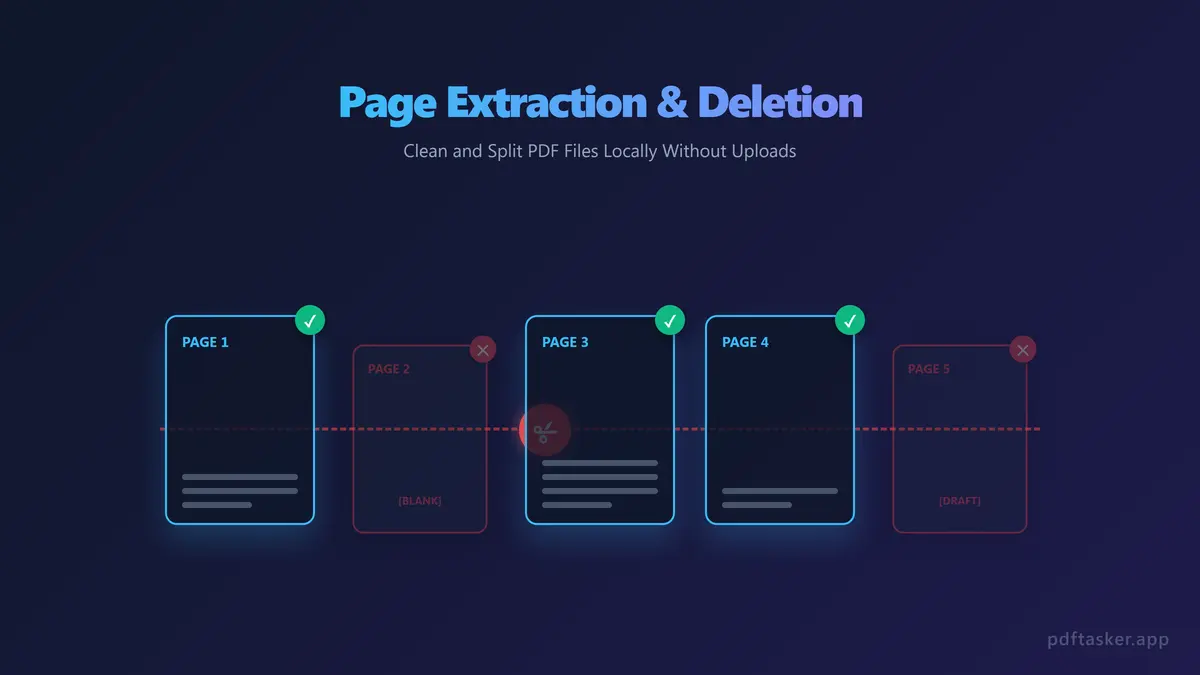
The clutter problem: Why we need to extract and delete PDF pages
PDF files are designed to preserve layout consistency across different devices. However, this rigid structure makes them notoriously difficult to edit without specialized software. Common scenarios that require document restructuring include:
- Isolating specific data sheets: When sharing a project summary, you might only want to distribute the core report pages rather than the entire appendix.
- Removing redundant cover sheets: Many corporate templates include repetitive title pages, empty sheets, or draft markers that look unprofessional to clients.
- Splitting large ebooks into chapters: Dividing massive manuals into smaller, topic-specific files makes them much easier to read and share via email.
- Reorganizing multi-page forms: Extracting completed application fields from blank instructional templates helps streamline operations.
Struggling with complete documents when you only need a fraction of the content slows down communication and increases attachment sizes.
Unverified cloud editors and the risk of document leaks
To split files quickly, many users search for online tools. While convenient, uploading financial audits, legal contracts, or student records to a random web server just to delete a few blank pages exposes your files to significant risks:
- Data retention policies: Free cloud services often keep uploaded files in temporary folders for hours, leaving them open to scraping or directory exposure.
- Server-side vulnerabilities: If the cloud utility's backend is compromised, any active files processing in their server memory could be leaked.
- Bandwidth and file size caps: Cloud tools frequently limit the size of uploads or throttle your connection speed unless you purchase a paid subscription.
True document management should not force you to trade file privacy for a basic page-extraction task.
How client-side processing handles PDF splitting locally
Modern web technology makes it possible to parse and manipulate PDF files directly within your web browser. By leveraging local WebAssembly scripts and Web Workers, your browser can restructure documents without sending them over the network.
Here is how client-side page extraction works:
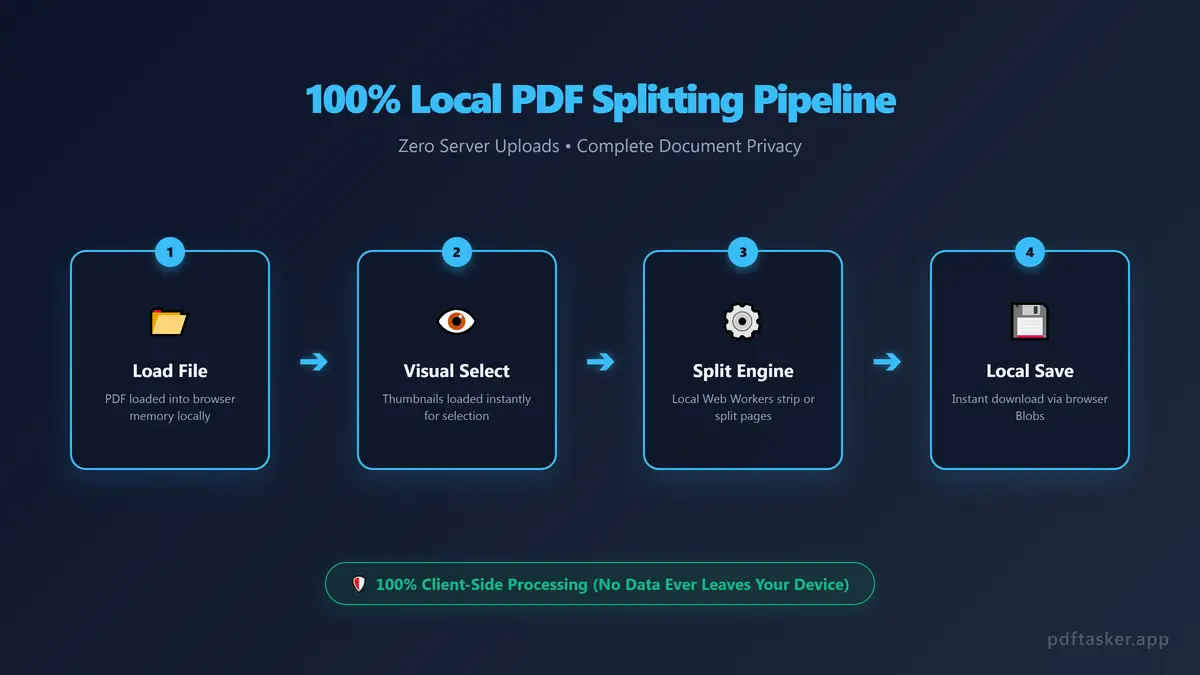
- Local File Reading: The browser accesses the raw binary structure of your PDF using client-side APIs.
- Page Catalog Extraction: A local javascript compiler parses the page tree, exposing the layout parameters of each sheet.
- Stream Separation: The script creates new, independent PDF file streams in your browser memory containing only the selected pages.
- Instant Download: The browser packages the newly formed PDF files as local download blobs, avoiding any external network traffic.
Step-by-step: How to split a PDF and remove pages in your browser
Restructuring your documents is simple when using a client-side split utility. Follow these steps to clean and organize your PDF files:
1. Drag and drop your file
Open the visual split tool in your web browser. Drag your target PDF file into the local dropzone. The application will instantly read the document structure and display thumbnail previews of every page.
2. Select your pages or set ranges
You can choose how you want to split the document. Either click directly on the visual thumbnails to select the sheets you wish to keep, or enter specific ranges (e.g., pages 5-12) in the input fields.
3. Exclude unwanted pages
To delete unwanted sheets, simply leave them unselected. The rendering engine will automatically omit these pages from the final output, effectively purging them from the document.
4. Export the restructured files
Click the export button. The browser will build the new PDF files in memory and prompt you to save them immediately. Because no uploads are required, the download is instantaneous.
If you're comparing this against upload-based splitters, our comparison page lays out which approach keeps your pages on your own machine.
PDFTasker
Split