How to sign a PDF without uploading it
2026-05-19 · 6 min read · onnova
Signing a PDF usually sounds like a small chore. Add your name, put it in the box, send the file back.
Then you open the document and it is a contract, HR form, school application, client approval, insurance page, or lease addendum. Now the tiny chore feels less tiny.
You do not need to make it dramatic. You do need to know what kind of signature is being requested, place it carefully, and check the final PDF before it leaves your device.
This guide is for the practical version: adding a visible signature mark to a PDF in your browser. If the recipient requires a certificate-backed digital signature, identity verification, or an audit trail, follow their required process. A visible signature mark is not the same thing.

First, check what kind of signature is expected
The phrase "electronic signature" gets used for several different jobs. That is where people lose time.
For many everyday documents, signing a PDF means adding a visible mark on the page. It might be a drawn signature, typed name, initials, date, or uploaded signature image. The recipient wants to see that the right person approved the right section.
That is different from a certificate-backed digital signature. That kind of process can include identity checks, cryptographic signing, validation status, platform records, and organization-specific rules.
No need to pretend those are the same.
1. Use a visible signature when the document asks for one
Many forms simply have a blank line, signature box, or "sign here" area. For those, a visible signature mark is often the practical task.
The useful check is not fancy: can the recipient see the signature, name, date, and page context clearly?
2. Follow the required platform when the recipient demands it
Some contracts, banks, employers, or government workflows require a specific signing system. If they ask for certificate validation, verified identity, or a platform-based approval record, do that.
PDFTasker should not be treated as legal advice or a replacement for a required certificate workflow. It is a browser tool for visible PDF editing tasks.
3. Keep the unsigned copy
Before you add a mark, keep the original file. Use plain names:
agreement-unsigned.pdfagreement-signed.pdfform-signed-may-2026.pdf
Boring names help when someone asks for the clean copy later.
Why upload-first signing is often more than the job needs
Many signing services are built for routing documents, inviting signers, recording approvals, sending reminders, and storing completed files. That can be useful for a company workflow.
It is also more than you need for "put my signature on page 3 and send this back."
Signed PDFs often contain names, addresses, salary details, IDs, health information, client terms, or private project notes. If the file goes to a server, you now depend on upload handling, storage policy, logs, backups, account access, and deletion behavior.
Maybe the service handles all of that well. Maybe you do not have time to check.
The smaller question is enough: if you only need to place a visible signature, does the whole PDF need to leave your device?
PDFTasker is designed around browser-local processing. The site loads, the browser handles the file, and the result downloads back to your device. No normal server-side document queue for this signing task.
If the signed PDF needs follow-up protection, use protect after signing. If it should not carry extra document details, sanitize before sharing is a reasonable final pass.
A practical browser signing workflow
The workflow is not complicated. The part worth slowing down for is placement.
1. Open the right file
Check the filename before doing anything. Contracts and forms love names like final, final-v2, and final-revised.
If there are multiple versions, open the one the recipient actually asked you to sign. Guessing here creates boring problems.
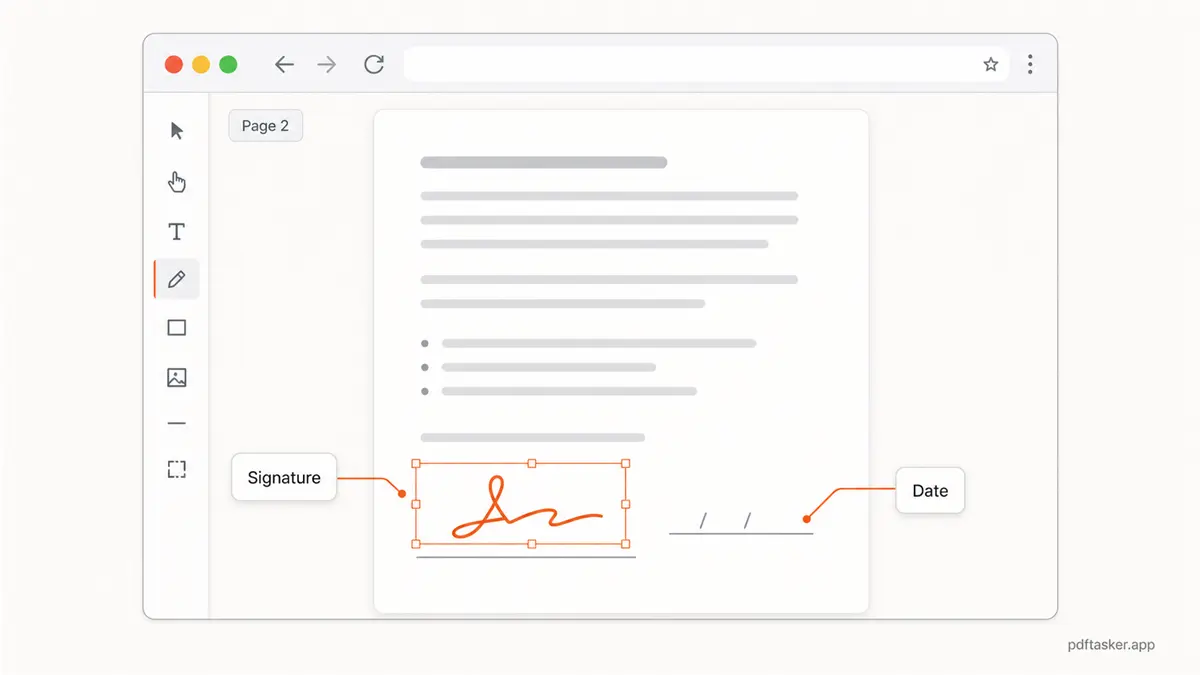
2. Add the signature mark
Use the method that fits the document:
- Draw a signature when a handwritten mark is expected.
- Type your name when typed approval is accepted.
- Upload a signature image when you already have a clean signature file.
Then place it on the correct page. Resize it so it fits the signature line without covering nearby text.
3. Add the date or initials if the form asks
Some forms need more than one mark. Dates, initials, checkboxes, and short printed names often sit near the signature.
Do not add extra marks just to look thorough. Add what the document asks for.
4. Save and open the output
After signing, download the new PDF and open it in a regular PDF viewer. Do not trust the editor preview alone.
If you also need to add pages, use merge. If the signed file is too large for a portal, use compress once and inspect the output.
Checks before you send the signed PDF
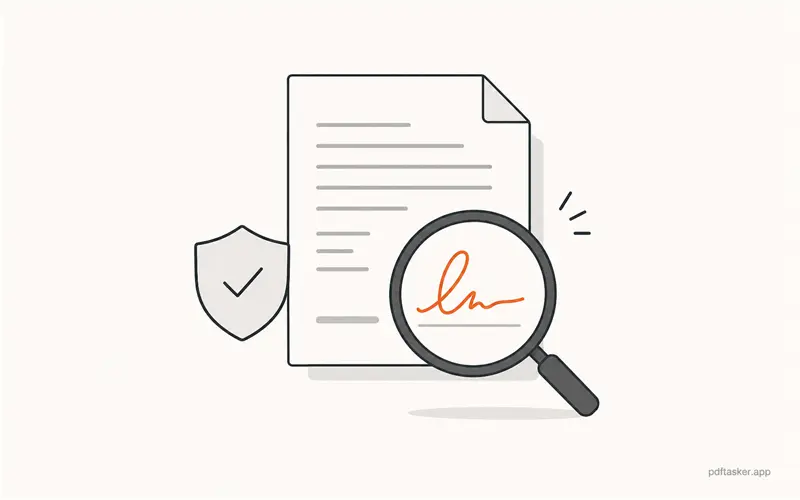
Use this as the final pass. Not a ceremony. Just the checks that prevent rework.
1. Signature placement
Go to the signed page and look at it like the recipient will. The mark should sit inside the box or line, not drift into labels, body text, or page numbers.
If there are several signature spots, check every one.
2. Page and version
Make sure the signed PDF is the latest version of the document. Also make sure the signature is on the requested page.
This sounds too obvious until a form has two nearly identical pages.
3. Privacy cleanup
If the document went through several edits or contains extra details, run sanitize before sending. If it needs a visible "reviewed" or "draft" mark, watermark is a separate job.
Different problem, different tool.
4. Sending channel
Use the channel the recipient asked for. If the PDF contains private material, do not create extra copies in random chat apps just because the file is ready.
Four decisions, in order: confirm the signature type, place the visible mark in the browser, open the result, and send the file through the right channel. If you are still weighing a local tool against an upload-based signing service for this, the comparison page lists the operational differences side by side.
If all you need is a visible signature on a PDF, keep the job small.
PDFTasker
Sign