How to sign a PDF contract online for free without an account
2026-06-26 · 4 min read · onnova
How many times have you received a contract via email, only to realize you had to print it out, sign it with a pen, scan it back to your computer, and attach it to a reply?
This physical loop is tedious and completely unnecessary. In today's digital workflow, you should be able to apply a clean signature directly to a document within seconds using your computer mouse, trackpad, or mobile screen.
This guide explains how to add a handwriting signature to a PDF document online for free, without downloading desktop programs, signing up for accounts, or risking contract leaks on external servers.
The print-and-scan hassle: Why physical signing is obsolete
Relying on paper, pens, and scanner hardware to finalize digital agreements is a major bottleneck. Common reasons to avoid physical document operations include:
- Hardware dependency: If you do not own a printer or scanner at home, signing a simple lease or work agreement becomes a major errand.
- Degraded document quality: Each print-and-scan loop degrades the visual clarity of the text, resulting in blurry, unprofessional documents.
- Wasted resources: Printing hundreds of pages just to capture a single signature wastes paper, ink, and storage space.
- Delayed response times: Having to locate hardware slows down business communications, delaying contract execution.
Applying a digital signature directly to the file keeps the layout sharp, keeps operations digital, and speeds up the signing process.
The risk of transmitting private signatures to third-party servers
To avoid printing, many search for free PDF sign tools online. However, uploading private employment agreements, lease contracts, or business NDAs to a third-party server to apply a signature is a massive security compromise:
- Signature harvesting: If a service logs your drawn signature graphic on their server database, your hand-drawn signature could be extracted and misused.
- Contract data leakage: Remote servers parse your entire document to render the preview, meaning sensitive terms, rates, and personal details are exposed to external logs.
- Forced paywalls and limits: Many tools let you upload a document, but then restrict you from exporting or saving it unless you register or purchase a paid plan.
Your signature is a high-security asset. It should never be stored on a database you do not own or control.
Browser-first drawing: How offline signing handles security
With browser-first scripting, you can load a PDF, draw a signature, place it on the target page, and export the file entirely on your local device. The application runs locally using your browser's canvas element, bypassing server endpoints.
Here is how local document signing works:
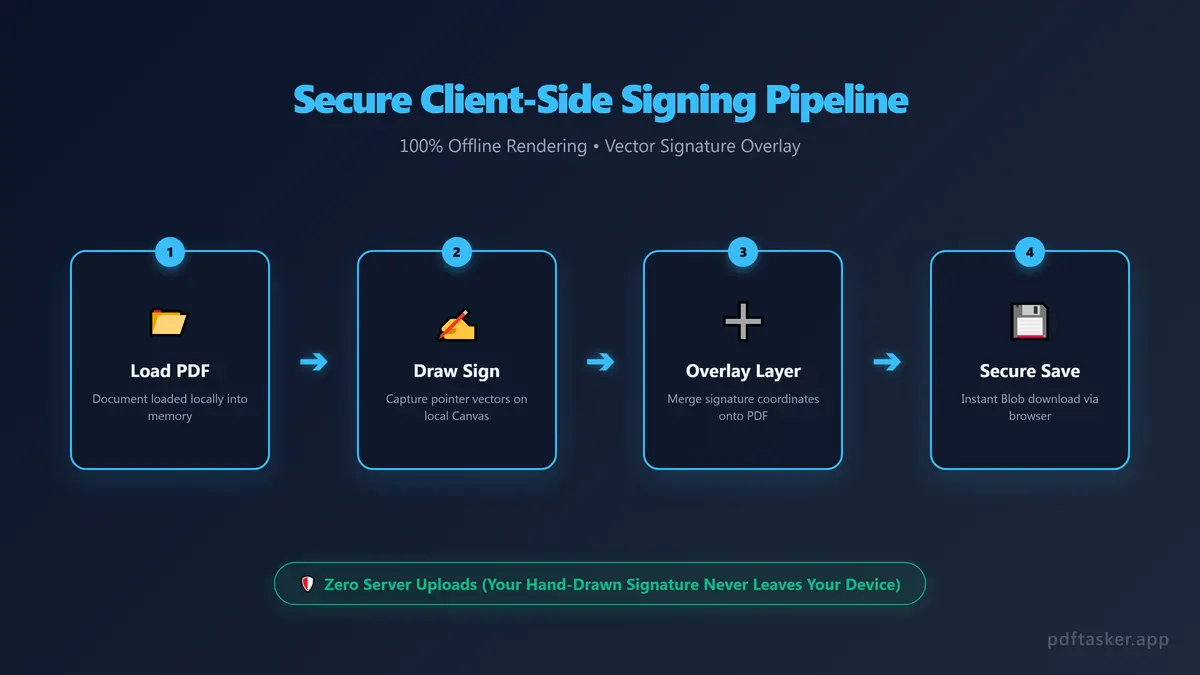
- Load PDF into memory: The browser reads the document stream locally without transmitting any bytes online.
- Render visual viewport: A javascript engine displays the pages on screen so you can navigate to the signature block.
- Capture pointer inputs: As you draw on your trackpad or mobile screen, a canvas element captures the vector path of your signature.
- Compile document structure: The application overlays the vector signature path onto the exact coordinates of the PDF page, building a new file locally for instant download.
Step-by-step: How to add a signature to a PDF in your browser
Adding a signature to your contracts is simple and takes less than a minute. Follow these instructions:
1. Load the contract file
Navigate to the local PDF sign utility in your browser. Drag and drop your contract PDF into the secure container. The document will load instantly in your browser tab.
2. Draw your signature
Click the add signature button. Use your mouse, trackpad, or touch screen to draw your signature in the drawing pad. You can adjust the ink color (e.g., black or blue) and stroke thickness.
3. Place and resize the signature
Once drawn, place the signature onto the page. Drag the signature box to the official signature block, and drag the corners to scale it to the correct size.
4. Download the signed document
Click the save or download button. The browser-side engine will compile the signature layer into the PDF structure instantly and save it to your device. You can verify that the tool works completely offline.
Before signing a public document, you can also run it through our PDF Sanitize tool to remove metadata, or use PDF Unlock to unlock the document if it was locked.
If you're still deciding whether a browser-based signer fits your needs, our comparison page shows how it differs from upload-based e-sign services.
PDFTasker
Sign