Convert PDF Pages to JPG Images Without Uploading the File
2026-06-11 · 6 min read · onnova
The PDF is the right format until the moment it isn't.
A slide deck needs one page of a report as a visual. A client asks a question in chat and the answer is on page 12. A landing page mockup needs a document preview. In every case the PDF itself is the wrong shape — what you need is a picture of the page.
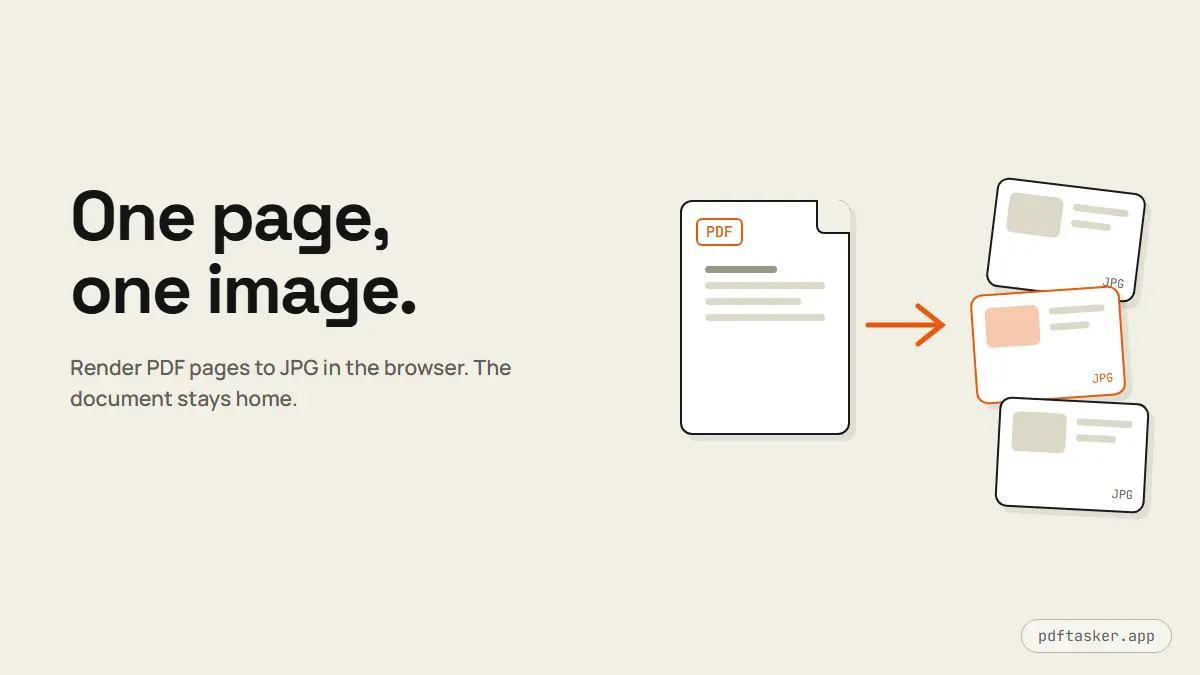
That conversion is a rendering job, and your browser is already very good at rendering PDFs. There is no reason the document has to travel anywhere.
When an image beats the PDF
It helps to be deliberate about the trade, because converting to JPG gives up real things.
Choose images when the page needs to travel light. Chat apps, slide software, CMS editors, and design tools all take images natively. Nobody opens a PDF viewer in the middle of a presentation. An image drops in, scales, and renders identically everywhere.
Choose images when you want the page flattened. A rendered page is exactly what it looks like. The recipient cannot select the text, inspect form fields, or pull embedded data out of it. For a pricing page screenshot or a sample report, that opacity is often the point.
Keep the PDF when the document is the deliverable. Images are not searchable, not selectable, and they do not reflow. A contract sent as twelve JPGs is hostile to everyone, including future-you looking for a clause. The sane pattern: the PDF remains the working copy, images are the presentation copy.
Why this particular job should never need an upload
Converting PDF pages to images is pure rendering — the same work your browser does every time it displays a PDF. Engines like pdf.js draw each page onto a canvas, and exporting that canvas as a JPG is a one-step operation. All of it runs locally.
That matters because of which documents get exported this way. The pages people pull out of PDFs are the interesting ones: the summary slide of a board deck, the totals page of a financial report, the signed page of an agreement. Routing exactly those pages through an upload-first converter — server, logs, retention policy and all — to perform work your browser can do offline is a bad trade. The comparison page covers this in general, but image export is the clearest case of the pattern: the cloud adds nothing here except a copy of your document somewhere else.
The conversion, step by step
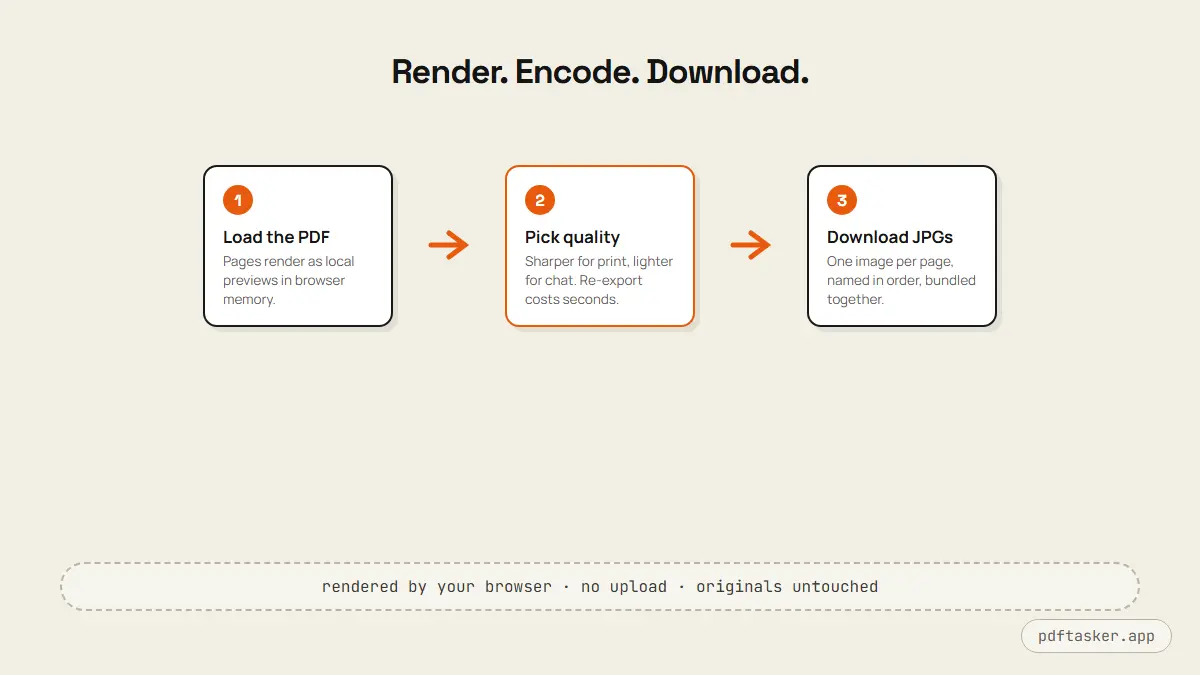
PDFTasker's PDF to JPG tool does the whole job in the browser:
1. Load the PDF. Drag the file into the workspace. Pages render as previews locally — the file is read into browser memory, never transmitted. The Network tab stays quiet; you can watch it yourself.
2. Pick the quality. Higher quality means sharper, larger images — right for print and anything that will be zoomed. Lower quality keeps files small for chat and quick previews. For most screen uses, the middle of the range is indistinguishable from the top.
3. Export and download. Each page becomes its own JPG, named in page order. Multi-page exports are bundled so you save one download instead of clicking through forty pages. The original PDF stays untouched on your device.
Quality settings, in practice
The quality slider is a JPG encoding decision, and JPG has known behavior worth two paragraphs.
JPG compression is tuned for photographs — smooth gradients, organic detail. It is least flattering to exactly what documents contain: sharp black text on white background, thin table rules, small type. At aggressive compression, letter edges pick up faint artifacts and fine print goes soft. So the rule of thumb inverts from photography: the more text-dense the page, the higher the quality setting you want.
Resolution is the other half. A JPG that looks crisp in a chat bubble can fall apart projected on a conference-room screen. Think about the largest size the image will be displayed at, export for that, and check the result at 100% zoom before shipping it into a deck. Re-exporting at a different setting costs seconds; noticing blurry text mid-presentation costs more.
Three workflows where this earns its keep
The deck visual. A quarterly report has one chart worth showing. Split or note the page number, export at high quality, and drop the JPG straight onto the slide. The page arrives as a clean, fixed image — no embedded PDF object, no "would you like to open this attachment" moment in front of an audience. Because the render is local, the report itself — the one with the numbers that are not public yet — never left your machine to make the slide.
The chat answer. A teammate asks which clause covers late delivery. Screenshotting a PDF viewer gets you a cropped, low-resolution answer with your tabs visible. Exporting page 12 as a JPG gets a full, clean page they can zoom. For recurring documents — price lists, spec sheets, schedules — exporting the canonical page once beats re-screenshotting it forever.
The document preview. Portfolio sites, course platforms, and product pages often want a document shown but not served — a visual of the first page with the real file gated behind a button or an email. Rendering page one as an image is exactly that: the visitor sees the document, search engines index an image, and the full PDF stays wherever you decided it lives.
In all three, notice the shape of the task: the output is public-facing, but the source document is not. That asymmetry is the argument for rendering locally — the sensitive object stays home and only the chosen page, in flattened form, goes out.
What this tool is not for
Honesty about edges saves time. Image export is the wrong tool when you need editable output — converting a PDF into a Word document is a layout-reconstruction problem, not a rendering problem, and it genuinely benefits from heavier software. It is also the wrong tool for making text unreadable: a rendered page hides the text layer, but the words are still visible on the image, and screen-OCR reads them trivially. If a page contains information that must not be seen, that is a redaction job on the source document, not an export-format decision.
For the everyday version of the task — this page, as a picture, now — the browser route is the short path. No account, no upload queue, no copy of your report on a server you cannot name.
PDFTasker
PDF to JPG