Password-Protect a PDF Before You Send It (Not After)
2026-06-11 · 6 min read · onnova
Here is a sentence that should sound stranger than it does: to put a password on a private document, most people first upload that document, unprotected, to a website they found twenty seconds ago.
The whole point of the password is that the file is sensitive. The protection step should not be the most exposed moment in the file's life.
This post covers the local way to do it, and — just as important — what a PDF password actually protects, because the honest answer is more useful than the marketing one.
What a PDF password actually does
PDF protection is real encryption, not a hidden "please don't open this" note. When you set an open password, the file's contents are encrypted — modern PDFs use AES — and the password is required to decrypt and display them. Without it, the document body is ciphertext.
That gives you a precise mental model of what you are buying:
It protects the file at rest and in transit. If the email is forwarded too far, the laptop is lost, or the attachment sits in a backup somewhere, the PDF is unreadable without the password. This is the actual threat model for most everyday documents, and a password handles it well.
It does not protect against the recipient. Whoever has the password can open the file, screenshot it, print it, and share what they learned. A password controls access, not behavior. If your concern is what an authorized reader might do, that is a trust problem, and no file format solves trust problems.
It is only as strong as the password. 1234 encrypted with AES is still 1234. A short or guessable password can be brute-forced by widely available software. Use a passphrase of reasonable length — a few unrelated words beat a clever short string — and never reuse the password that guards your email.
The order of operations is the actual security
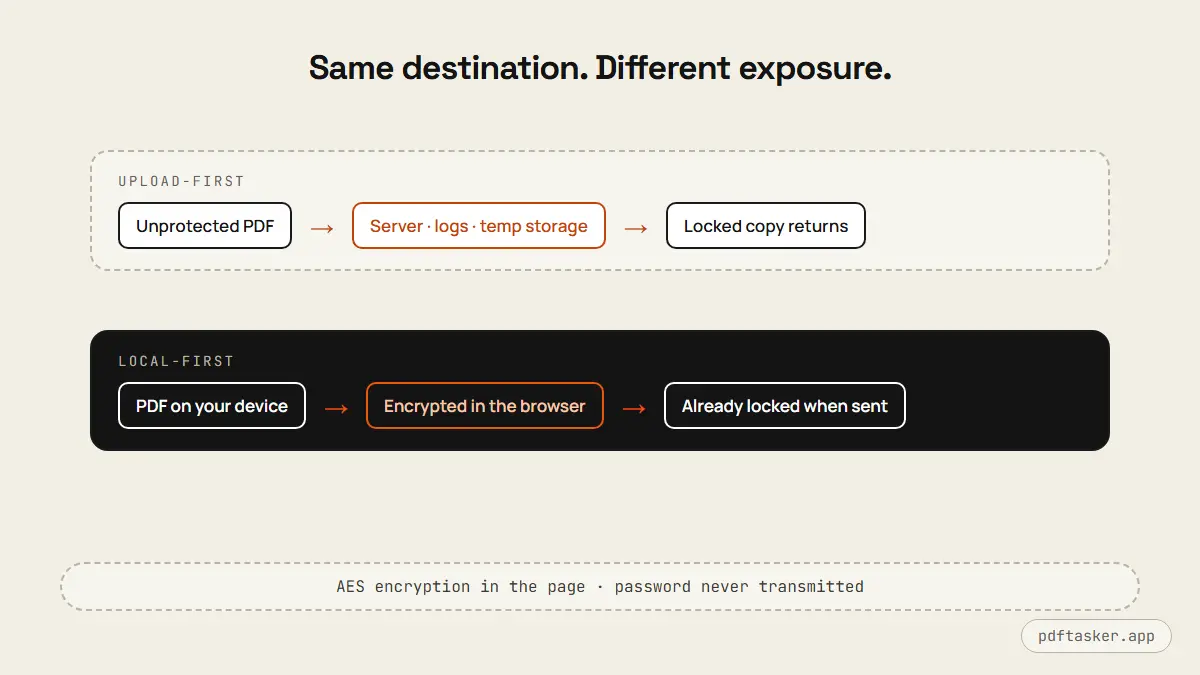
The upload-first version of this task has a quiet contradiction in it: the file is at its most exposed at the exact moment you are trying to protect it. The unprotected original travels to a server, gets processed, exists in logs and temporary storage for some window of time, and a protected copy comes back. The lock was applied after the trip.
Local protection inverts the order. The file is encrypted on your device, before anything travels. The first copy that ever leaves your machine is already locked. There is no window — short, well-managed, or otherwise — in which an unprotected copy exists anywhere you cannot see.
Protecting a PDF in the browser
PDFTasker's protect tool encrypts the file locally:
1. Load the PDF. The file is read into browser memory. Nothing is transmitted — the encryption library runs in the page, and the Network tab will show you exactly that: silence.
2. Set the password. Choose a passphrase you can deliver to the recipient through a second channel. This is the step worth ten seconds of thought; the encryption is only as good as this string.
3. Export the locked copy. Download the protected PDF. Your original stays unprotected on your device — convenient for your own records, and worth remembering when you tidy up the folder later.
Opening the exported file now requires the password, in any standard viewer, on any platform.
The habits that make the password worth having
The tool is the easy part. The discipline around it is what actually protects documents:
- Encrypt before the file first leaves your device — not after a copy already went out unprotected. The second version of an attachment never fully replaces the first.
- One document, one password. Reusing your standard password across clients means one leak unlocks everything you have ever sent.
- Say the password, don't type it where the file is. Different channel, always.
- Clean before you lock. Encryption seals the file as-is — including metadata you may not want to share. Sanitize the metadata first, then protect. The health report shows what is hiding in the file if you want to check before deciding.
- Keep your unprotected original organized. You will need it when the recipient asks for a revision; better to know where it is than to remove the password from a copy later.
Choosing a password the recipient can actually use
Security advice usually stops at "use a strong password." For a document someone else must open, the real constraint is that a human being will receive this string over the phone, type it on a phone keyboard, and probably do so once, distracted.
A practical pattern: three or four unrelated words, lowercase, separated by hyphens — marble-thursday-kettle is long enough to resist brute force tools, can be read aloud without spelling each character, and survives being typed on a touchscreen. Mixed-symbol passwords like Tr0ub&4dor are harder for humans and not meaningfully harder for cracking software at typical lengths.
Three deliverability details that prevent the follow-up email:
- Avoid ambiguous characters. Capital I, lowercase l, zero and O — anything that gets misread when written down. Lowercase words sidestep the whole problem.
- Say how to enter it. "All lowercase, with hyphens" takes three seconds on the call and saves three failed attempts.
- Expect the file to outlive your memory. If the recipient reopens the attachment in eight months, neither of you remembers the password from the call. Decide whose job it is to keep it — for client work, a line in your own password manager per project is enough.
And test it once: open your own exported file with the password before sending. A typo while setting the password locks the document perfectly — against everyone, including you. Your unprotected original is your way back, which is one more reason to keep it filed properly rather than treating the locked copy as the only copy.
When a password is the wrong tool
Sometimes the honest advice is to use something heavier. If the document falls under a regulatory regime with prescribed handling — patient records, classified material, anything your compliance team has a named policy for — follow that system. If you need to prove who opened a file and when, that is an audit-trail feature of enterprise document platforms, not a property of PDF encryption. And if the content itself must be partially hidden from the recipient, that is redaction work on the source, not protection of the whole file.
For the wide middle of real life — contracts, statements, HR paperwork, anything you would not post publicly but must still email — a locally applied password is proportionate, fast, and free. The comparison page shows where browser-local tools sit against upload-first services for exactly these documents.
Lock it on your machine. Then send it anywhere.
PDFTasker
Protect