How to Merge Your Resume, Cover Letter, and Certificates Into One PDF
2026-07-16 · 5 min read · onnova
Most job application portals expect one file, not three.
You have a resume, a cover letter, and maybe a transcript or a certificate sitting in separate PDFs. The upload field on the portal says "Resume/CV" and takes exactly one attachment. Some systems accept multiple files but forward only the first one to the hiring manager, and the rest never get read. Either way, the fix is the same: combine everything into a single PDF before you upload.
This guide walks through merging your application documents into one file, and compressing the result if the portal also enforces a size limit.
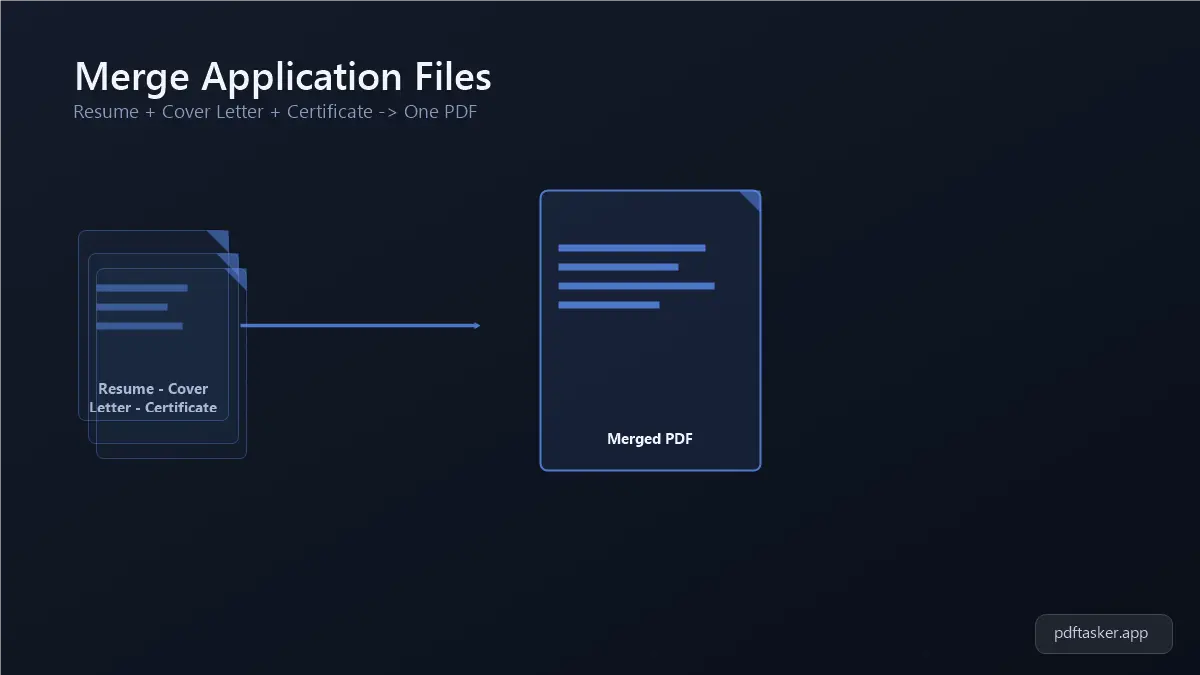
What Job Application PDF Work Actually Looks Like
Application documents rarely start out as one file. The resume comes from a resume builder or a word processor. The cover letter is a separate document, sometimes written for that specific role. A transcript or a certificate might be a scan or a PDF exported months ago from a school or certifying body.
Upload portals are built around a single attachment slot far more often than they advertise, whether it's an applicant tracking system, a job board's "Easy Apply" button, or a government recruitment site. Applicants find this out the hard way: they upload three files, submit, and later learn only the resume was received.
The documents involved are also personal. A resume carries a home address and phone number. A transcript can include a student ID. Running these through an unfamiliar online merge tool means sending that information to a server you know nothing about, for a task that doesn't require it. A browser-based merge tool combines the files locally, so the PDFs never leave your device.
How to Merge Your Application Documents Into One PDF
PDF merging combines multiple PDF files into a single document, with the pages in the order you choose.
1. Convert every document to PDF first
Before merging, make sure the resume, cover letter, and any certificates are already saved as PDF. Word processors export to PDF from the File menu. A photographed certificate can usually be turned into a PDF using your phone's built-in scan or print function.
Doing this step first means you won't need to stop and switch tools halfway through.
2. Open the merge tool and add your files
Open PDFTasker's merge tool and drag in your resume, cover letter, and any supporting documents, or select them from the file picker.
The files load directly in the browser. Nothing is uploaded to a server at this point.
3. Put the pages in the right order
Once the files are loaded, you'll see a preview of each one. Drag to reorder them: most applicants put the cover letter first, then the resume, then any certificates or transcripts.
This order matters more than it seems. A recruiter skimming a single PDF reads it top to bottom, in whatever sequence you set.
4. Download the merged PDF
Click merge, and the tool combines everything into one PDF ready to download.
Open the file before you submit it. Confirm every document is present, the order is right, and nothing got cut off in the conversion from the original format.
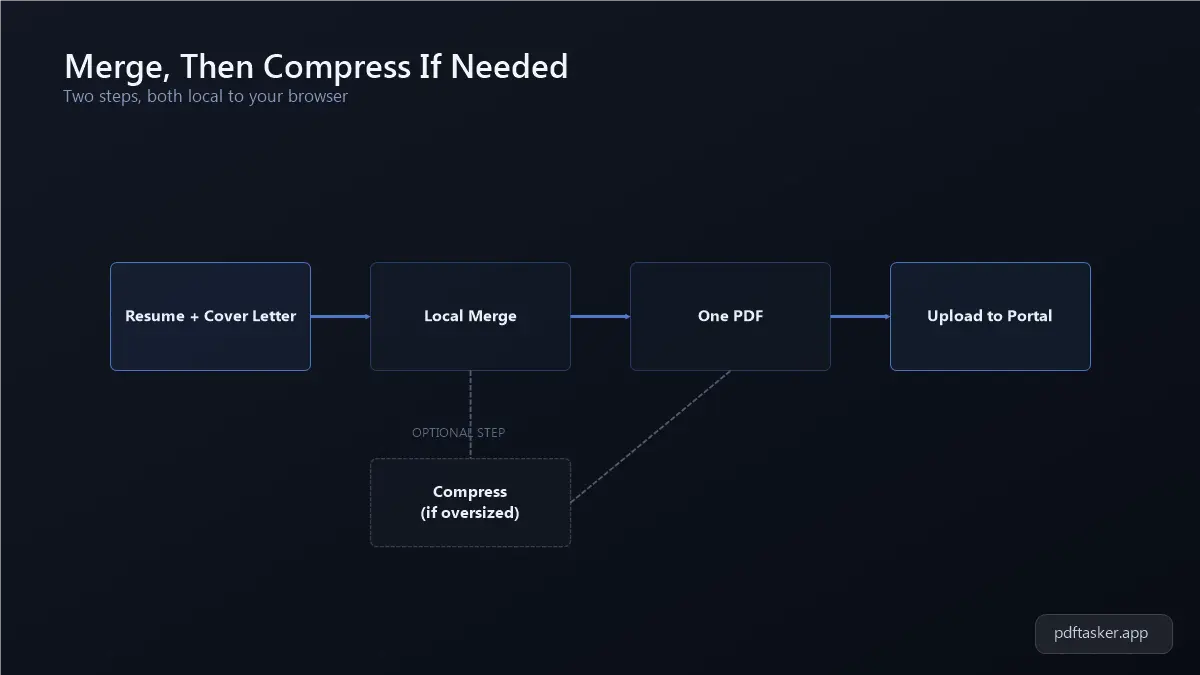
How to Compress It If the Portal Has a Size Limit
A merged file with a scanned certificate or a resume built from a heavy design template can end up larger than a portal allows. Most application forms will say so directly: "File must be under 5 MB" or similar, and reject anything larger without much explanation.
1. Check the stated limit
Look for the size limit near the upload button before you do anything else, so you know what you're aiming for.
2. Open the compress tool and add the merged file
Open PDFTasker's compress tool and add the PDF you just merged.
3. Run the compression
Start the compression. The tool reduces file size locally by optimizing embedded images and font data. Scanned pages and photos compress more than plain text; a resume that's mostly text won't shrink much further.
4. Check the result, then upload
Preview the compressed file to confirm the text is still readable and nothing important is distorted, then upload it to the portal.
4 Habits That Make Job Applications Smoother
- Keep a "clean" copy of each source document. If one job asks for a different document order or an extra reference letter, you can rebuild the merged PDF without recreating everything from scratch.
- Rename the final file clearly. A file named after you and the role, rather than the tool's default download name, is easier for a recruiter to find later and looks more deliberate.
- Open the merged file on a different device before submitting. A layout that looks fine in the tool can shift slightly when opened elsewhere. A quick second check catches that.
- Avoid tools that require an account for a one-time task. Merging application documents is usually something you do a handful of times per job search. Creating an account for it adds a step you don't need, for documents you'd rather not park on someone else's server.
Job applications already involve enough waiting and guessing. Formatting the file shouldn't add to it. Merge your resume, cover letter, and certificates into one file, compress it if the portal asks for that, and move on to the part of the application you actually control.
And if you want to see how a browser-based merge tool compares to the upload-and-sign-up services, our comparison page spells out the differences before you commit.
PDFTasker
Merge