Merge Your 1099 and W-2 PDFs Into One File Before Tax Season
2026-07-16 · 5 min read · onnova
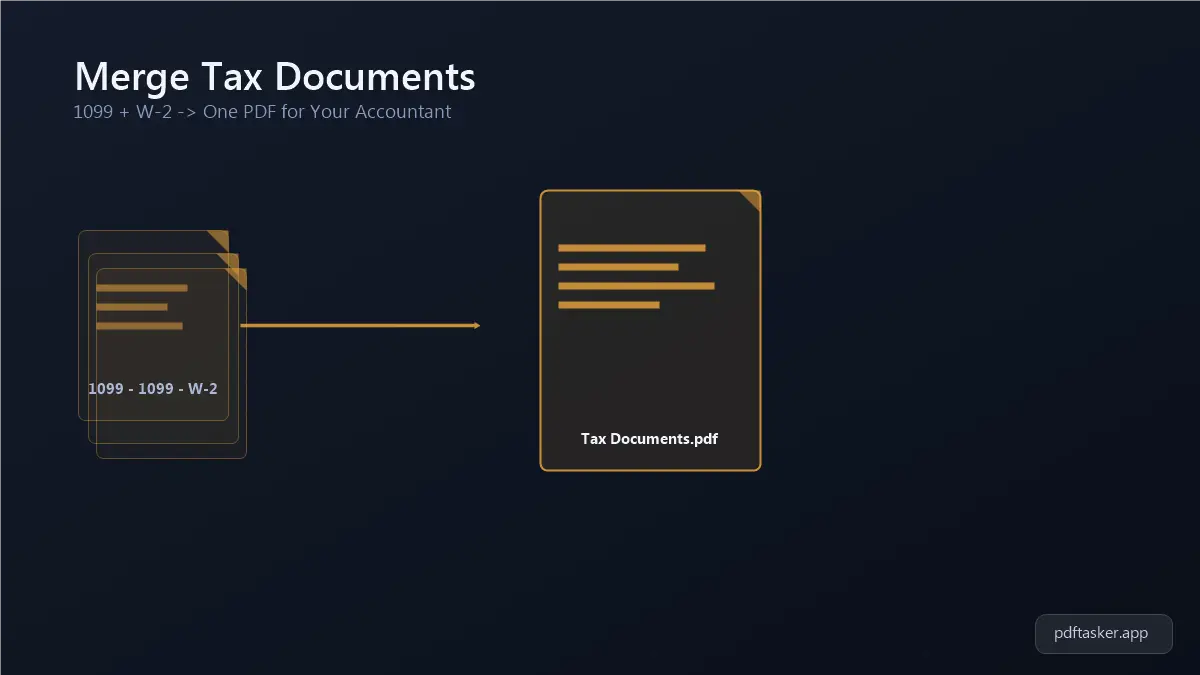
Three 1099-NECs, one 1099-K, and a W-2 from the job you left in March: that's five separate PDFs sitting in five separate email threads before you've even opened your tax software. If you freelance, drive for a gig app, or just switched jobs mid-year, this pile is normal. The fix is one merged PDF, in the right order, that your accountant or e-file portal can open without asking "wait, is this all of it?"
Why your income documents end up scattered every year
Count them up and the mess makes sense. A full-time W-2 job plus two freelance clients plus one gig app is already four separate PDFs, each formatted differently, each landing in your inbox on its own schedule between late January and mid-February. Payroll platforms name their files things like 2025_Tax_Statement.pdf. Gig apps bury theirs three taps deep in an app, not your inbox at all. By the time you're ready to file, everything you need has already landed in some inbox or app. It just isn't organized yet.
That's the actual problem this solves. A human accountant, or the upload field on an e-filing site, works better with one clean document than with a scattered attachment thread they have to reassemble themselves. (The IRS doesn't require a single file, and this isn't tax advice: it's about how you hand off paperwork.)
How to merge 1099 and W2 PDFs into one file
Here's the actual process, and it takes about three minutes once your downloads are in one folder.
1. Collect every income PDF in one folder
Before you merge anything, gather the files: your W-2, every 1099 (NEC, MISC, K, whatever payers sent you), and anything from a brokerage or bank that reports interest or dividends if your accountant wants those too. Rename them if the filenames are unhelpful, like 1099-ClientA.pdf, 1099-ClientB.pdf, W2-PriorJob.pdf, so you can see at a glance what's what and put them in order later.
2. Open the merge tool and set the order
Head to the merge tool and add your files. Most accountants prefer W-2 first, then 1099s in the order the income was earned or by dollar amount, largest first, but there's no strict rule here. Consistency matters more than the specific order. Drag the thumbnails until the sequence makes sense to a person skimming it for the first time.
3. Merge and rename the combined file
Run the merge. You'll get one PDF containing every page from every source document, in the order you set. Rename it something an accountant can find in their own inbox six weeks from now: LastName_2025_TaxDocs.pdf beats merged (3).pdf every time.
4. Skim the merged file page by page
Before you send it anywhere, open the combined PDF and check that every page landed where you expected: no duplicate pages, no upside-down scans, nothing cut off. This takes 30 seconds and it's the step people skip right before discovering a page went missing.
What to do if your accountant's portal rejects the file
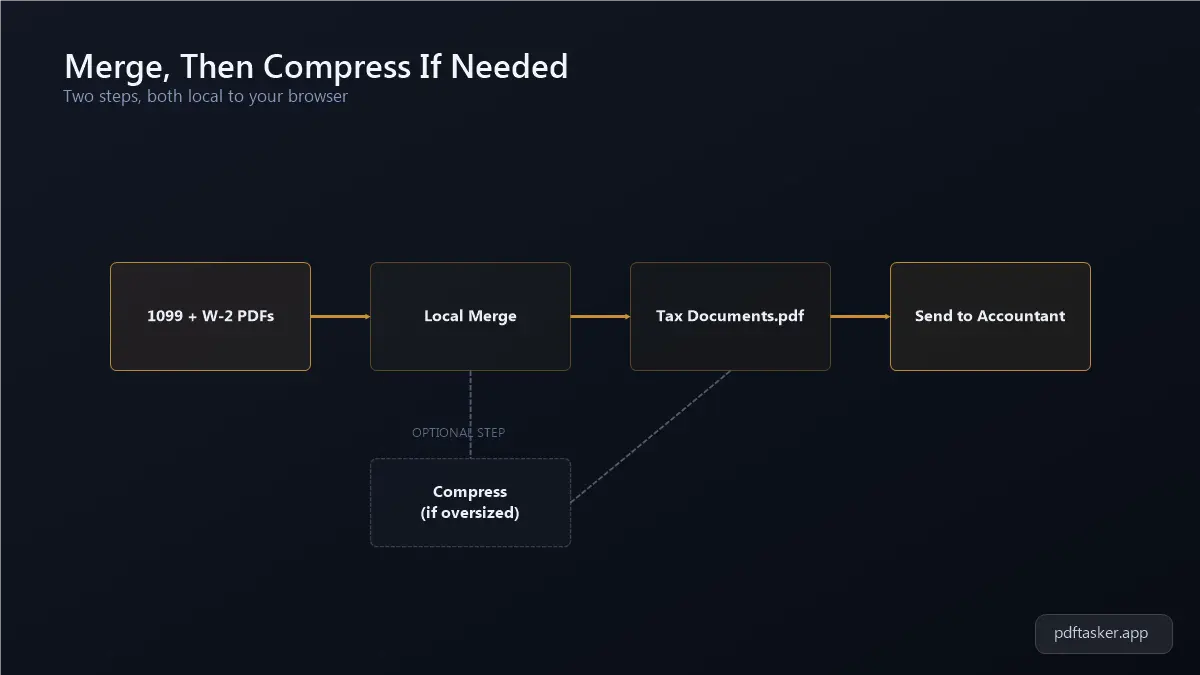
Scanned tax documents add up fast. A handful of scanned 1099s can push a merged PDF to 15-20 MB, and plenty of accounting firm portals still cap uploads around 10 MB. If your merged file bounces back with a size error, don't split it apart again. Run it through the compress tool instead, which shrinks the file size while keeping every page and all the printed numbers legible. Re-check the compressed version the same way you checked the original: page count matches, nothing's blurry, nothing's missing.
One more thing worth knowing: none of this involves uploading your tax documents to a server somewhere. The merge and compress steps run entirely in your browser using your device's own processing, and the files never leave your computer. Your Social Security number and income history are on these pages, so where the processing happens matters.
A few habits that make next tax season easier
You've done the work once. A few small habits make it take five minutes instead of thirty next January.
- Create one folder now, not in January. Something like
2026 Tax Docssitting on your desktop, ready to catch every 1099 and W-2 the moment it arrives by email or download. - Save PDFs the day they land, not the week you file. Gig apps and client portals don't keep documents visible forever, so download and file each one as it shows up.
- Keep a running list of who owes you a form. Two freelance clients, one gig app, one employer: write it down in January so you know when the pile is actually complete before you merge it.
- Merge as you go, if you're patient. Add each new document to the same combined PDF as it arrives instead of doing one big merge the week before you file.
None of this changes what you owe or how you file. It just means the person doing your taxes opens one file instead of chasing down five, and you're not the one holding up your own return because a 1099 is still sitting in an app you forgot to check.
If you'd rather see how this browser-based approach compares to upload-based tax-document tools before you trust it with a W-2, our comparison page breaks down what stays on your device and what doesn't.
PDFTasker
Merge