Why Your Scanned PDF Is Upside Down or Sideways, and How to Fix It for Good
2026-07-19 · 5 min read · onnova
You scan a stack of receipts with your phone and half of them land in the PDF sideways. Or you sign a form, run it back through the office scanner, and the page comes out reading bottom to top. You rotate it in your PDF viewer, it looks fine, and then you email it to someone and it opens crooked again on their end. That happens because rotating in a viewer changes what you see, not what's actually saved in the file.
Why scanned pages end up sideways or upside down
Phone scans go sideways for a simple reason: you probably held the phone in landscape for a wide document, or portrait for a tall one, and the scanning app read the orientation from your camera angle rather than the page itself. One photo in the middle of a stack often gets flagged differently than the rest, so you end up with 11 upright pages and one rotated 90 degrees for no obvious reason.
Flatbed scanners cause a different version of the same problem. The glass is a fixed rectangle, but the paper you place on it isn't always the same shape or orientation, so a landscape receipt scanned on a portrait bed can come out rotated. Auto-feed trays add another failure mode: if a page goes in slightly skewed or flipped, the whole batch can shift, and you might not notice until you're several pages deep into a 20-page contract.
Then there's the part that catches people off guard after they think they've already fixed it. Most PDF viewers, including the one built into your browser or operating system, let you rotate a page on screen without changing the underlying file. Close and reopen it, or send it to a coworker, and it reverts to however it was scanned. The display updates, but the file's stored page data stays exactly as it was.
How to rotate pages with the Rotate tool
1. Open the Rotate tool
Go to the Rotate tool. There's nothing to install and no account needed, so you can drop a file in and start immediately.
2. Upload the file and check each page's orientation
Once your PDF loads, you'll see a preview of every page. Scroll through and note which ones are sideways or upside down. It's common for only a few pages in a longer document to need adjusting, especially with auto-fed scans.
3. Rotate 90, 180, or 270 degrees per page or in bulk
Click a page to rotate it 90 degrees at a time until it's upright, or select multiple pages at once if the same rotation applies across a batch. A page scanned fully upside down needs 180 degrees; a page turned on its side needs 90 or 270 depending on which way it's leaning.
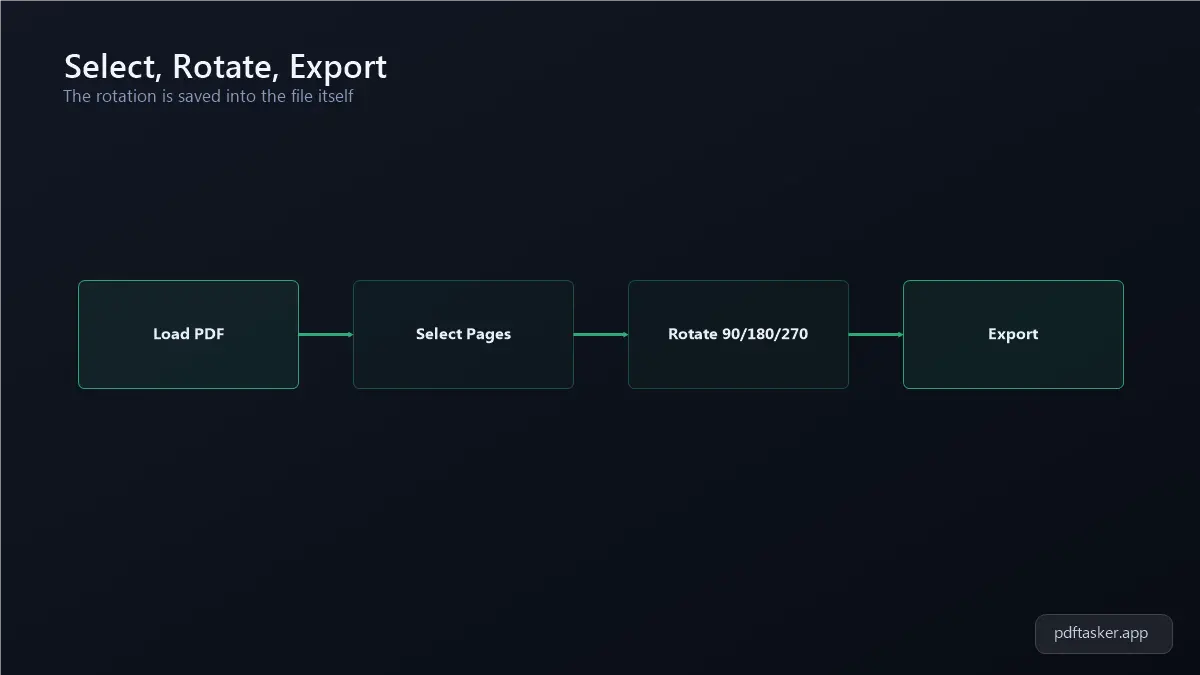
Making the rotation actually stick
1. Decide between specific pages and the whole document
If only page 4 of your contract came in sideways, rotate just that page instead of the entire file. Applying a blanket rotation to a document where most pages are already correct just creates a new orientation problem on the pages that were fine.
2. Export so the change is saved into the file
This is the step that separates a real fix from a viewer trick. Once your pages look right in the Rotate tool preview, export the file. That writes the new orientation directly into the PDF's page data, so it holds no matter what app opens it next.
3. Reopen the exported file and check it
Open the file you just downloaded, not the tab you were working in, and flip through it. This catches the rare case where a page needs one more nudge, or where a rotation got applied to the wrong page in a long document.
4. Re-share it and confirm it holds
Send the file to yourself or a colleague through whatever channel you'd normally use, email, Slack, a shared drive, and open it there too. If it opens upright on a different device and a different app, the rotation is permanent.
Tips
- Rotation changes the page's orientation metadata, the instruction that tells any viewer which way is up. It doesn't touch the text, images, or layout underneath, so nothing about the actual content changes when you rotate a page.
- The whole process runs in your browser using PDFTasker's local processing. Your file never leaves your device, so there's no upload step and nothing sitting on a server somewhere.
- If a scanned batch mixes upright and sideways pages in a pattern, like every other page rotated 180 degrees from an auto-feed misfeed, open the Rotate tool and adjust one representative page first to confirm the correct angle before applying it to the rest.
- Save the exported version under a new file name if you're not sure you got every page right. That way the original scan is still there to reference if you need to redo anything.
Scanned documents will keep coming out sideways as long as phones get held at odd angles and auto-feed trays occasionally misfeed a page. A viewer's rotate button and an actual saved rotation are two different things, and only one of them survives being reopened on someone else's screen.
If you're weighing a browser-based rotate tool against upload-based PDF editors, our comparison page shows where each one processes your scanned documents.
PDFTasker
Rotate