How to extract text from scanned PDFs online for free (Local OCR)
2026-06-26 · 4 min read · onnova
Have you ever opened a PDF agreement, a scanned statement, or a compiled study packet, only to find that you cannot select, highlight, or copy a single word on the page?
Instead of interactive text, you are looking at a picture of text. It behaves like a photo wrapped inside a document envelope.
To copy the text, the traditional solution is to type out the paragraphs by hand or upload the entire confidential file to a free online PDF OCR site.
But before you send a sensitive client document or an internal file to an external server, it is worth looking at how you can read the characters from those page images safely within your own browser sandbox.
Why scanned PDFs are a different document type
To understand why simple copy-paste fails on certain documents, it helps to look at the structural difference inside the PDF file stream:
- Digital PDFs (True Text): These files are exported directly from layout software like MS Word or Google Docs. The file stores coordinates, font metrics, and a readable text layer. A parser reads this layer instantly without performing image analysis.
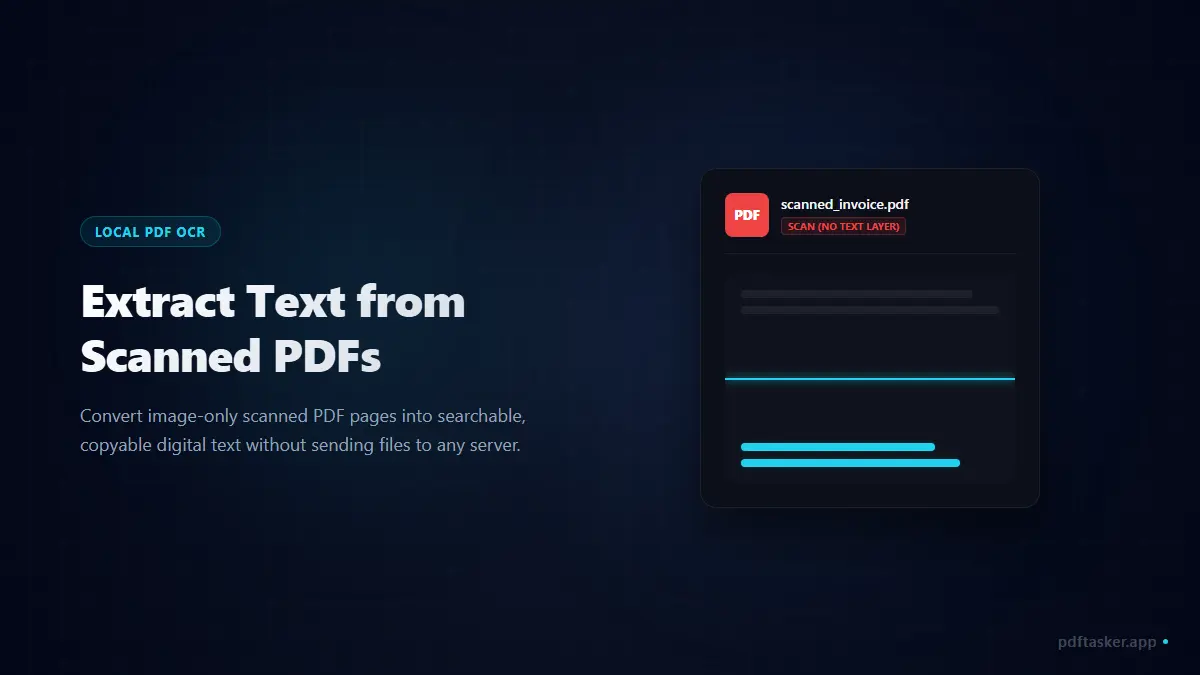
- Scanned PDFs (Image-Only): These documents are generated by physical scanner beds, phone scanner apps, or exports that flat-render pages. The file holds no text layer; it only contains static JPG or PNG image blocks of the pages.
If you try to use a standard text extractor on a scanned PDF, it returns an empty file. True extraction can only read what is already typed. To handle image-only pages, the tool must switch to Optical Character Recognition (OCR).
The security exposure of cloud PDF OCR
Free online OCR platforms process your documents on their remote cloud servers. They receive the PDF, render each page to an image on their system, run server-side OCR, and compile the text for download.
This model is a double-edged sword:
- High-trust requirements: You must trust that their system deletes the sensitive pages, logs, and document caches as promised.
- Compliance violations: Uploading agreements, medical reports, or financial files containing personal data to unvetted cloud engines violates data policies.
- Slow workflows: Uploading heavy, multi-page image PDFs drains bandwidth and causes processing queue delays.
For sensitive documents, sending the file to a remote server represents an unnecessary risk.
How local PDF-to-Text OCR fallback works
Modern web browsers can process the entire OCR pipeline locally, keeping your files safe on your computer.
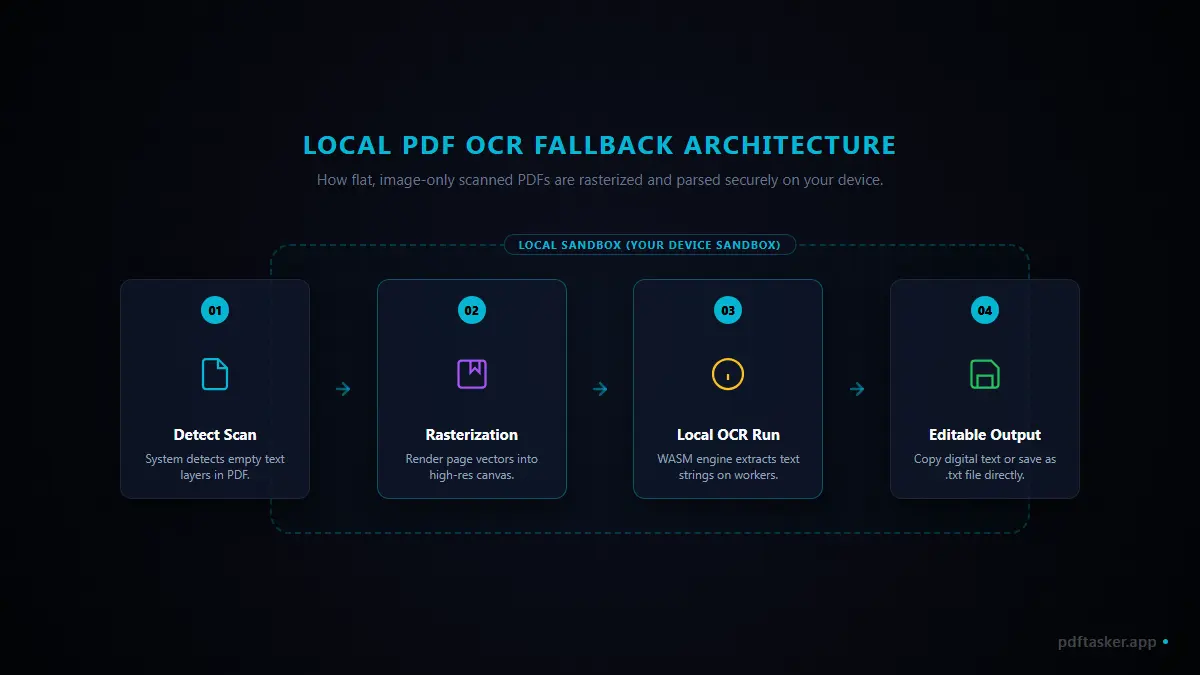
When you load a scanned document:
- Local parsing: The tool attempts to read the native text layer.
- Scan detection: If the file contains no readable text characters, the system flags the PDF as a scan.
- Local rasterization: The browser reads the page streams and draws the layout onto local canvas elements.
- On-device OCR: The browser loads the Tesseract.js engine and Core WASM models. Background Web Workers analyze the canvas pixels locally, recognizing both English and Korean characters.
- Clean export: The compiled text is returned to your browser sandbox for immediate copy or download.
The original file and the recognized text never leave your machine. The network tab remains clean throughout the process.
Steps to extract text from scanned PDFs locally
Here is how to extract characters from your flat PDF pages using a secure, local-first utility:
- Open the local workspace: Go to the local Extract Text tool.
- Load your document: Select the scanned PDF.
- Trigger OCR: If the tool detects no native text layer, click the Extract with OCR button.
- Monitor worker execution: Watch the status. The worker will load the language models, preprocess the pages, and read the characters locally.
- Save the result: Copy the output from the review window or download it as a plain
.txtfile.
Because OCR works by interpreting pixel patterns, check the final text around signatures, numeric tables, and small fonts to make sure no letters were misread before you use the text.
If you are curious how this client-side privacy model compares to traditional cloud tools, check out our compare page or learn how to convert images directly in our guide on image to text conversion.
PDFTasker
Extract Text