5 Things to Check Before Uploading a PDF Online
2026-04-26 · 6 min read · onnova
You have a PDF in one hand and an upload box on the screen.
Maybe it is a contract. Maybe it is a tax form. Maybe it is a school document with more personal data than anyone asked for.
The site says "drop your PDF here."
Should you?
Not yet. A minute of checking beats guessing.

Start with the upload box
Most online PDF tools look harmless because the first step is familiar: choose a file, wait, download the result.
That little upload box is the whole question.
If the tool needs to send your PDF to a server, you are no longer only trusting the web page. You are trusting the request path, temporary storage, processing system, logs, backups, and whatever the privacy policy says about all of that.
Sometimes that trust is reasonable. A public brochure is not a medical record. A blank form is not a signed contract.
But the file type does not tell the story. The contents do.
Before uploading, ask the plain question: would I email this PDF to a stranger just to rotate one page?
If the answer is no, use a smaller trust surface. Browser-based tools are often enough for everyday work like merging, compressing, protecting, or cleaning a PDF before you share it.
Open DevTools before you trust the copy
You do not need to be a security engineer to run a useful smoke test.
Open your browser's developer tools. Go to the Network tab. Clear the log. Then choose a test PDF and start the action.
Look for requests that carry the file. You may see a request with a large payload, a file name, multipart/form-data, or a size close to the PDF itself. That usually means the browser is sending the file somewhere.
No tricks. That is the basic thing you are checking.
This test is not a full audit. A website can still do things you do not see, and a clean Network tab is not a legal promise. But it catches the simple case: the page says "private," while the browser quietly uploads the document.
For contrast, here is what a genuinely browser-local tool looks like in the same test: a burst of requests when the page first loads — scripts, styles, fonts, maybe an ad unit — and then silence when you drop in your file. The document is read into the page's memory, the processing runs in a Web Worker on your machine, and the only "transfer" is the download you trigger yourself at the end. If the log stays quiet through the whole job, the file stayed home.
Read the policy for verbs, not comfort words
Privacy pages often sound calm. That is their job.
Read the verbs instead.
Does the service say it uploads, processes, stores, deletes, shares, analyzes, or transfers files? Does it say files are processed locally in your browser? Does "deleted after 1 hour" describe retention after upload, or does it avoid saying where the file was processed?
Those are different promises.
"We delete your file later" is not the same as "your file never leaves your browser."
Also check whether the tool asks for an account before a simple task. Email collection is not automatically bad, but it widens the trail. If you only need to remove metadata, use a local PDF metadata cleaner. If you need to lock a file before sharing, use PDF password protection first. If the job is just size reduction, a browser-side PDF compressor is a cleaner starting point than uploading the whole document to a random site.
If you want the plain tradeoff view before choosing a tool, compare PDFTasker against upload-first PDF tools. The important question is not which site sounds private. It is whether the job can finish without the file leaving your device.
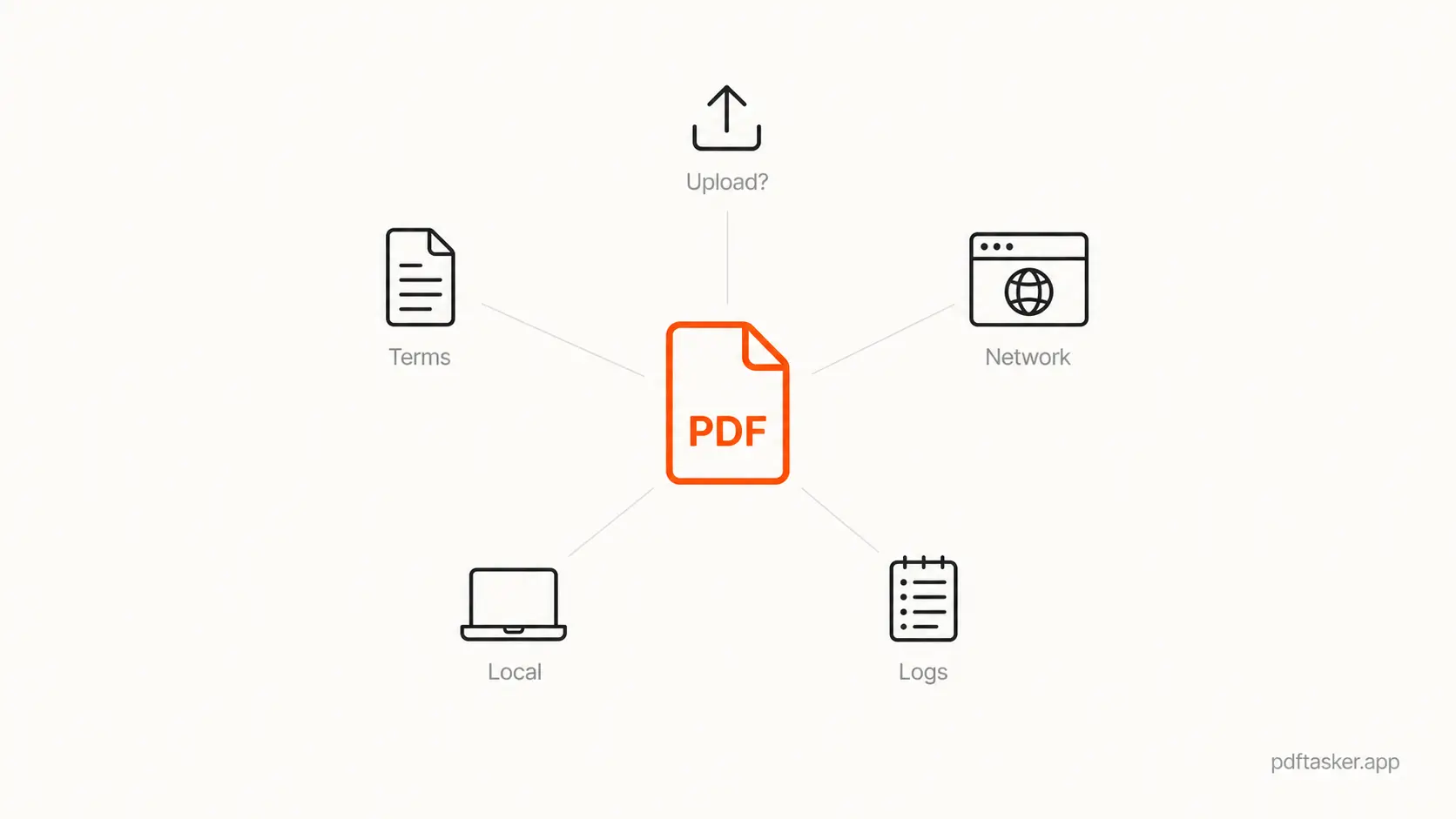
The five checks that actually help
Use this before uploading a sensitive PDF anywhere.
-
Does the task really require upload?
Merging, splitting, compressing, protecting, and metadata cleanup can often happen in the browser. If upload is not needed, do not make it the default. -
Does the Network tab show the PDF leaving?
Run the smoke test with a harmless sample file. If a large request appears when the tool starts, treat the site as upload-first unless it explains otherwise. -
Does the policy name the processing location?
"Secure processing" is vague. "Processed locally in your browser" is clearer. Plain words matter here. -
What happens after processing?
Retention, deletion, logs, and backups are separate details. A one-hour deletion promise may be fine for low-risk files. It is not the same as no upload. -
Can you prep the file locally first?
Remove metadata, add a password, compress a copy, or merge only the pages you need. Send less. Trust less. Sleep better.
That is the checklist.
It is not paranoia. It is basic file hygiene.
The checklist on a real file
Say you have this year's tax return as a PDF and the accountant's portal rejects anything over 5 MB. You search "compress pdf," and the first result has a big drop zone and the word "secure" in three places.
Run the checks. Does compression require upload? No — image re-encoding and structure optimization run fine in a browser, so upload is a choice the site made, not a necessity. The Network tab test with a junk sample PDF shows a 4 MB multipart/form-data request firing the moment you drop the file: upload-first, confirmed. The privacy page says files are "automatically deleted after processing" — a retention promise that quietly confirms the file travels. Check four and five follow naturally: you do not know what the logs keep, and you could have prepped the file locally instead.
So you do. A browser-side compressor shrinks the return on your own machine, you confirm the income figures are still crisp at 200% zoom, and the portal accepts the smaller copy. Total elapsed time is about the same as the upload route. The difference is that your tax data never had a second copy anywhere.
The checklist takes one minute. It does not require trusting anyone — that is the entire point of it.
PDFTasker is built around browser-first PDF work, so routine jobs can happen on your device instead of in someone else's upload queue. Start there when the document matters. If you want to understand the machinery that makes local processing possible, the WebAssembly explainer covers it without the jargon.
PDFTasker
Merge